
Your phone screen is brilliant for scrolling in bed — less brilliant for showing holiday photos to the whole family, watching a video with friends, or following a workout routine from across the room. That’s where casting comes in: beaming whatever is on your phone onto the big screen, wirelessly, in seconds.
There are several ways to do it, and the right one depends on your phone and your TV. This guide covers how to cast your phone to your TV with every major method — Chromecast, AirPlay, built-in Smart TV features, streaming sticks, and the trusty cable option that always works.
First: What “Casting” Actually Means
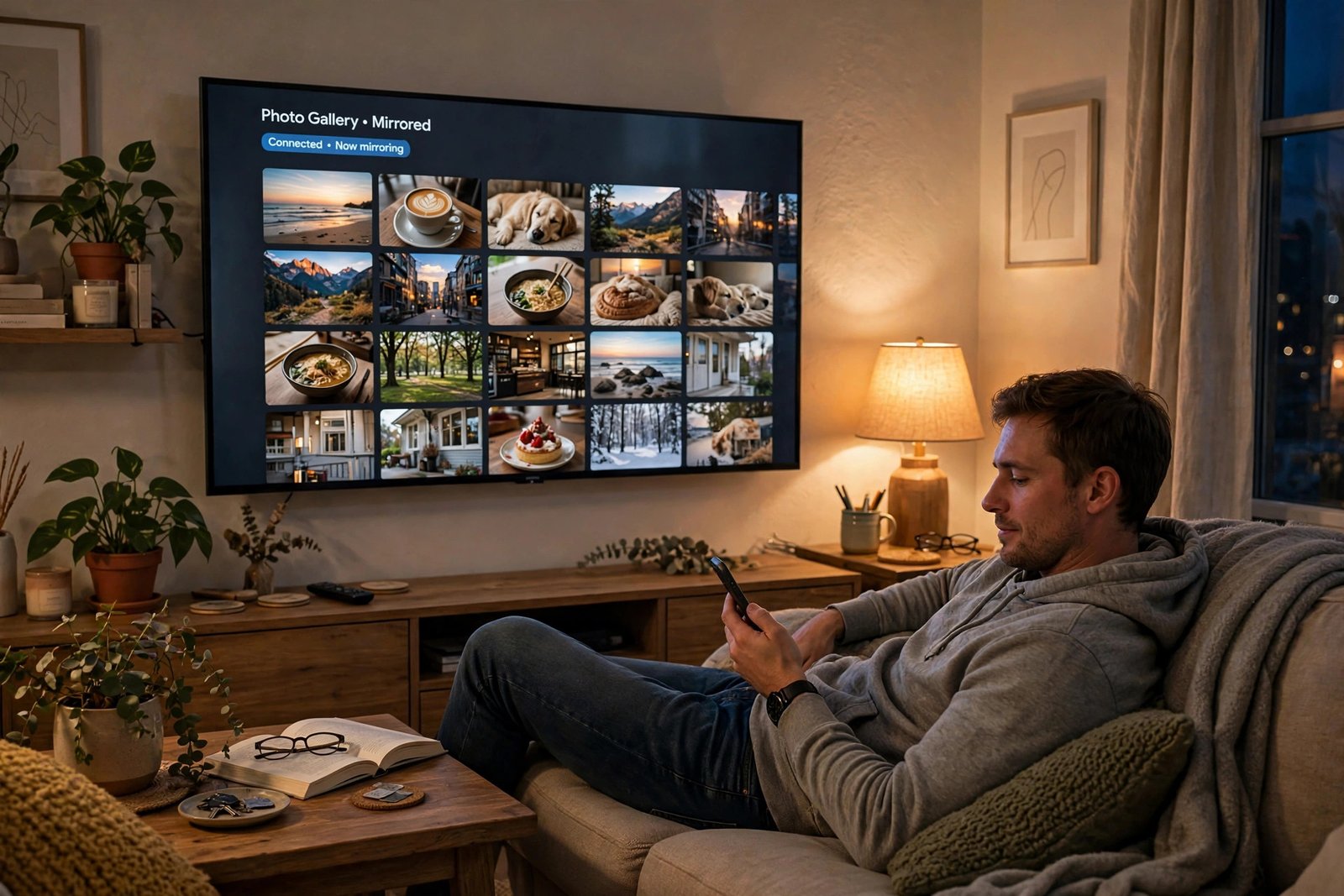
Two similar-but-different things both get called casting. Screen mirroring shows an exact copy of your phone’s display on the TV — everything you do appears live. Casting (in the Chromecast sense) hands the TV a link and lets the TV stream the video itself while your phone becomes a remote.
Mirroring is best for photos, presentations, and apps. True casting is better for video because the TV streams directly in full quality while your phone stays free for texting. Most methods below support one or both — you’ll see which.
Method 1: Chromecast (Best for Android)
Google’s Chromecast is built into most Android phones and into TVs and devices labeled “Chromecast built-in.” It’s the smoothest option in the Android world.
- Make sure your phone and your Chromecast or Chromecast-enabled TV are on the same WiFi network.
- On your Android phone, swipe down to open Quick Settings.
- Tap Cast or Screen Cast (you may need to swipe again or tap the edit pencil to find it).
- Choose your TV from the list. Your phone screen appears on the TV within seconds.
To cast from a specific app instead — YouTube, Netflix, Spotify — just tap the cast icon (a rectangle with WiFi waves) inside the app and pick your TV. The TV then streams directly, and you can use your phone normally.
Method 2: AirPlay (Best for iPhone)
Apple’s AirPlay mirrors iPhones to Apple TV boxes and to the many Smart TVs with “AirPlay 2” built in (most Samsung, LG, Sony, and Vizio models from recent years).
- Connect your iPhone and TV to the same WiFi network.
- Open Control Center (swipe down from the top-right corner).
- Tap Screen Mirroring and select your TV.
- Enter the AirPlay code shown on the TV if asked.
To stop mirroring, open Control Center again, tap Screen Mirroring, then Stop Mirroring. For video apps, look for the AirPlay icon inside the app to stream just the video while keeping your phone screen private.
Method 3: Your Smart TV’s Built-In Casting
Many modern Smart TVs can receive casts with no extra hardware at all. Samsung TVs support both AirPlay and their own Smart View; LG, Sony, and TCL sets typically include Chromecast built-in and sometimes Miracast too.
The steps are essentially the same as Methods 1 and 2 — your TV simply appears in the cast list by its model name. If your TV doesn’t appear, check its network settings to confirm it’s on the same WiFi as your phone, and look for a “screen mirroring” or “AirPlay” toggle in the TV’s settings menu that may need switching on.
Method 4: Fire TV Stick, Roku, and Other Streaming Sticks
Got a “dumb” TV with an HDMI port? A streaming stick adds casting superpowers for very little money.
- Fire TV Stick: great for Android — hold the Home button on the Fire remote, choose Mirroring, then cast from your Android phone as in Method 1. iPhones can cast to Fire TV using the free AirScreen app.
- Roku: supports both. On the Roku, go to Settings > System > Screen mirroring and set it to Prompt or Always allow. Android phones cast directly; iPhones use the Roku app or AirPlay on AirPlay-compatible Roku models.
These sticks are also excellent general upgrades — they make any old TV smart, fast, and app-filled while they’re at it.
Method 5: The HDMI Cable (The Option That Always Works)
Wireless is convenient, but a cable never stutters, never lags, and never fails because of WiFi weirdness. For presentations, gaming, or anything where reliability matters, wired wins.
- iPhone (Lightning): Apple’s Lightning to HDMI adapter mirrors the screen to any TV with an HDMI port. Plug it in, switch the TV to the right HDMI input, and you’re done.
- iPhone (USB-C): newer iPhones use USB-C — a standard USB-C to HDMI adapter or cable does the job.
- Android (USB-C): many Android phones support USB-C to HDMI output directly. Some Samsung phones even offer DeX, a desktop-like mode, over the same cable.
One caution: cheap no-name adapters sometimes refuse to work with protected video from Netflix and similar apps. For movies, stick with wireless casting; for everything else, cables are king.
Troubleshooting: When Casting Won’t Connect
Casting hiccups are almost always network issues. Run through this checklist:
- Same WiFi, really: phones often hop onto a 5 GHz band while the TV sits on 2.4 GHz — or one device is on a guest network. Both must be on the exact same network name.
- Restart both ends: reboot the phone and power-cycle the TV or stick. This fixes a surprising majority of failures.
- Update everything: outdated TV firmware is a classic culprit — check for software updates in the TV’s settings.
- Move closer to the router: weak WiFi causes stuttering and dropped mirrors. If the TV is far from the router, consider a wired connection for the TV itself.
- Disable VPN on the phone: a VPN can place your phone on a “different network” as far as casting discovery is concerned.
Quick Privacy Note
Remember that screen mirroring shows everything — incoming messages, notifications, and all. Before mirroring in front of an audience, turn on Do Not Disturb so a well-timed text doesn’t become the main event. True app casting (YouTube, Netflix) avoids this entirely since only the video goes to the TV.
Pick the method that matches your gear, connect once, and movie night will never be the same.
Related Guides
- How to Screen Record on iPhone, Android, Windows, and Mac
- How to Take a Screenshot on Any Device (Windows, Mac, iPhone, Android)
- Bluetooth Not Working? 12 Fixes to Get You Paired Again
- How to Fix Slow WiFi: 12 Practical Ways to Speed Up Your Internet
- How to Clean Your Laptop Screen and Keyboard Safely (Without Damaging Anything)
Pingback: How to Find Your WiFi Password on Any Device (Windows, Mac, iPhone, Android) -
Pingback: How to Clean Your Laptop Screen and Keyboard Safely (Without Damaging Anything) -
Pingback: Bluetooth Not Working? 12 Fixes to Get You Paired Again -
Pingback: How to Take a Screenshot on Any Device (Windows, Mac, iPhone, Android) -