
It always happens the same way. The month is barely half over, a warning text arrives, and suddenly every video, map, and message feels like it costs money. Mobile data has a sneaky habit of vanishing long before the bill cycle ends — and most of the time, just a handful of apps are responsible for the great escape.
The good news is that your phone already keeps a detailed diary of exactly where every megabyte went. Once you know how to read it, you can catch the data hogs, set sensible limits, and make your plan last all the way to the end of the month — without giving up the apps you love.

1. First, Check How Much Data You Have Used
Before changing anything, get the full picture. Both iPhone and Android show your usage for the current period, broken down app by app.
On iPhone
- Open Settings > Mobile Data (or Cellular in the United States).
- Scroll down to see Mobile Data usage for the current period, followed by a list of every app and how much data each one has used.
- Check the date at the bottom of the screen. iPhone does not reset this automatically, so tap Reset Statistics on the first day of your billing cycle to keep the numbers honest.
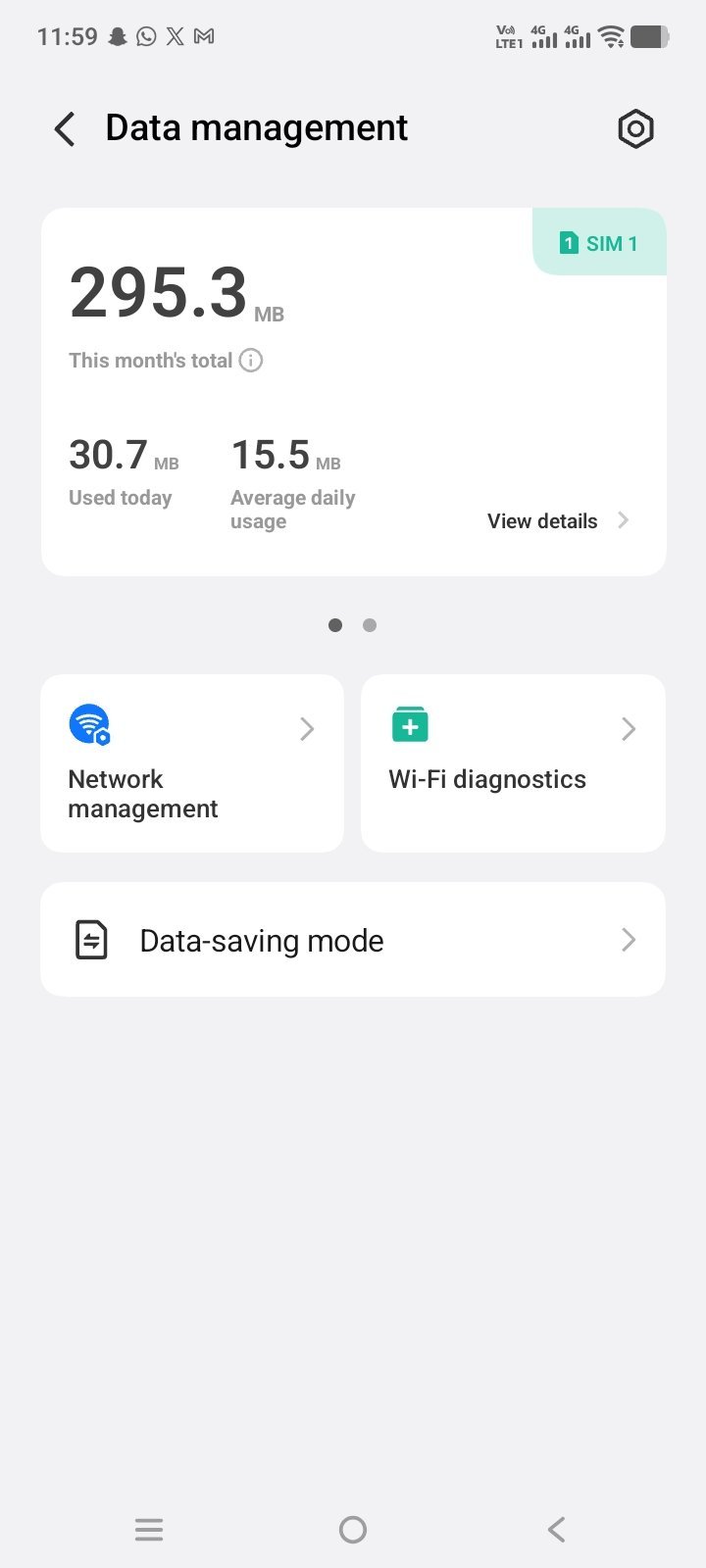
On Android
- Open Settings > Network & Internet > SIMs (or Connections > Data usage on Samsung phones).
- Tap App data usage to see a ranked list of apps for the current cycle.
- Set the billing cycle dates to match your plan, so the totals line up with what your carrier reports.
Do not be surprised if the top of the list looks familiar: video apps, social media, and streaming music are almost always the biggest spenders. A single hour of high-definition video can use several gigabytes, while a messaging app might use almost nothing all month.
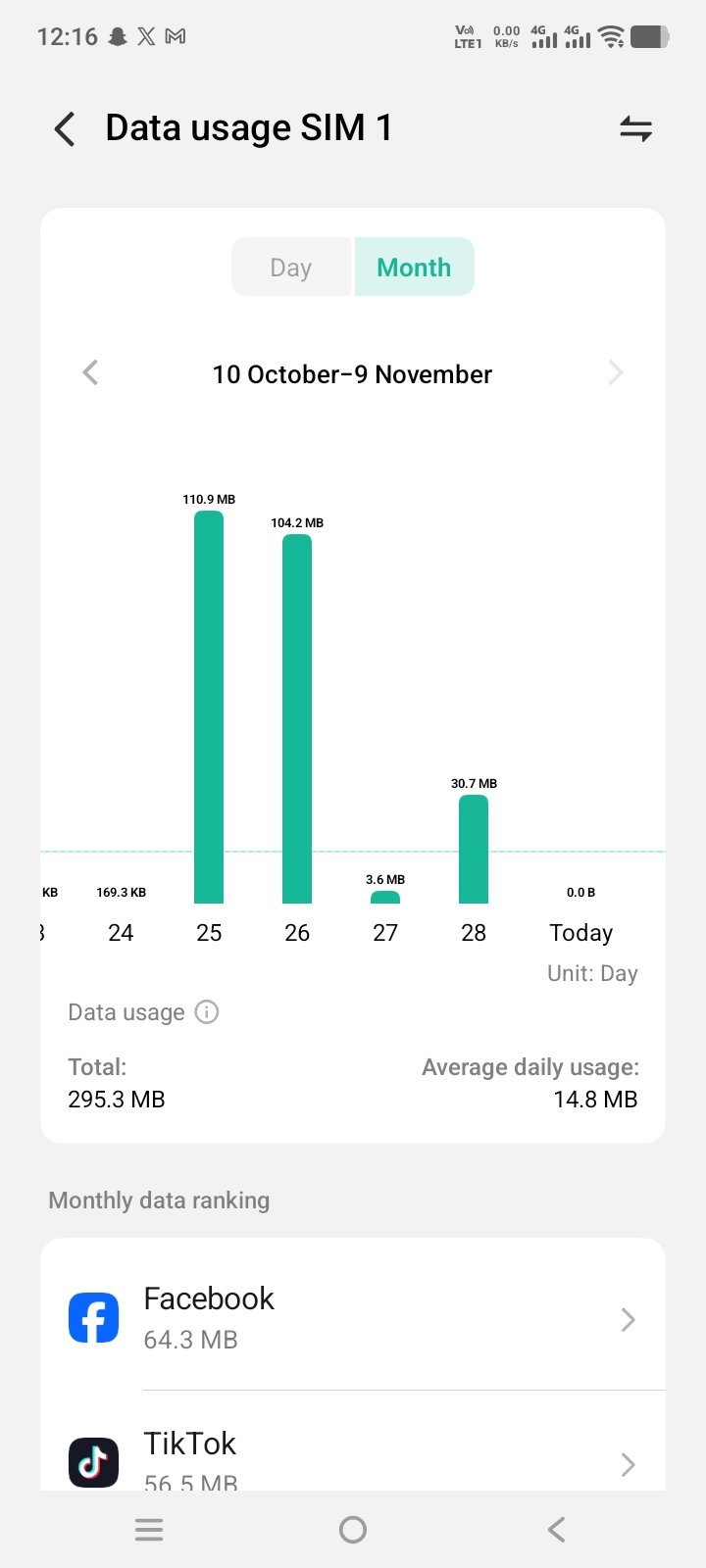
2. Spot the Usual Suspects
Most data drain comes from a short list of habits, not from some mysterious background monster. Look for these patterns in your usage list:
- Video on autoplay: Social feeds that play videos automatically burn data every time you scroll, even if you never tap play.
- Cloud photo backups: Uploading photos and videos over mobile data can quietly eat gigabytes after a holiday or a busy weekend.
- App updates: Large app and game updates downloading over mobile data instead of Wi-Fi are a classic surprise.
- Background refresh: Apps checking for new content all day — news, email, weather, social media — add up steadily in the background.
Once you know which apps sit at the top, you can tame them one by one instead of guessing.
3. Stop Apps Using Data in the Background
Background data is the silent budget killer. An app does not need to be open to use data — it can sync, refresh, and download while sitting in your pocket.
On iPhone
- Go to Settings > General > Background App Refresh and switch it off entirely, or turn it off for the worst offenders only.
- Back in Settings > Mobile Data, toggle off mobile data for any app you only want to use on Wi-Fi.
- Turn on Low Data Mode under Settings > Mobile Data > Mobile Data Options to pause automatic updates and background tasks.
On Android
- Go to Settings > Apps, pick an app, tap Mobile data & Wi-Fi, and turn off Background data.
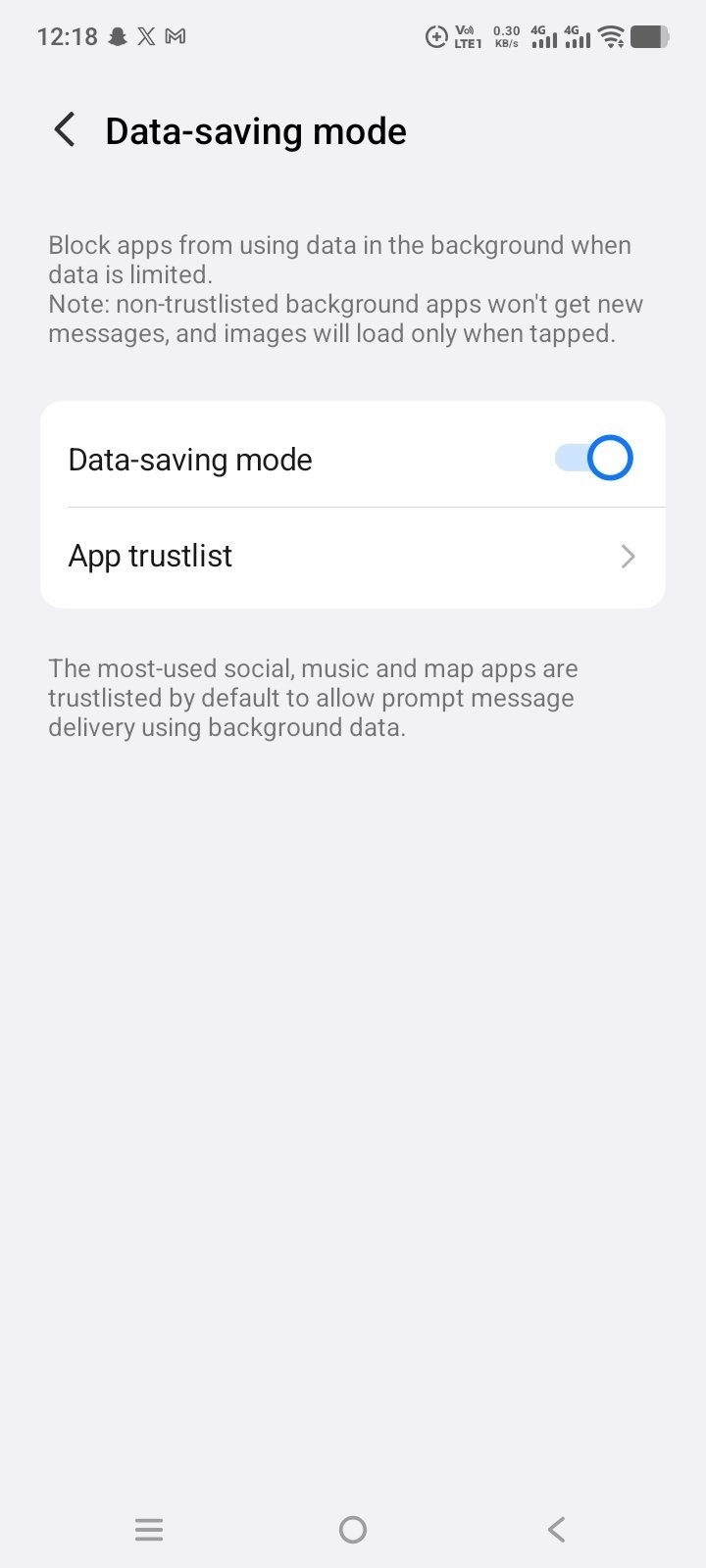
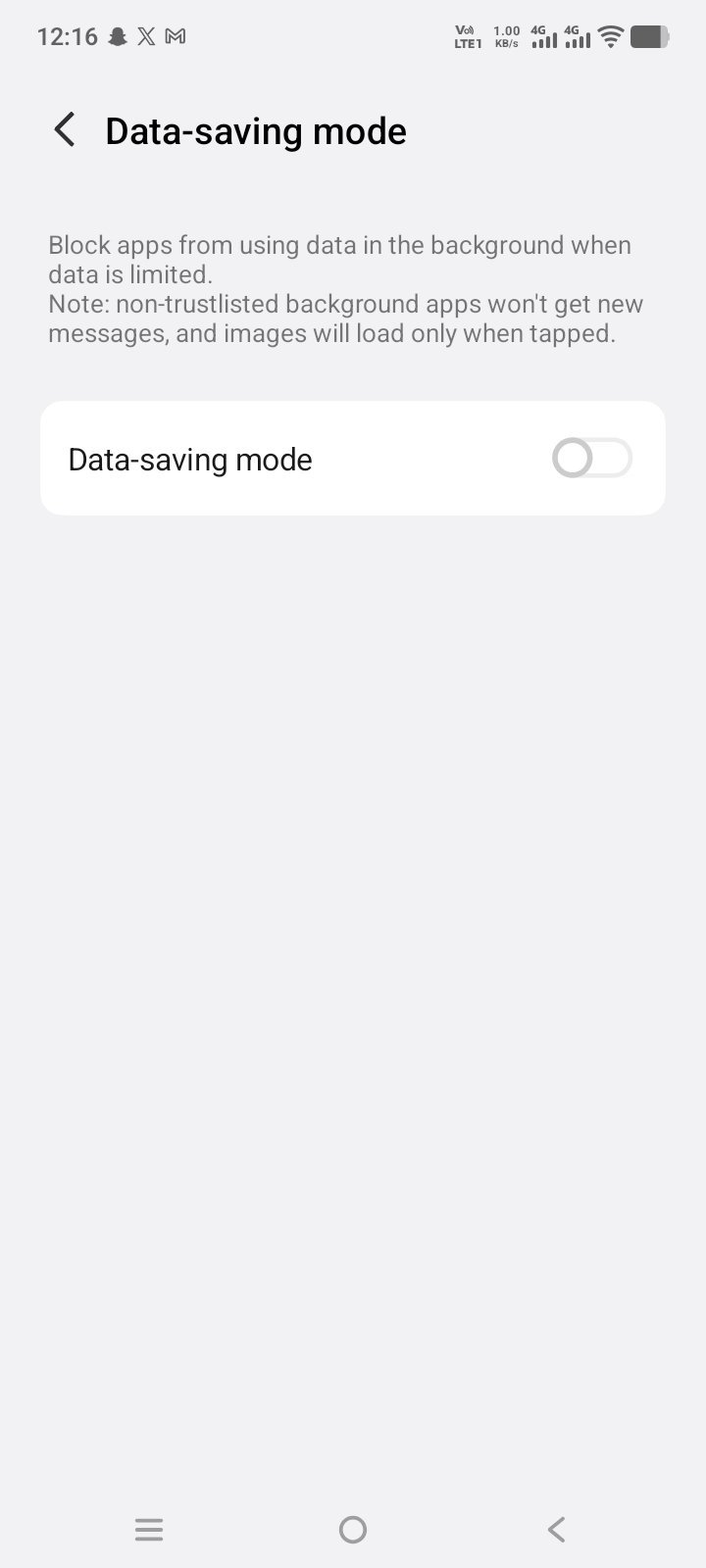
- For a stronger fix, enable Data Saver under Settings > Network & Internet > Data Saver — it restricts background data for most apps at once.
- On Samsung phones, you can also set a data warning and limit in the data usage settings, so the phone alerts you before you run out.
- Video quality: Drop streaming quality from HD to standard definition on mobile data. The picture still looks great on a phone screen, and the savings are enormous.
- Autoplay: Turn off video autoplay in social media apps, or set it to Wi-Fi only.
- Downloads: Download playlists, podcasts, and shows over Wi-Fi before leaving home, then enjoy them offline for zero data.
- Music quality: Set your music app to normal quality on mobile data and high quality on Wi-Fi only.
- Photo backup: In Google Photos or iCloud Photos, set backup to Wi-Fi only. Your memories will still be safe — they will just wait until you are home.
- App updates: In the App Store or Google Play Store, set automatic downloads to Wi-Fi only, so a 500 MB game update never lands on your mobile plan.
- Android: In data usage settings, set a warning at around 75% of your plan and a hard limit at 100%.
- iPhone: iPhone has no built-in data cap alert, so set a monthly reminder on the 1st to reset statistics, and use your carrier’s app — most carriers let you set usage alerts there.
- Carrier app: Almost every carrier app shows real-time usage and lets you buy a small top-up before overage charges kick in.
- Use Wi-Fi whenever it is available — at home, at work, in cafes — and let the phone connect automatically.
- Turn off mobile data entirely when you do not need it, and switch it on only for specific tasks.
- Use offline maps: download your route in Google Maps over Wi-Fi before travelling.
- Read articles in offline mode or use your browser’s reader view, which strips out heavy ads and videos.
Google’s own Data Saver guide is here: Use less mobile data with Data Saver (https://support.google.com/pixelphone/answer/7055392). (Data Saver lets most apps get background data only over Wi-Fi; steps can vary by manufacturer.)
4. Make Video and Music Apps Behave
You do not need to quit streaming — just teach it some manners. Almost every major video and music app has a data-saving switch hiding in its settings:
Together, these four tweaks can significantly cut a heavy user’s monthly data use — how much depends on which apps you use most, so check your usage list a week later to see the difference.
5. Keep Backups and Updates on Wi-Fi Only
Two settings are worth checking right now, because they cause some of the biggest one-off spikes:
The same goes for cloud storage apps like Google Drive and Dropbox: set uploads to Wi-Fi only unless you deliberately need a file on the go.
6. Set a Warning Before You Hit the Limit
Waiting for your carrier’s warning text is like waiting for the smoke alarm to tell you dinner is ready. Set your own tripwire earlier:
A warning at 75% gives you time to switch to Wi-Fi mode for the rest of the month, rather than discovering the problem when it is too late.
7. Quick Wins for the Rest of the Month
If the month is already half gone and data is running low, these emergency moves stretch what is left:
When Data Usage Still Looks Wrong
If usage stays sky-high after all these fixes, something deeper may be going on. A recently updated app can develop a bug that syncs endlessly, or a personal hotspot left running can quietly serve data to another device. Check your hotspot settings, restart the phone, and update the suspicious app — and if the numbers still do not add up, your carrier can check usage from their side and confirm whether the drain is real.
Mobile data does not have to be a monthly mystery. Check the numbers, name the culprits, and give your greediest apps a Wi-Fi-only curfew. Your plan will last longer, your bill will stay calmer, and that dreaded warning text will become a rare visitor instead of a monthly guest.
Related Guides
- How to Fix Slow WiFi: 12 Practical Ways to Speed Up Your Internet
- How to Find Your WiFi Password on Any Device (Windows, Mac, iPhone, Android)
- How to Check Who Is on Your WiFi (and Kick Them Off)
- How to Free Up iPhone Storage Without Deleting Your Photos
- How to Clear Cache on Android and iPhone (And When You Should)