
Think about everything living inside your phone right now: years of photos, conversations with people you love, contacts you’ve collected over a decade, notes, documents, passwords. Now imagine all of it vanishing tomorrow because your phone slipped out of your pocket, took a swim, or simply refused to turn on one morning.
That scenario is far more common than anyone likes to admit — and entirely preventable. Backing up your phone is one of those tasks that takes ten minutes to set up and quietly protects you forever after. This guide walks through how to back up your phone on both iPhone and Android, including photos, WhatsApp chats, and what to do before you sell your device.
Why Backups Matter More Than You Think
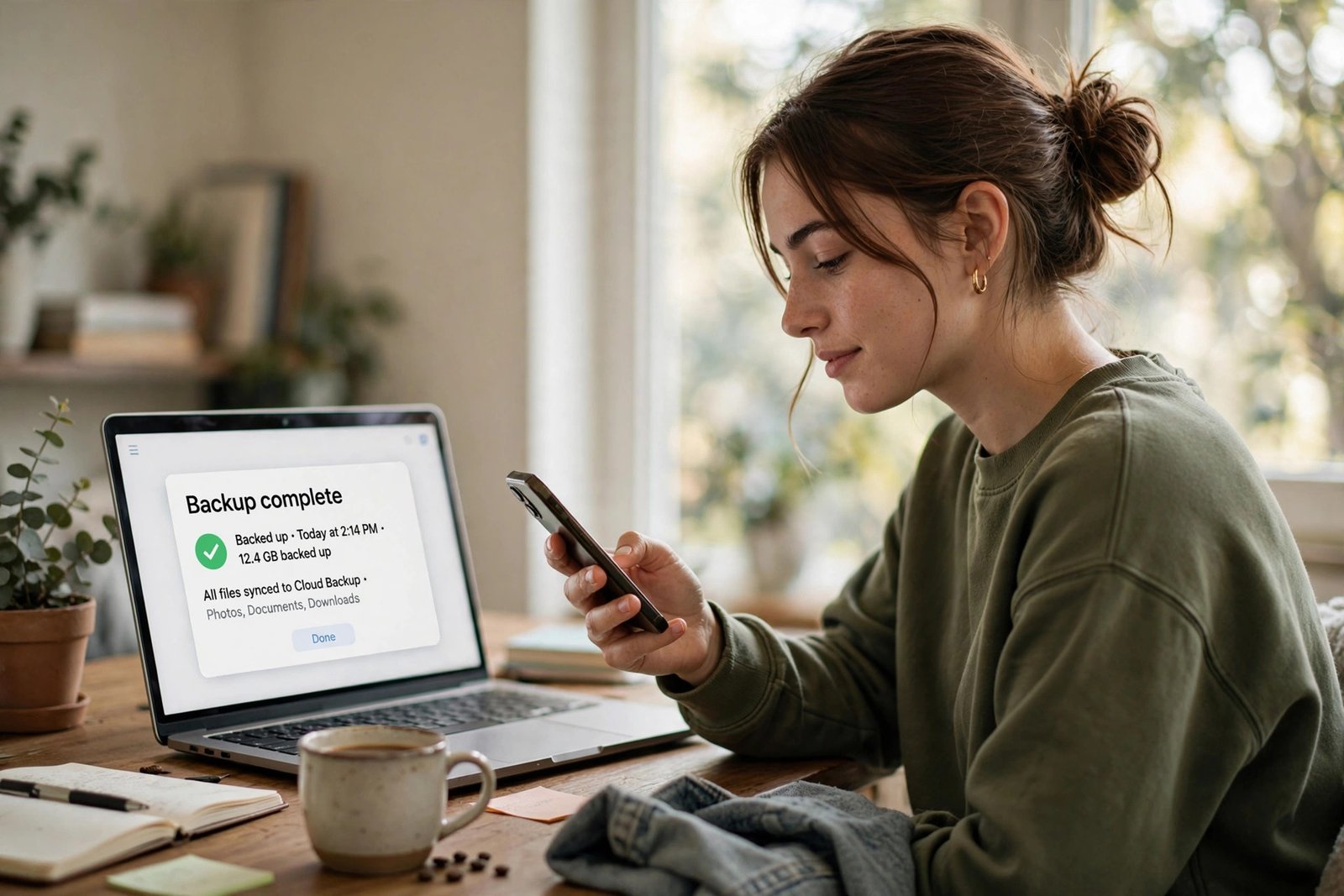
A phone backup is simply a safe copy of your data stored somewhere else — in the cloud or on your computer. If your phone is lost, broken, stolen, or you upgrade to a shiny new model, the backup lets you restore everything onto the replacement as if nothing happened: same apps, same settings, same photos.
The key insight is automation. A backup you have to remember to do manually is a backup that won’t exist when you need it. Both iPhone and Android offer automatic daily backups that run while you sleep, as long as the phone is charging and on WiFi. Set it up once, and you’re covered.
How to Back Up an iPhone (iCloud)
iPhone backups go to iCloud, Apple’s cloud storage. Every Apple ID comes with 5 GB of free iCloud storage, which covers a basic backup for most people — though photo-heavy phones may need a paid upgrade.
- Open Settings and tap your name at the very top.
- Tap iCloud, then iCloud Backup.
- Turn on Back Up This iPhone.
- Tap Back Up Now to run your first backup immediately.
From this point on, your iPhone backs itself up automatically every day when it’s locked, plugged into power, and connected to WiFi. The first backup takes the longest — plug in, connect to WiFi, and let it work in the background.
What’s Included in an iCloud Backup?
An iCloud backup covers app data, settings, home screen layout, messages, and photos (if iCloud Photos is on). It skips things already synced to iCloud — contacts, calendars, notes — since those are safe on their own.
If 5 GB isn’t enough, check Settings > [your name] > iCloud > Manage Account Storage — old backups from phones you no longer own are often the culprit. Delete those before paying for more storage.
How to Back Up an Android Phone (Google One)
Android backups go to your Google account through Google One backup. Every Google account includes 15 GB of free storage shared across Gmail, Google Drive, and backups.
- Open Settings and tap Google.
- Tap Backup (on some phones it’s under System > Backup).
- Turn on Backup by Google One.
- Tap Back up now to start your first backup.
Your phone now backs up automatically each day while charging on WiFi — covering apps, call history, contacts, settings, and texts. Samsung phones add Samsung Cloud alongside Google’s backup, and using both is perfectly fine.
Protect Your Photos Separately
Photos are the most precious — and largest — thing on your phone. A dedicated photo backup keeps them safe even outside a full device restore.
- iPhone: turn on iCloud Photos in Settings > [your name] > iCloud > Photos. Every photo uploads to iCloud and stays available on all your Apple devices.
- Android: open the Google Photos app, tap your profile picture, and turn on Back up. Photos upload to your Google account and are viewable from any device.
- Either phone: Google Photos works on iPhone too, giving you a second, independent copy of every picture — backup redundancy at its finest.
Don’t Forget WhatsApp Chats
WhatsApp keeps its own separate backup — the one people forget until they switch phones and years of conversations vanish. Fix it in two minutes:
- iPhone: open WhatsApp > Settings > Chats > Chat Backup > Back Up Now. Turn on Auto Backup and choose daily or weekly.
- Android: open WhatsApp > tap the three dots > Settings > Chats > Chat backup > Back up. Choose your Google account and set a daily or weekly schedule.
Note that WhatsApp backups on iPhone go to iCloud and on Android to Google Drive — so this backup only works if the matching cloud backup above is healthy and has space.
The Computer Backup Option
Prefer keeping a copy at home instead of (or in addition to) the cloud? Both platforms support local backups:
- iPhone: connect to a Mac and use Finder (or iTunes on Windows). Select your iPhone, choose Back up all of the data on your iPhone to this Mac, and click Back Up Now. Tick Encrypt local backup to include passwords and health data.
- Android: connect to a computer with a USB cable and copy your DCIM (photos), Downloads, and other folders manually. It’s less elegant than Apple’s one-click option, but it works as a straightforward file copy.
A local copy is a great second layer of protection — you’re never dependent on a subscription or an internet connection to get your data back.
How Often Should You Back Up?
With automatic daily backups switched on, you barely need to think about it — but check every few months that backups are actually happening. On iPhone, look at Settings > [your name] > iCloud > iCloud Backup for the date of the last successful backup. On Android, check Settings > Google > Backup for the same.
If the last backup is weeks old, something’s off — usually the phone hasn’t been on WiFi while charging, or cloud storage is full. Fix the underlying issue and tap Back Up Now.
Before You Sell or Trade In Your Phone
Before handing your old phone to someone else, run through this checklist:
- Run one final manual backup and confirm it completed.
- Sign out of iCloud (iPhone) or remove your Google account (Android).
- Factory reset the phone so your data is wiped.
- Only then hand it over — with the confidence that everything lives safely in your backup.
Your memories, messages, and documents are irreplaceable. Ten minutes of setup today means you’ll never have to learn that the hard way.
Related Guides
- How to Factory Reset Your iPhone or Android (Safely — Without Losing a Thing)
- How to Recover Deleted Photos on iPhone and Android
- How to Free Up iCloud Storage Without Paying Apple
- How to Free Up Google Drive Storage Without Upgrading Your Plan
- How to Find a Lost Phone (iPhone and Android) — Even If It’s on Silent
Pingback: How to Transfer Photos From iPhone to a Windows PC (3 Easy Ways) -
Pingback: How to Recover Deleted WhatsApp Messages on Android and iPhone -
Pingback: How to Set Up Emergency SOS on iPhone and Android -
Pingback: How to Recover Deleted Photos on iPhone and Android -
Pingback: How to Factory Reset Your iPhone or Android (Safely — Without Losing a Thing) -