
Few feelings in modern life hit quite like patting your pocket and realizing your phone isn’t there. Your heart does a bungee jump, your brain replays the last two hours at double speed. But take a breath — both iPhone and Android ship with powerful built-in phone finders. You can make the phone ring even on silent, watch it on a live map, lock it remotely, and flash a “please call me” message on its screen. No sketchy tracker apps needed. Learn this once, and you’ll know exactly what to do.
First, Do the Two-Minute Basics
Before going digital, run the quick wins — they solve an embarrassing share of cases:
- Retrace your last hour. Most phones are misplaced within a room — check couch cushions, jacket pockets, the car seat, and that one bag pocket you always forget.
- Call it from another phone. If it’s nearby on vibrate, you’ll hear the buzz.
- Check paired devices. A smartwatch may be able to ping the phone from your wrist.
If those fail, go digital.
iPhone: Use Find My
Apple’s Find My is on by default for most people. Open it on someone else’s Apple device, tap Help a Friend at the bottom of the Me tab, and sign in with your own Apple ID — or go to iCloud.com/find in any browser and sign in.
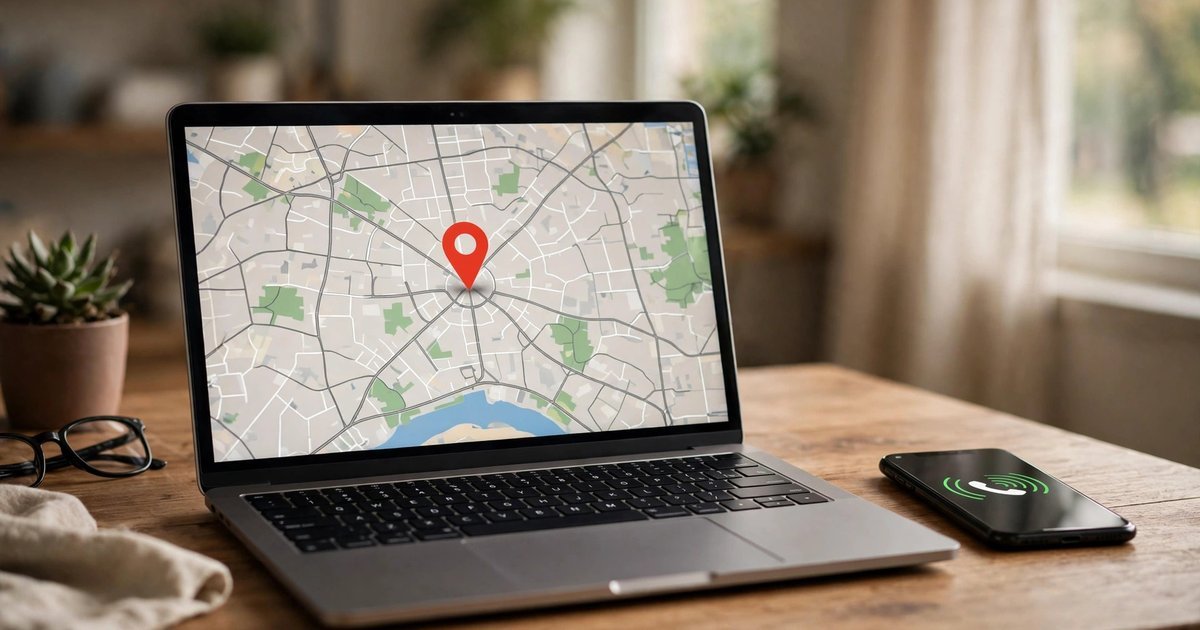
You’ll see your devices as dots on a map. Tap your lost iPhone for three options:
- Play Sound — a gradually louder two-minute ping that overrides silent mode. Follow the sound like a treasure hunt.
- Lost Mode — locks the phone, suspends Apple Pay, and shows a custom callback message on the lock screen.
- Directions — walking or driving directions to the phone’s location, handy when it’s across town rather than in your couch.
Android: Use Find My Device
Go to android.com/find, sign in with the Google account on the lost phone, pick your device, and the map zooms to its location. Then choose:
- Play sound — full-volume ringing for five minutes, even on silent or vibrate.
- Secure device — locks the phone, signs you out of your Google account on it, and displays your callback message on the lock screen.
- Erase device — the nuclear option, wiping everything permanently. Only for when you’re certain it’s gone for good.
The phone needs to be on, signed into your Google account, with location services on and connected to data or Wi-Fi — the default setup for most phones.
Yes, It Rings Even on Silent
This surprises people every time: both Play Sound commands blast at full volume even when the phone is muted, on vibrate, or in Do Not Disturb. These remote commands run at the system level and deliberately bypass silence settings — the designers figured that if you’re pinging a lost phone from the internet, you’d rather hear it than preserve quiet mode. So hunt methodically — laundry piles, sofa cushions, the top of the fridge. Phones end up in the strangest places.
If the Battery Is Dead
A dead phone can’t transmit anything, but both systems remember its last position before it died:
- iPhone: Find My shows the last known location for up to 24 hours. With Send Last Location on (Settings > your name > Find My > Find My iPhone), the phone beams its position to Apple as the battery dies.
- Android: Find My Device displays the most recent location with a timestamp. “Last seen 2 hours ago” at home means it’s almost certainly somewhere inside.
Turn on Notify When Found (iPhone) — you’ll get an alert the moment the phone powers up and connects. On Android, the map updates automatically under the same conditions.
Lock It and Protect Your Data
If the phone might be public or stolen rather than misplaced — lock it down:
- Lock it remotely right away. Lost Mode (iPhone) or Secure device (Android) takes seconds — do it even if you suspect it’s under the sofa.
- Add a lock-screen message. Your name plus a trusted contact number — honest strangers are your best recovery tool.
- Erase only as a last resort. Remote erase is permanent (restorable only from a backup) — for theft or a clearly unrecoverable phone. On iPhone, Activation Lock keeps a wiped phone tied to your Apple ID.
If the phone is offline, lock and erase commands queue up and execute the moment it reconnects.
Set This Up Now So You’re Ready Next Time
Every trick above only works if it’s switched on before the phone goes missing — five minutes today saves hours of panic later:
- Confirm the finder is on. iPhone: Settings > your name > Find My > Find My iPhone, plus Find My network and Send Last Location. Android: Settings > Security > Find My Device.
- Keep Location Services on — both finders depend on it.
- Know your sign-in details so you can log into your Apple ID or Google account from another device.
- Put contact info on the lock screen. “If found, please call [number]” makes a phone far easier to return than an anonymous locked brick.
Frequently Asked Questions
Does it work if the phone is turned off?
Not in real time — you’ll still see the last known location, and lock commands apply the moment it powers on. Newer iPhones with the Find My network enabled can sometimes be located while off, via low-power Bluetooth beacons.
What if the phone has no SIM card?
It still works. Find My and Find My Device locate phones over Wi-Fi too — as long as the phone connects to any Wi-Fi network with your account signed in, the map updates.
Can I track a phone using just its phone number?
No legitimate service does this. Any site claiming to locate a phone by number alone is a scam or a privacy-violating service to avoid — real tracking requires your own signed-in account on the device.
The Game Plan, in Thirty Seconds
Phone missing? Retrace and call it first, then open iCloud.com/find or android.com/find, ping it at full volume, and lock it with a “please call me” screen message. Dead battery? Head to the last known location and enable alerts for when it wakes up. And tonight, confirm your finder is switched on — the best time to set it up is ten minutes before you need it. The second-best time is right now.
Related Guides
- How to Set Up Emergency SOS on iPhone and Android
- How to Back Up Your Phone: The Complete iPhone and Android Guide
- How to Factory Reset Your iPhone or Android (Safely — Without Losing a Thing)
- How to Set Up Focus Mode on iPhone and Android (And Finally Stop the Constant Pings)
- How to Set Up Parental Controls on iPhone, Android, and Windows
Pingback: How to Set Up Emergency SOS on iPhone and Android -