
In This Guide
- What “Leaked” Actually Means
- Check with Have I Been Pwned
- Check Passwords Right in Your Browser
- Found a Leak? Do This Immediately
- 3 Habits That Make Breaches Harmless
- Warning Signs an Account Is Already Compromised
- Frequently Asked Questions
- The Bottom Line
Here is an unsettling fact: billions of email addresses and passwords have been exposed in data breaches, and there is a decent chance yours is among them. Companies get hacked quietly all the time, without making headlines, and the stolen data circulates on the internet for years afterward.
The good news? You can find out in about two minutes whether your credentials were caught up in one of these breaches, completely free. Here is how to check if your password was leaked, what to do if it was, and how to make future breaches harmless.

What “Leaked” Actually Means
A data breach happens when attackers break into a company’s systems and steal stored data — including users’ email addresses and passwords. The stolen collections are sold, shared, or published online, where criminals use them for account takeovers and identity theft.
Reputable sites store passwords scrambled with a one-way process called hashing — never in plain readable form. But hackers crack weaker hashes by the millions using powerful computers and giant lists of common passwords. If your password was something like “Summer2023!” and the company used an outdated method, it may be readable in criminal hands today.
This is why reusing passwords is the real danger. If your email and password leaked from a shopping site you barely use, an attacker can try the same combination on your email, your bank, and your social media. This automated guessing is called credential stuffing, and it works because so many people reuse one password everywhere.
Check with Have I Been Pwned
The best-known free breach-checking service is Have I Been Pwned (haveibeenpwned.com), run by security researcher Troy Hunt and recommended by security experts worldwide. Using it takes seconds:
- Go to haveibeenpwned.com and type your email address into the search box.
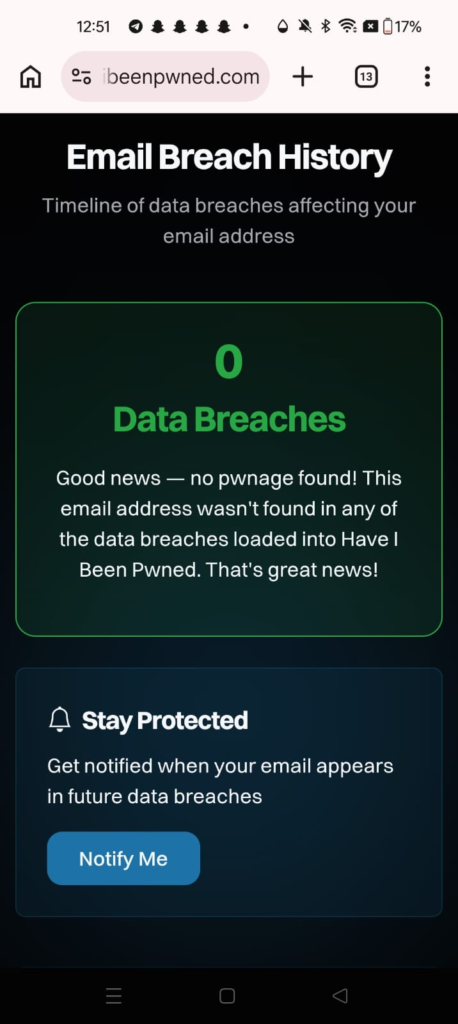
- If you see “Good news — no pwnage found,” your address does not appear in any tracked breach.
- If you see “Oh no — pwned!”, scroll down. The page lists each breach your email appeared in, with the breached site’s name, when it happened, and what data was exposed — for example “Email addresses, Passwords.”
Its password checker compares a specific password against a database of over a billion leaked ones — without ever sending your full password to its servers. If it shows up, attackers know it: never use it again.
Finally, sign up for the site’s free notifications: verify your email once, and you will be alerted whenever it appears in a newly added breach. One of the smartest two-minute security moves you can make.
Check Passwords Right in Your Browser
Google Password Checkup (Chrome and Android)
- Go to passwords.google.com and sign in, or in Chrome open your profile picture > Manage your Google Account > Security > Password Manager.
- Click Checkup to see a full report of compromised (found in known breaches), reused, and weak passwords. Change the compromised ones first.
iCloud Keychain Security Recommendations (iPhone)
- Open Settings > Passwords and tap Security Recommendations at the top.
- You will see accounts flagged because a password appeared in a data breach, was reused, or is easily guessed. Tap each and follow Change Password on Website.
Found a Leak? Do This Immediately
If your email or password turned up in a breach, act quickly and the damage stays contained:
- Change that password now on the affected site, using the site’s official page or app — never a link in a suspicious email. Make the new password long, random, and unique.
- Change it everywhere else you reused it. This is the step people skip, and the most important one. Every site where you used that password needs a new, different one.
- Turn on two-factor authentication (2FA) for the affected account — especially your email, which is the master key to everything else since password resets land there.
- Check for unknown sessions. Gmail, Facebook, Apple, and most banks show every device signed into your account. Kick out anything you do not recognize.
3 Habits That Make Breaches Harmless
Breaches will keep happening — you cannot control companies’ security. But these three habits mean a breach barely touches you:
- A unique password for every site. Then a leak from one site gives attackers nothing usable elsewhere. A password manager (like Bitwarden, 1Password, or your browser’s built-in one) generates and remembers strong random passwords, so “unique everywhere” takes zero effort.
- Two-factor authentication everywhere it is offered — especially email, banking, and social media. With 2FA on, a stolen password alone cannot open your account.
- Passkeys where offered. Google, Apple, and Microsoft now support passkeys: login keys tied to your device that cannot be phished and cannot leak in a breach the way passwords can.
Warning Signs an Account Is Already Compromised
Sometimes a breach goes further and an attacker is actively inside one of your accounts. Watch for:
- Password-reset emails you did not request — someone is trying to get in.
- Unknown devices or locations in your account’s security activity.
- Messages or posts you did not write from your social accounts.
- Settings changed on their own — a new recovery email, forwarding rules you did not create, or a new phone number added.
If you spot any of these, change the password immediately, sign out all other sessions, and turn on 2FA.
Frequently Asked Questions
Is Have I Been Pwned safe to use?
Yes. It is run by a respected security researcher and widely recommended by experts. Checking your email only reveals which public breaches it appears in — nothing private is exposed.
Should I change ALL my passwords?
Not necessarily — that leads to exhaustion and weaker choices. Priority one: change passwords that were compromised and any you reused. Then work through the rest gradually with a password manager, starting with email, banking, and social accounts.
What about old accounts I never use?
Yes. An old account with a reused password is a launchpad for attacks on your current ones. Delete what you no longer need, and give the keepers unique passwords.
How often should I check for breaches?
Check every few months and keep breach alerts on — your browser’s built-in checkup watches in the background too.
What if my email appears in a breach but my password wasn’t exposed?
Change the password anyway if you reused it anywhere, and turn on two-factor authentication. Email addresses alone are still useful to attackers for phishing, so treat any appearance in a breach as a prompt to tighten that account.
Can I check someone else’s email address for breaches?
Have I Been Pwned lets you search any address, but you should only check your own or a family member’s with their permission. The results can be sensitive, and checking someone else’s address without a reason isn’t respectful.
Does two-factor authentication protect a leaked password?
Yes, in most cases. With 2FA on, a stolen password alone cannot open your account — the attacker would also need your second factor, like a code from your phone or a security key. That’s why email, banking, and social accounts should have 2FA first.
What is credential stuffing, in plain words?
It’s attackers taking a leaked email-and-password pair and trying it automatically on many other sites, betting you reused the same password. A unique password for every site makes credential stuffing useless against you.
Should I pay for a breach-monitoring service?
Usually not. The free checks in this guide — Have I Been Pwned notifications and your browser’s built-in password checkup — cover the same ground for most people. Paid services add convenience, not fundamentally different data.
Have I Been Pwned vs Browser Password Checkup
| Have I Been Pwned | Browser Password Checkup | |
|---|---|---|
| What you enter | Your email address (or a password to check) | Nothing extra — it scans passwords you already saved |
| What it finds | Breaches your email appeared in, with site names and dates | Compromised, reused, and weak passwords across your saved logins |
| Alerts | Free email notifications for new breaches | Built-in warnings when you visit affected sites |
| Best for | A one-time check of an address, plus ongoing alerts | A full audit of every password you already use |
The Bottom Line
Checking whether your password leaked takes two minutes and costs nothing. Run the checks above today, fix whatever turns up, and build the three habits so the next breach is someone else’s problem.
Pingback: How to Create a Strong Password You'll Actually Remember -
Pingback: How to Spot a Phishing Email: 9 Red Flags Everyone Should Know -
Pingback: How to Delete Your Google Search History on Any Device -
Pingback: How to Set Up a VPN: A Beginner's Guide to Browsing Safely -