
In This Guide
- What a VPN Actually Does (in Plain English)
- Choosing a VPN App: What to Look For
- How to Set Up a VPN on iPhone
- How to Set Up a VPN on Android
- How to Set Up a VPN on Windows and Mac
- Putting the VPN on Your Router (Optional)
- How to Check It’s Actually Working
- When to Keep It On (and When to Switch It Off)
- Common Problems and Quick Fixes
- Quick FAQ
You’re at a cozy café on the free WiFi — lovely, except open WiFi is a little like shouting your secrets across a crowded room. A VPN (virtual private network) fixes that in about five minutes, and setup is far easier than most people expect.
This guide walks you through how to set up a VPN — what it does, how to pick a good one, and step-by-step setup for iPhone, Android, Windows, Mac, and your router. No tech degree required.

What a VPN Actually Does (in Plain English)
Normally your internet traffic travels like a postcard anyone along the route can read. A VPN wraps it in encryption and routes it through a secure “tunnel” to a VPN server first — snoopers see only scrambled gibberish, and websites see the server’s location instead of yours. Why that matters:
Safer on Public WiFi
Airports, hotels, coffee shops — free WiFi is a playground for eavesdroppers. With a VPN on, your traffic to the VPN server is encrypted, which makes public WiFi much safer — but it is not a guarantee. Your bank or email service can still block VPN connections, a VPN provider you do not trust can see your traffic, and your own account security (a strong password and two-factor authentication) still matters. For banking, use your bank’s official app and, when possible, your mobile data instead of public WiFi.
A Little More Privacy Day to Day
Your internet provider can normally see every site you visit. A VPN hides your browsing from your provider and network admins, since all they see is encrypted traffic to the VPN server. It won’t make you invisible — cookies and logins still track you — but it removes a whole layer of exposure.
Your Subscriptions, Wherever You Travel
Streaming services often show different content — or block you — based on location. A VPN lets you connect through a server back home, so your apps work like they do on your couch.
Choosing a VPN App: What to Look For
With hundreds of VPN apps out there, keep it simple:
- Pick a reputable paid service. Good VPNs cost a few dollars a month. Free ones have to make money somehow — ads, speed limits, or, worst of all, your data.
- Look for a clear no-logs policy. Trustworthy providers state plainly they don’t record your activity; independent security audits are an even better sign.
- Check device support. Easy apps for iPhone, Android, Windows, and Mac mean nothing needs manual configuration.
- Mind servers and speed. More locations mean more options, and modern protocols (often called WireGuard) keep speeds high enough for video calls and streaming.
Most top VPNs offer a free trial or money-back guarantee — perfect for a test-drive.
How to Set Up a VPN on iPhone
- Download your VPN provider’s app from the App Store and open it.
- Sign in with the account you created on the provider’s website.
- Tap Allow to add a VPN configuration, then confirm with Face ID or your passcode. iOS handles the technical bits.
- Tap Connect. A small VPN icon appears in your status bar — you’re protected.
- For a specific country, open the server list, pick a location, and connect.
How to Set Up a VPN on Android
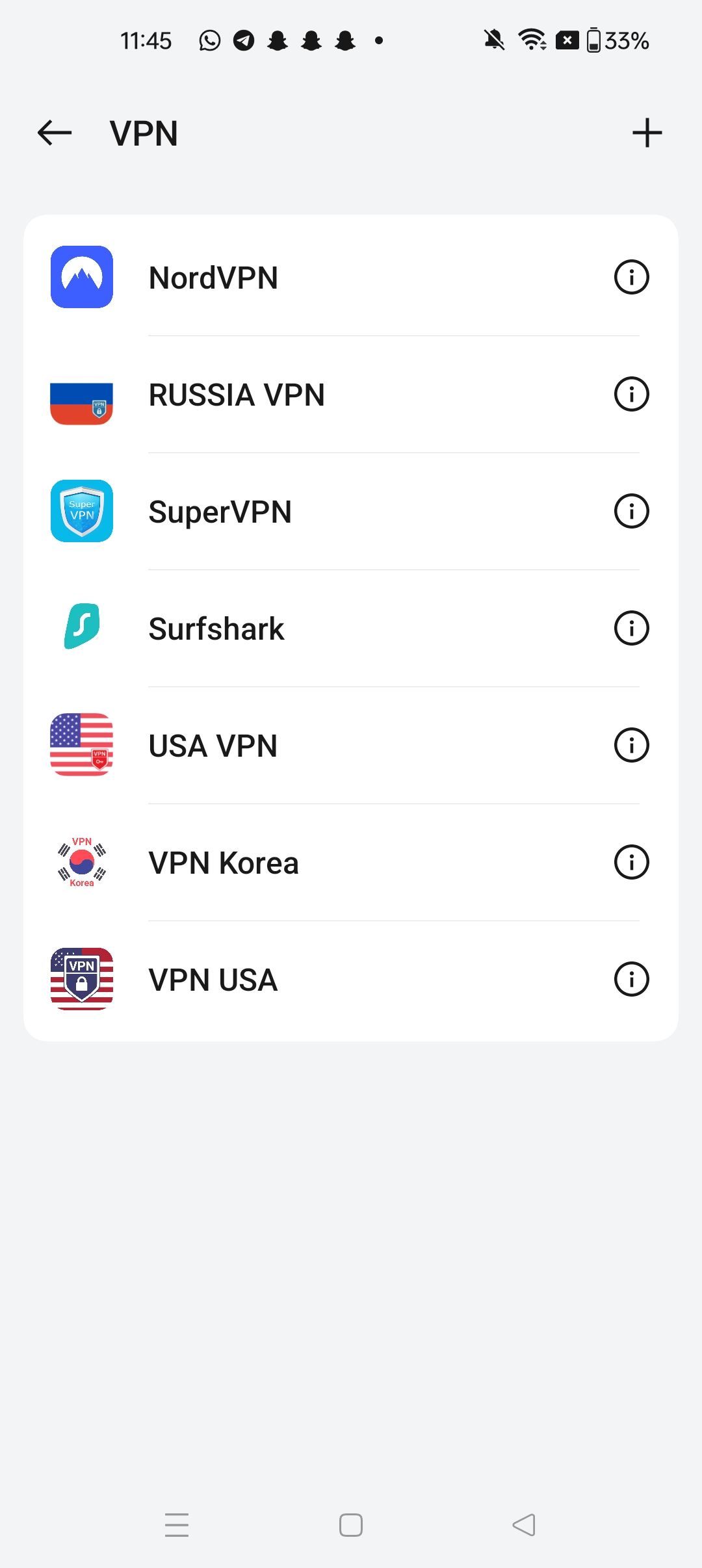
- Install your VPN provider’s app from the Google Play Store and launch it.
- Sign in to your VPN account.
- Tap OK on the “connection request” popup so Android routes traffic through the VPN.
- Hit Connect — a key icon appears in your notification bar.
- For a different country, open the server list and choose your location.
How to Set Up a VPN on Windows and Mac
- Download the VPN app from your provider’s official website and install it.
- Open the app and sign in.
- Click Connect — the app sets everything up automatically, including system permissions.
- To change your virtual location, open the server list and pick a country or city.
On Windows you may see a one-time prompt to allow changes — that’s normal. On a Mac, approve the permission in System Settings > Privacy & Security.
Putting the VPN on Your Router (Optional)
A router-level VPN protects every device in your home at once — smart TVs, consoles, gadgets with no VPN app. You’ll need a router that supports VPN software (many do). Log into your router’s settings, upload the provider’s configuration file, and enter your credentials. Optional, but lovely.
How to Check It’s Actually Working
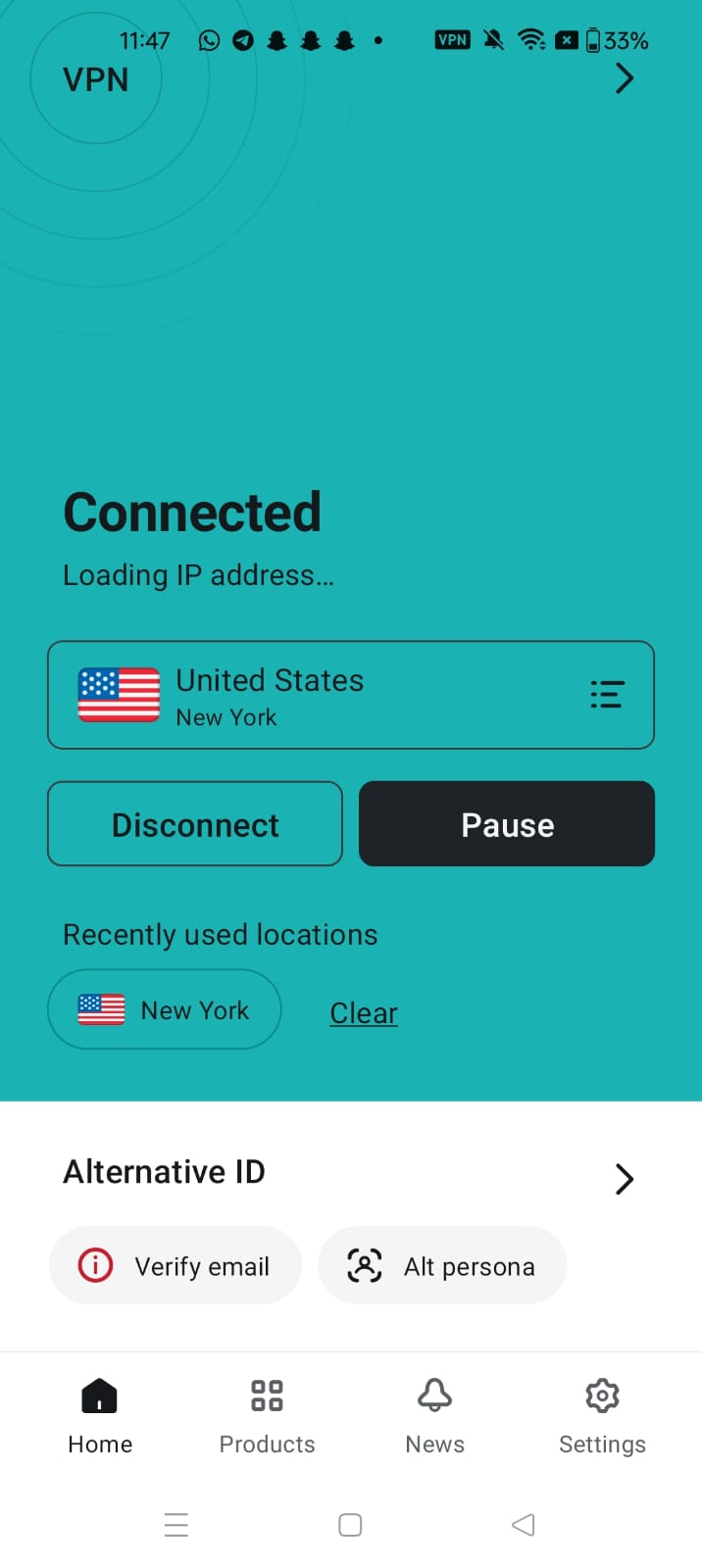
Don’t just trust the green “Connected” button — verify it:
- With the VPN off, search “what is my IP” and note the location shown.
- Turn the VPN on and connect to a server in another city or country.
- Search “what is my IP” again. You should now see the VPN server’s location instead of your own.
When to Keep It On (and When to Switch It Off)
Keep the VPN on whenever you’re on public WiFi — cafés, airports, hotels, trains. Many people leave it on at home too; modern VPNs are fast enough that you may never notice. Two exceptions:
- Banking apps and some government sites sometimes block logins from VPN server addresses as a fraud precaution. Pause the VPN for that one task if a login fails.
- Local gadgets like printers or Chromecast may not “see” your phone while the VPN is active. Temporarily disconnecting usually fixes it.
Common Problems and Quick Fixes
Everything feels slow
Some slowdown is normal. If pages crawl, switch to a server closer to your real location, or try another server in the same country — servers get crowded. In the app’s settings, pick the fastest protocol available, often labeled WireGuard.
A website says you’re blocked
Some streaming services and shops block known VPN server addresses. Fix: switch to a different server in the same country and reload. Good VPNs refresh their servers regularly to stay ahead of this.
The VPN won’t connect at all
Restart the app, confirm your internet works without the VPN, update the app, and try a different protocol in the settings. On strict networks (some hotels, workplaces), switch on the VPN’s “stealth” or obfuscation mode.
Quick FAQ
Is a VPN legal?
Yes — in the USA, UK, Canada, Australia, and most of the world. A few countries restrict VPNs, so check local rules when traveling.
Will a VPN make me completely anonymous?
No. It hides your traffic from snoopers and masks your location, but logged-in sites and cookies still track you. Think strong lock, not invisibility cloak.
Can I just use a free VPN?
Carefully — running VPN servers costs money, so free services pay somehow: ads, speed caps, or your data. For anything important, a low-cost paid VPN with a no-logs policy is safer.
Does a VPN slow down my internet?
A little slowdown is normal because your traffic takes an extra hop through the VPN server. Choosing a server close to your real location and a modern protocol usually keeps the difference small enough that you won’t notice it for browsing, video calls, or streaming.
Can I use one VPN subscription on multiple devices?
Most paid VPN services let you connect several devices at once under one account — typically enough for a phone, a laptop, and a tablet. Check the provider’s device limit before you subscribe if your whole household will use it.
Do I need a VPN when I’m on mobile data?
Mobile data is safer than open public WiFi, but a VPN still hides your browsing from your carrier and from anyone running a fake cell tower nearby. It matters most on public WiFi, but it doesn’t hurt on mobile data either.
Will a VPN protect me from viruses or phishing?
No. A VPN encrypts your connection and hides your location, but it does not scan downloads or block scam websites. You still need up-to-date device security and the same caution with suspicious links and attachments.
Should I leave my VPN on all the time?
Many people do, and modern VPNs are fast enough for that. The exceptions are banking apps or government sites that sometimes block VPN addresses, and local gadgets like printers that may not be visible while the VPN is active — pause it briefly for those tasks.
Free VPN vs Paid VPN
| Free VPN | Paid VPN | |
|---|---|---|
| Monthly cost | Free | A few dollars a month |
| Speed | Often capped or crowded | Usually fast, more servers |
| Privacy risk | May fund itself with ads or your data | Clear no-logs policy from reputable providers |
| Best for | Occasional light use | Daily use, streaming, banking on public WiFi |
Related Guides
- How to Check Who Is on Your WiFi (and Kick Them Off)
- How to Set Up a Guest WiFi Network (and Why You Should)
- How to Find Your WiFi Password on Any Device (Windows, Mac, iPhone, Android)
- How to Stop Apps From Tracking You on iPhone and Android
- How to Check If Your Password Was Leaked in a Data Breach
Pingback: How to Stop Apps From Tracking You on iPhone and Android -
Pingback: How to Check If Your Password Was Leaked in a Data Breach -
Pingback: How to Create a Strong Password You'll Actually Remember -