
In This Guide
- 1. The 60-Second Bluetooth Toggle Dance
- 2. Get Close and Kill the Interference
- 3. Put Your Accessory in Pairing Mode (For Real)
- 4. Forget and Re-Pair
- 5. Restart Everything (Yes, Really)
- 6. Try the Airplane Mode Trick
- 7. Reset Your Network Settings
- 8. Update Your Phone and the Accessory
- 9. Check the Battery on Both Ends
- 10. Disconnect the Crowd
- 11. Fix Choppy Audio and Bad Sound Quality
- 12. When It Is a Hardware Problem
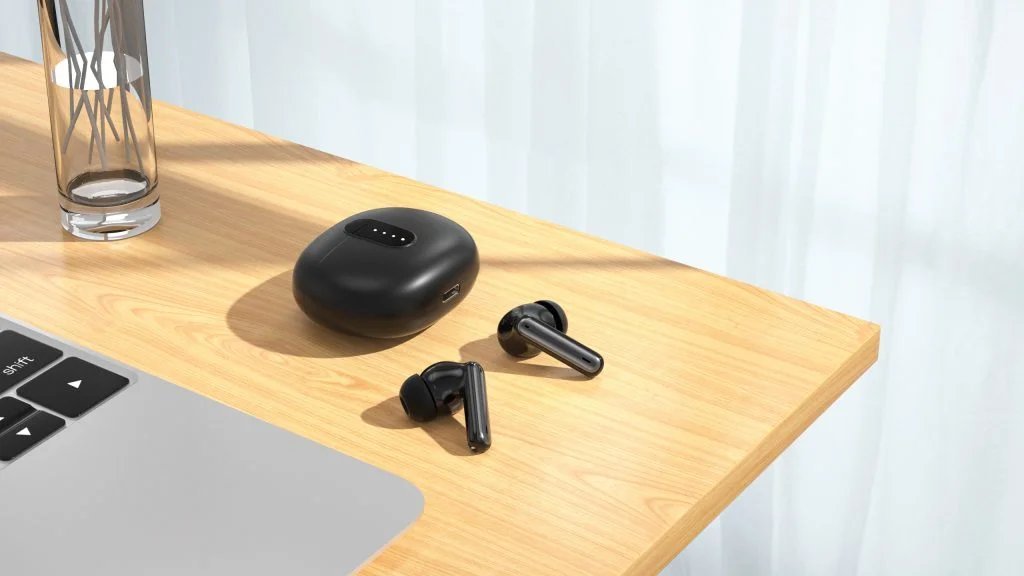
You open the earbuds case, open Bluetooth settings, and… nothing. Your phone cannot see your headphones. Or it sees them, pretends to connect, and immediately gives up. Or it connects and the music sounds like it is being played through a tin can underwater.
Bluetooth feels like magic when it works and black magic when it does not. The good news: almost every failure is fixable with the right sequence — and the fix is rarely “buy new headphones.” Most people are paired up before fix number five.
1. The 60-Second Bluetooth Toggle Dance
Start embarrassingly simple — because it works embarrassingly often. Bluetooth radios occasionally get stuck in a confused state, and a clean toggle resets them:
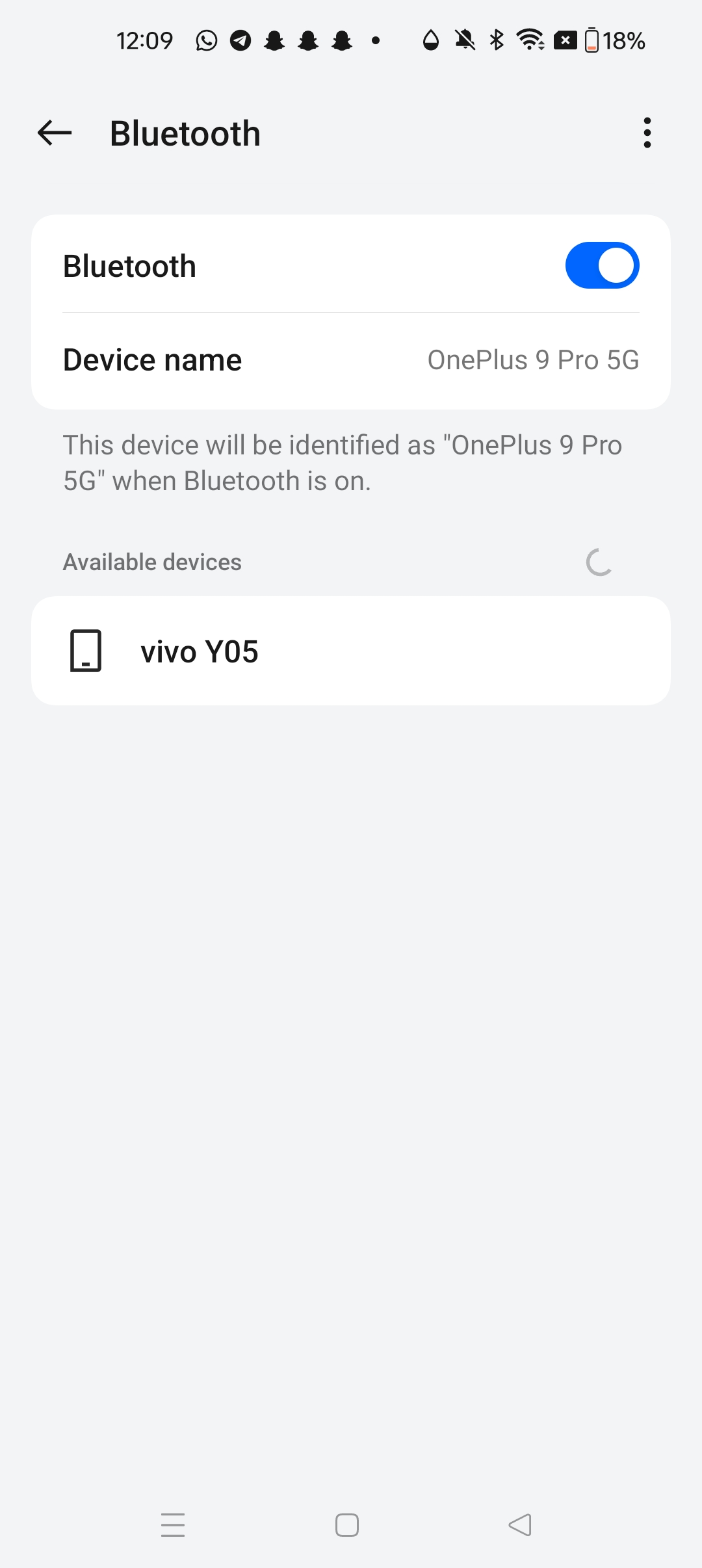
- Turn Bluetooth off on your phone and wait a full 30 seconds.
- Turn Bluetooth back on, put your accessory in pairing mode, and try connecting again.
Repeat on both devices if needed — this ritual resolves a shocking number of “it was working yesterday” mysteries.
2. Get Close and Kill the Interference
Bluetooth is a short-range signal that is easily bullied. For pairing, keep the devices within 3 feet (1 meter) with a clear line of sight. Watch out for:
- Wi-Fi routers — both use the 2.4 GHz band. Move away from the router while pairing.
- Microwaves, baby monitors, and USB 3.0 hubs — all notorious Bluetooth bullies.
- Busy public places — dozens of nearby devices compete for the same airwaves. If pairing fails at the gym, try somewhere quieter first.
- Your own body — a phone in a back pocket can cause dropouts on some devices. Front pocket works better.
3. Put Your Accessory in Pairing Mode (For Real)
The step almost everyone gets wrong: turning an accessory on is not the same as pairing mode. Most need a button held until a light flashes:
- Earbuds: Open the case with the buds inside (AirPods), or hold the case button until the light flashes white.
- Headphones: Hold the power button for 5-7 seconds until you hear “pairing” or see rapid flashing.
- Speakers: Hold the dedicated Bluetooth button until the light blinks.
- Cars: Open the Bluetooth/Pair menu on the dashboard infotainment screen.
When in doubt, search “[your exact model] pairing mode” — every manufacturer does it slightly differently.
4. Forget and Re-Pair
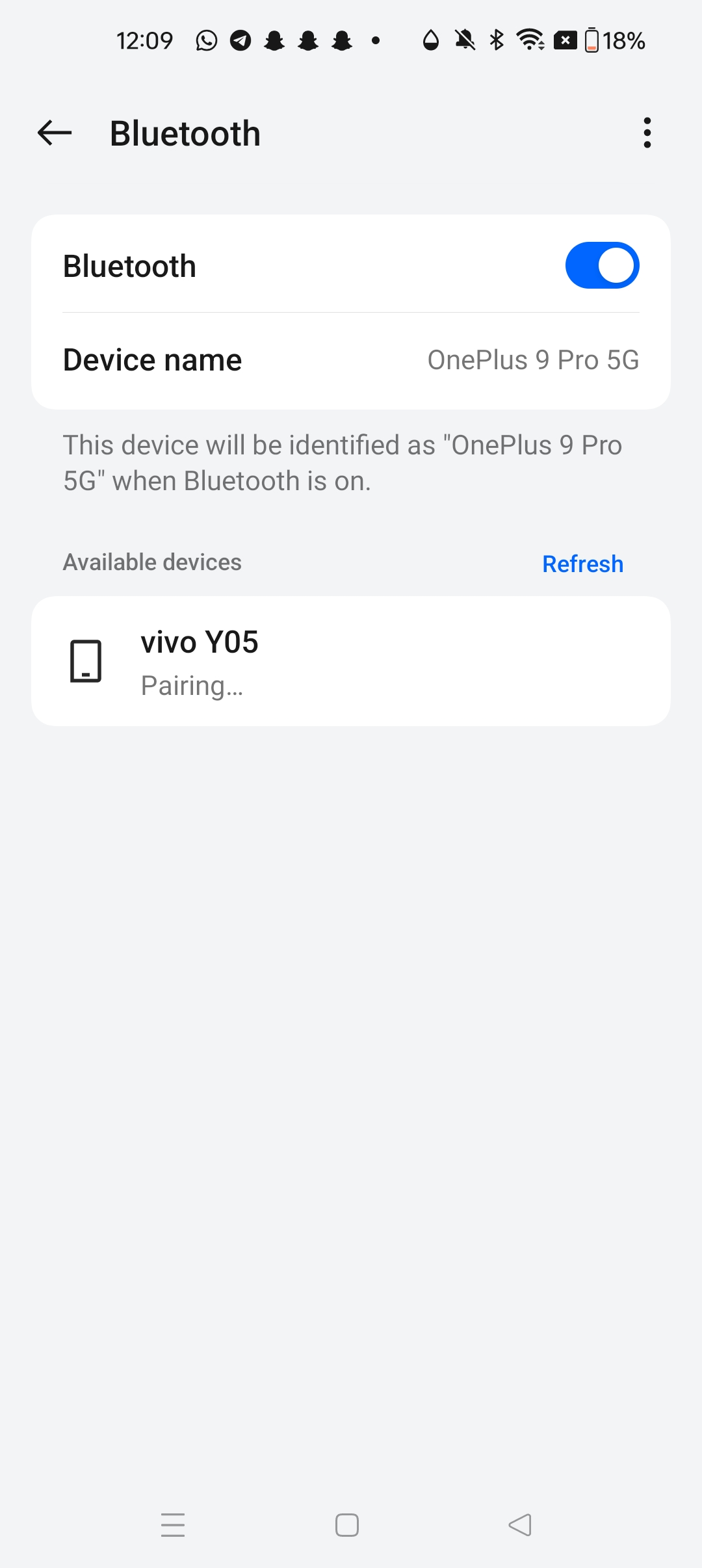
If your phone remembers the device but cannot connect, the saved pairing data may be corrupted. Delete the memory and start fresh:
- On iPhone: Settings > Bluetooth, tap the (i) next to the device, choose Forget This Device.
- On Android: Settings > Bluetooth, tap the gear icon, choose Forget/Unpair.
- Put the accessory in pairing mode again and pair from scratch.
Corrupted pairing profiles are one of the most common causes of “connects then immediately disconnects.” A fresh pairing fixes it almost every time.
5. Restart Everything (Yes, Really)
The classic fix survives because it works: do a full power-off restart (not just locking the screen), power-cycle the accessory while it reboots, then pair fresh. If your phone has not restarted in weeks, this alone can end the saga.
6. Try the Airplane Mode Trick
Turn on Airplane Mode for 30 seconds, then turn it off. Airplane mode kills every radio — cellular, Wi-Fi, and Bluetooth — forcing them all to re-initialize cleanly. It resolves weird radio conflicts that a simple Bluetooth toggle misses.
7. Reset Your Network Settings
When nothing else works, reset the phone’s network settings. This wipes saved Wi-Fi passwords, VPN settings, and all Bluetooth pairings — a scorched-earth fix for deep radio corruption:
- On iPhone: Settings > General > Transfer or Reset iPhone > Reset > Reset Network Settings.
- On Android: Settings > System > Reset options > Reset Wi-Fi, mobile & Bluetooth.
This does not delete your photos, apps, or files — only network configurations. You will need to re-enter Wi-Fi passwords afterwards, so have the important ones handy.
8. Update Your Phone and the Accessory
Bluetooth bugs get fixed in updates — on both ends. Update your phone (Settings > General/System > Software Update), then update the accessory’s firmware through its companion app (Sony Headphones Connect, Jabra Sound+, Bose Music, and similar apps all push firmware to the device itself).
Accessory firmware updates do not install themselves — check the companion app even if everything “seems” up to date.
9. Check the Battery on Both Ends
Low battery causes bizarre Bluetooth behavior: devices that refuse pairing mode, connections that drop every few minutes, audio that stutters. Charge both the phone and the accessory above 30% before troubleshooting further.
Earbuds have a sneaky variant: one bud charges while the other does not, thanks to a dirty contact in the case. If only one earbud pairs, clean the charging contacts with a dry cotton swab and reseat both buds.
10. Disconnect the Crowd
Most phones handle several Bluetooth devices at once — but accessories often cannot. If your headphones are secretly still connected to your laptop or tablet, they will refuse to pair with your phone. Turn off Bluetooth on nearby devices you are not using, or unpair the accessory from the device it keeps defaulting to.
11. Fix Choppy Audio and Bad Sound Quality
Connected but sounds terrible? Different problem, different fixes:
- Stuttering audio: Move the phone closer, get away from Wi-Fi routers, and close bandwidth-hungry apps. On Android, try disabling HD audio/AAC for the device in Bluetooth settings.
- Only one earbud playing: Reseat both buds, clean the contacts, and re-pair.
- Calls sound bad but music is fine: The accessory switched to the low-quality “headset” profile for the microphone — normal Bluetooth behavior. Take the call on the phone itself instead.
- Audio lag in videos: Enable low-latency/gaming mode in the accessory’s app if offered.
12. When It Is a Hardware Problem
If all eleven fixes fail on two different phones, the hardware is likely failing: it will not enter pairing mode, it disconnects within seconds on every device, or there is visible physical damage.
Check the warranty before buying a replacement — most quality earbuds and headphones carry at least a one-year warranty, and manufacturers often replace faulty units with minimal fuss.
Bluetooth failures almost always surrender to method: toggle, get close, pair properly, forget and re-pair, restart, reset. Run the sequence — your earbuds will be back before your coffee goes cold.
Frequently Asked Questions
Why won’t my earbuds enter pairing mode at all?
Usually the battery is too low, or you’re only turning them on instead of holding the button until the light flashes. Charge both buds above 30%, then hold the pairing button for the full 5–7 seconds until you see rapid flashing or hear the pairing prompt.
Can Bluetooth connect to two devices at once?
Phones can handle several Bluetooth devices, but most accessories cannot — if your headphones are secretly still connected to your laptop, they will refuse to pair with your phone. Turn off Bluetooth on nearby devices you aren’t using.
Why does Bluetooth audio stutter only outdoors or at the gym?
Bluetooth is a short-range signal that competes with WiFi routers, other devices, and even your own body — a phone in a back pocket can cause dropouts. Move the phone closer with a clear line of sight, and try pairing somewhere quieter first.
Does leaving Bluetooth on drain my battery?
Very little on modern phones. Bluetooth Low Energy sips power when idle, and the bigger battery cost comes from active audio streaming, not from having Bluetooth switched on.
Should I reset network settings first or last?
Last. Resetting network settings wipes all saved WiFi passwords and Bluetooth pairings, so it’s a scorched-earth fix. Work through the toggle, pairing-mode, forget-and-re-pair, and restart steps first — most people are paired up before fix number five.
Related Guides
- How to Fix Slow WiFi: 12 Practical Ways to Speed Up Your Internet
- How to Check Who Is on Your WiFi (and Kick Them Off)
- How to Cast Your Phone to Your TV: The Complete Screen Mirroring Guide
- How to Screen Record on iPhone, Android, Windows, and Mac
- How to Set Up a VPN: A Beginner’s Guide to Browsing Safely
Pingback: How to Cast Your Phone to Your TV: The Complete Screen Mirroring Guide -