
There it is again — that smug little popup: “iCloud Storage Full.” It always arrives at the worst possible moment, usually right when you’re trying to snap a photo or back up your phone before an update. And Apple’s suggested solution is always the same: give us money every month for more space.
But here’s the secret Apple doesn’t advertise: most “full” iCloud accounts aren’t full of things you need. They’re full of forgotten device backups, duplicate screenshots, and message attachments from 2019. With about fifteen minutes and the right settings, you can usually claw back gigabytes — no subscription required. Let’s go hunting.
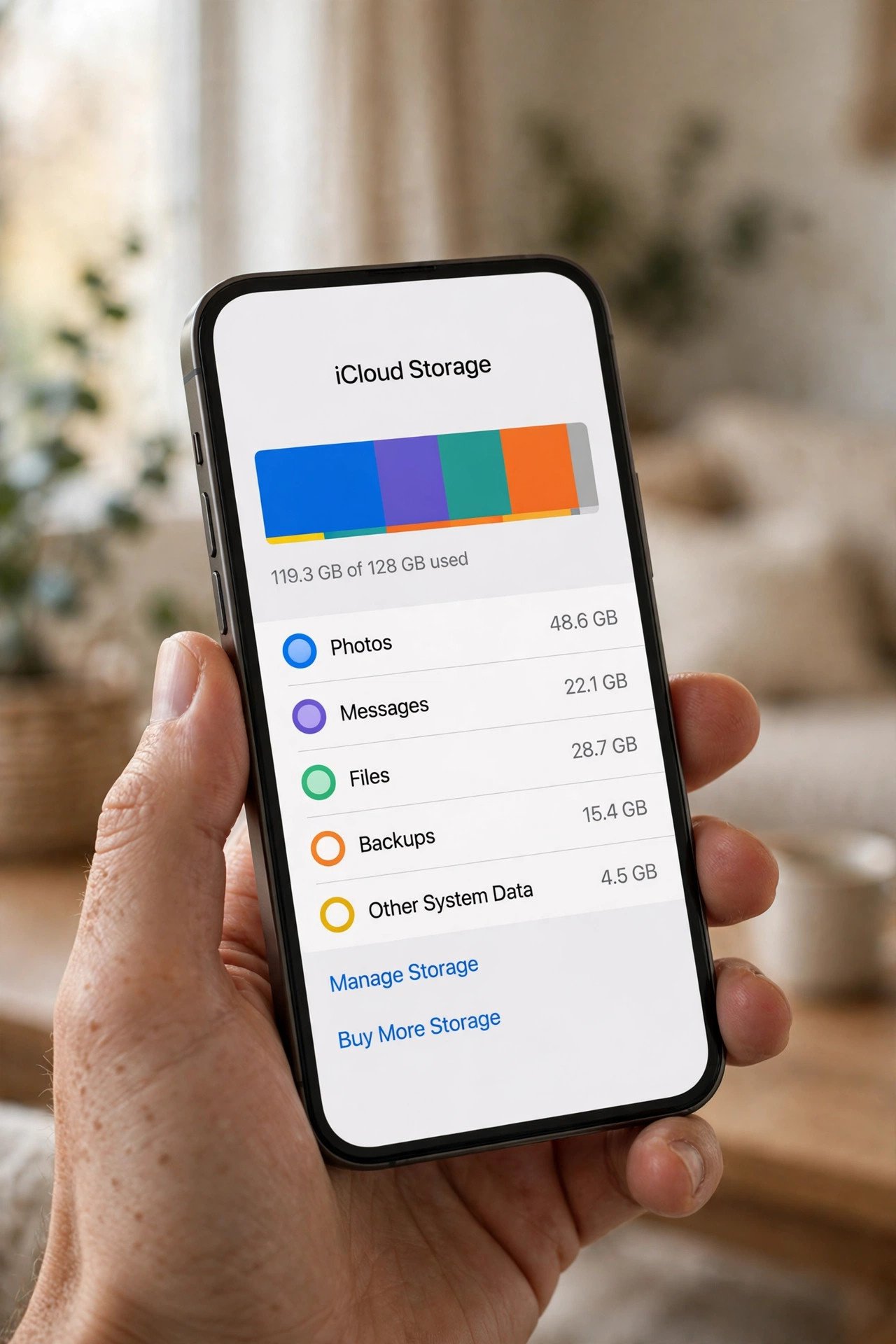
First: See What’s Actually Hogging Your Space
You can’t fix what you can’t see, so start with the storage breakdown. On your iPhone, open Settings, tap your name at the top, then tap iCloud. You’ll see a colorful bar showing exactly what’s eating your space — Photos, Backups, Messages, iCloud Drive, and everything else, each with its own slice.
Tap into each category for details. This two-minute recon mission tells you where the big wins are hiding, so you’re not randomly deleting things and hoping. In most cases, one or two categories are responsible for the whole mess.
Tame iCloud Photos (the Usual Suspect)
Photos is the number-one iCloud storage hog for almost everyone, and it’s also where the easiest wins live:
- Switch to “Optimize iPhone Storage.” In Settings → [your name] → iCloud → Photos, choose Optimize iPhone Storage. Your phone keeps small previews locally and stores the full-resolution originals in iCloud — wait, that uses more iCloud? No: the trick is that this setting is about phone storage. For iCloud savings, the real move is below.
- Delete the dead weight. Screenshots of memes, accidental burst-mode explosions, blurry duplicates — the Photos app’s Duplicates album (under Utilities) finds merged copies for you automatically. Screenshots can almost always go.
- Empty “Recently Deleted.” Deleted photos sit in the Recently Deleted album for 30 days, still counting against your iCloud storage. Open it and tap Delete All to reclaim the space immediately.
- Use Shared Albums for the fun stuff. Photos in Shared Albums don’t count against your iCloud storage at all — perfect for vacation albums and family photo dumps.
Delete the Ghosts of iPhones Past
Here’s a classic: you upgraded phones two years ago, but your old phone’s backup is still squatting in iCloud, holding gigabytes hostage. Go to Settings → [your name] → iCloud → Manage Account Storage → Backups, and look at the list.
If you see backups for devices you no longer own, tap them and hit Delete Backup. One old iPhone backup can easily be 5–10 GB — deleting it is often the single biggest instant win in this entire guide. Just make sure your current device still has its backup intact before you go on a deleting spree.
Messages: the Silent Storage Hog
Your text threads are secretly warehouses of videos, GIFs, and photos people sent you years ago. To see the damage, go to Settings → General → iPhone Storage → Messages. The breakdown by category — Top Conversations, Photos, Videos, GIFs — is genuinely eye-opening.
Tap into Photos or Videos to review the biggest attachments and delete the ones you don’t need. Then, stop the pile from rebuilding: in Settings → Messages → Keep Messages, switch from Forever to 1 Year (or even 30 Days). Your future self won’t miss that blurry concert video from 2021.
Stop Apps From Syncing Stuff You Don’t Care About
Dozens of apps quietly stash their data in iCloud — game saves, app caches, documents from apps you opened twice. In Settings → [your name] → iCloud, tap See All (or scroll the app list) to see every app using iCloud.
Toggle off anything you don’t care about syncing. Be a little ruthless: does that puzzle game really need cloud backup? Does a long-deleted app still deserve a slice of your storage? Turn off the app’s iCloud access, then delete its stored data when prompted. Every toggle is free space.
Don’t Forget iCloud Drive and Mail
Two more hiding spots people always miss:
- iCloud Drive: open the Files app, browse iCloud Drive, and look for large forgotten files — old downloads, exported videos, giant PDFs. And just like Photos, deleted files sit in Recently Deleted for 30 days still counting against you. Empty it.
- Mail attachments: if you use iCloud Mail, years of emails with attachments add up. Search for large attachments and delete the threads you don’t need — especially newsletters with embedded images and old forwarded chains.
Make the Dreaded Popup Stay Gone
Freeing space is step one; keeping it free is the real game. A few habits make all the difference:
- Review the storage bar every few months — two minutes, same screen as step one. Catch the creep early.
- Keep “Keep Messages” at 1 Year so attachments auto-expire instead of accumulating forever.
- Offload, don’t hoard, in iCloud Drive — move finished projects to your computer or an external drive.
- Empty Recently Deleted albums regularly — in Photos, Files, and Notes alike. Deleted doesn’t mean gone until you do.
Your Wallet Says Thanks
Apple’s paid tiers aren’t evil — some people genuinely need 200 GB. But you shouldn’t be paying a monthly fee to store screenshots, ghost backups, and memes from 2019. Work through this list once, and there’s a very good chance that “iCloud Storage Full” popup becomes a distant memory — along with the urge to hand Apple money for the privilege of forgetting to clean up.
Related Guides
- How to Free Up iPhone Storage Without Deleting Your Photos
- How to Free Up Google Drive Storage Without Upgrading Your Plan
- How to Free Up Storage on Android Without Deleting Your Photos
- How to Back Up Your Phone: The Complete iPhone and Android Guide
- How to Delete Duplicate Photos on iPhone and Android (Without Losing a Single Memory)
Pingback: How to Free Up Google Drive Storage Without Upgrading Your Plan -
Pingback: How to Free Up iPhone Storage Without Deleting Your Photos -
Pingback: How to Check Battery Health on iPhone and Android (And What the Numbers Actually Mean) -
Pingback: iPhone Battery Draining Fast? 12 Settings to Change Right Now -