
Your phone used to last all day without breaking a sweat. Now it is gasping for a charger by dinner time, and you are starting to wonder: is it the apps, the settings — or is the battery itself simply getting old? There is a quick way to find out, and it takes less than a minute.
Both iPhone and Android keep a health report for your battery, hidden in the settings. Once you know where to look, you can stop guessing, stop blaming every app on your home screen, and make a smart decision about whether your phone needs a few tweaks or a brand-new battery.

What Battery Health Actually Means
Think of battery health as a fitness score for your battery. A brand-new battery scores 100 percent, meaning it can still hold its full original charge. Over time, every charge cycle — every time you drain and refill the battery — wears it down a little.
A battery at 90 percent health still holds 90 percent of the charge it held when it was new. At 80 percent, the drop becomes hard to ignore, and your phone may also start slowing down to protect the aging battery. Apple uses 80 percent as its own line — iPhone batteries are designed to keep 80 percent of their original capacity after 500 complete charge cycles (1,000 cycles for iPhone 15 models and later). Other manufacturers use their own thresholds, so treat 80 percent as a useful guide, not a universal rule.
It is worth separating battery health from battery level. The percentage in your status bar tells you how much charge is left right now. Battery health tells you how much charge the battery can hold in total.
How to Check Battery Health on iPhone
Apple makes this beautifully simple, and you do not need any extra app:
- Open Settings and tap Battery.
- Tap Battery Health & Charging.
- Look at Maximum Capacity — that is your battery health percentage.
On newer iPhones you will also see a Cycle Count, which tells you how many full charge cycles the battery has been through. Apple designs iPhone 14 models and earlier to retain 80 percent of their original capacity at 500 complete charge cycles, and iPhone 15 models at 1,000 complete charge cycles (see Apple’s iPhone battery and performance page, linked below). If your phone shows a message like “Service Recommended” under Battery Health, Apple is telling you the battery is significantly degraded and a replacement would restore normal performance.
While you are there, check that Optimized Battery Charging is switched on. This clever feature learns your routine and holds the charge at 80 percent overnight, only topping it up to 100 percent shortly before you usually wake up. Less time sitting at full charge means slower wear, and it costs you nothing.
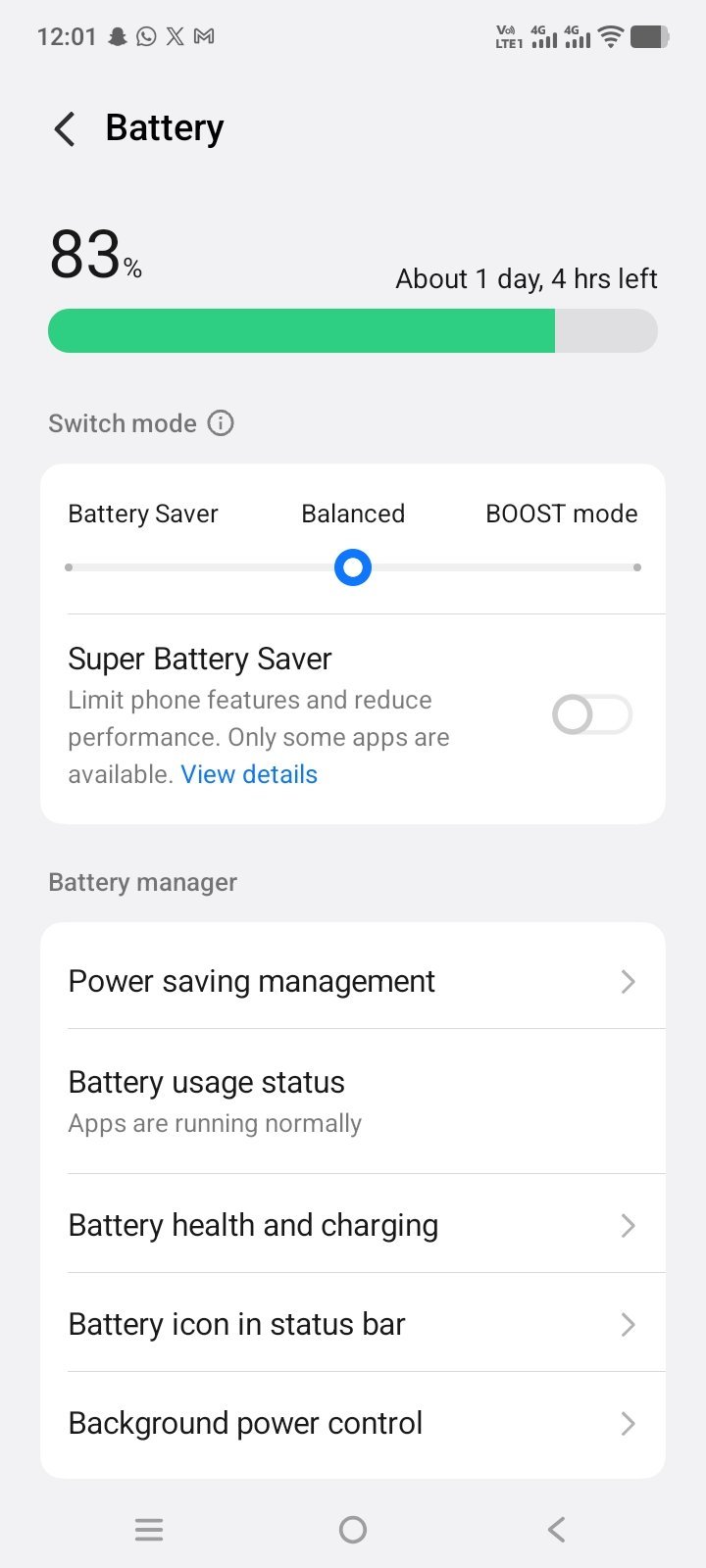
How to Check Battery Health on Android
Android is a little less consistent, because every manufacturer hides this information in a different corner. Here is where to look on the most popular phones:
On Samsung phones
Open Settings, tap Battery and device care (or Device care), then tap Diagnostics or Battery. Some Samsung models show battery status directly; on others, the Samsung Members app offers a diagnostics test that reports battery status as Normal, Weak, or Bad (Samsung’s own wording). A “Normal” result means no performance issues with the battery.
On Google Pixel phones
On Pixel 6 and later, Google’s battery diagnostics are under Settings > Battery > Battery Diagnostics. A dedicated Battery health screen appears on supported newer Pixel models and Android versions — if you do not see it on your phone, use Battery Diagnostics, and check Google’s Pixel battery help page (linked below) for your model. On older Pixels without this page, a trusted third-party app such as AccuBattery can estimate health after a few charge cycles — it measures how much charge actually goes in compared with the battery’s rated capacity.
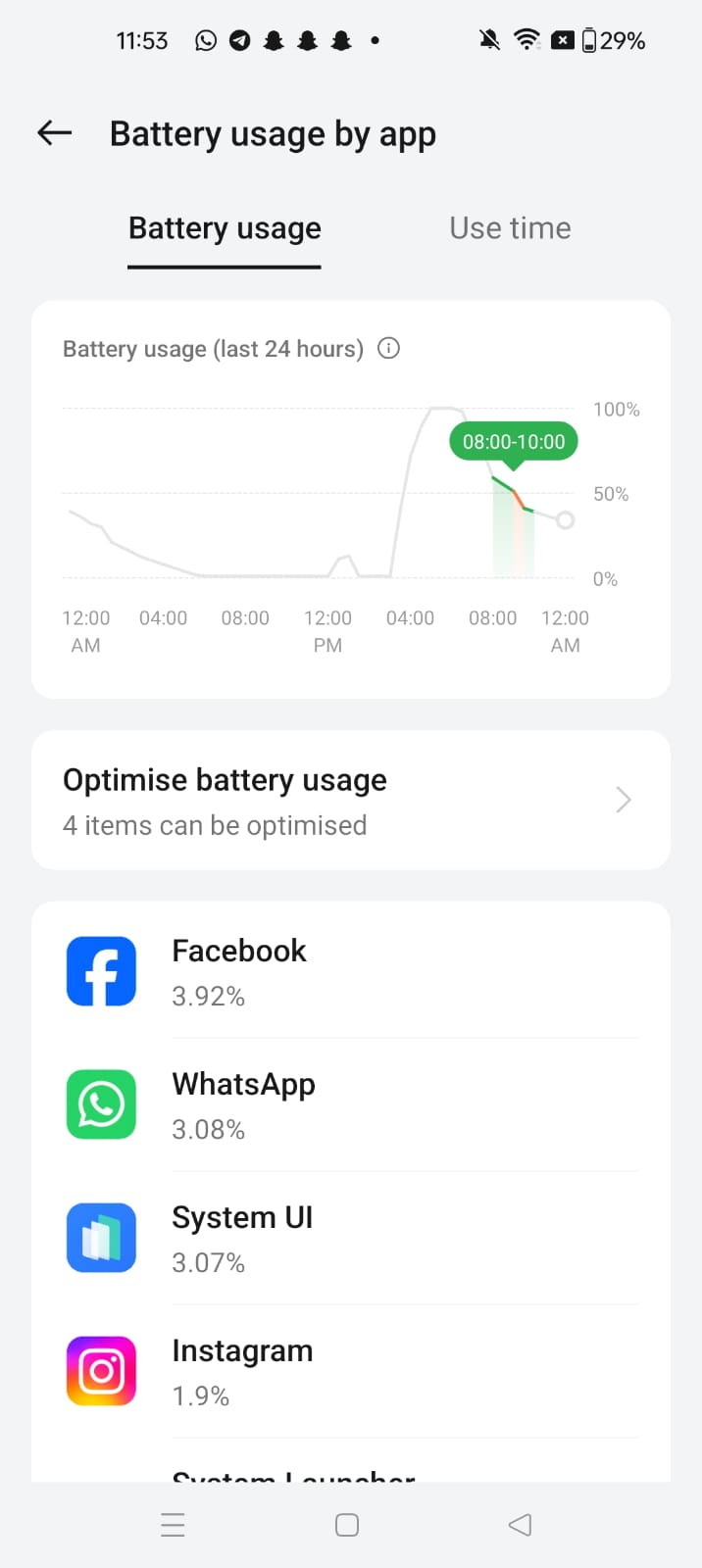
On other Android phones
Try dialling *#*#4636#*#* in the phone app — on some models this opens a hidden testing menu with battery information. If that code does nothing on your phone (many manufacturers block it), an app like AccuBattery or Battery Guru is your next best option. Just be cautious: only install well-reviewed battery apps from the Play Store, and never grant them permissions they do not need.
What Your Number Means — and What to Do About It
Here is a simple way to read your result — as a rough guide, not a rule that fits every phone. At 95 to 100 percent, your battery is in great shape; if your phone still drains fast, the culprit is almost certainly an app or a setting. At 85 to 94 percent, wear is normal — a few battery-saving tweaks will make a real difference. At 80 to 84 percent, you will notice shorter battery life, and it is worth starting to think about a replacement. Below 80 percent, a replacement is usually worth considering — Apple treats below 80 percent as the point where an iPhone battery is significantly degraded, while Android makers use their own status words (Samsung: Normal / Weak / Bad; Pixel: battery diagnostics on Pixel 6 and later). Your actual experience — unexpected shutdowns, a swollen battery, or a day that ends by lunch — matters more than any single number.
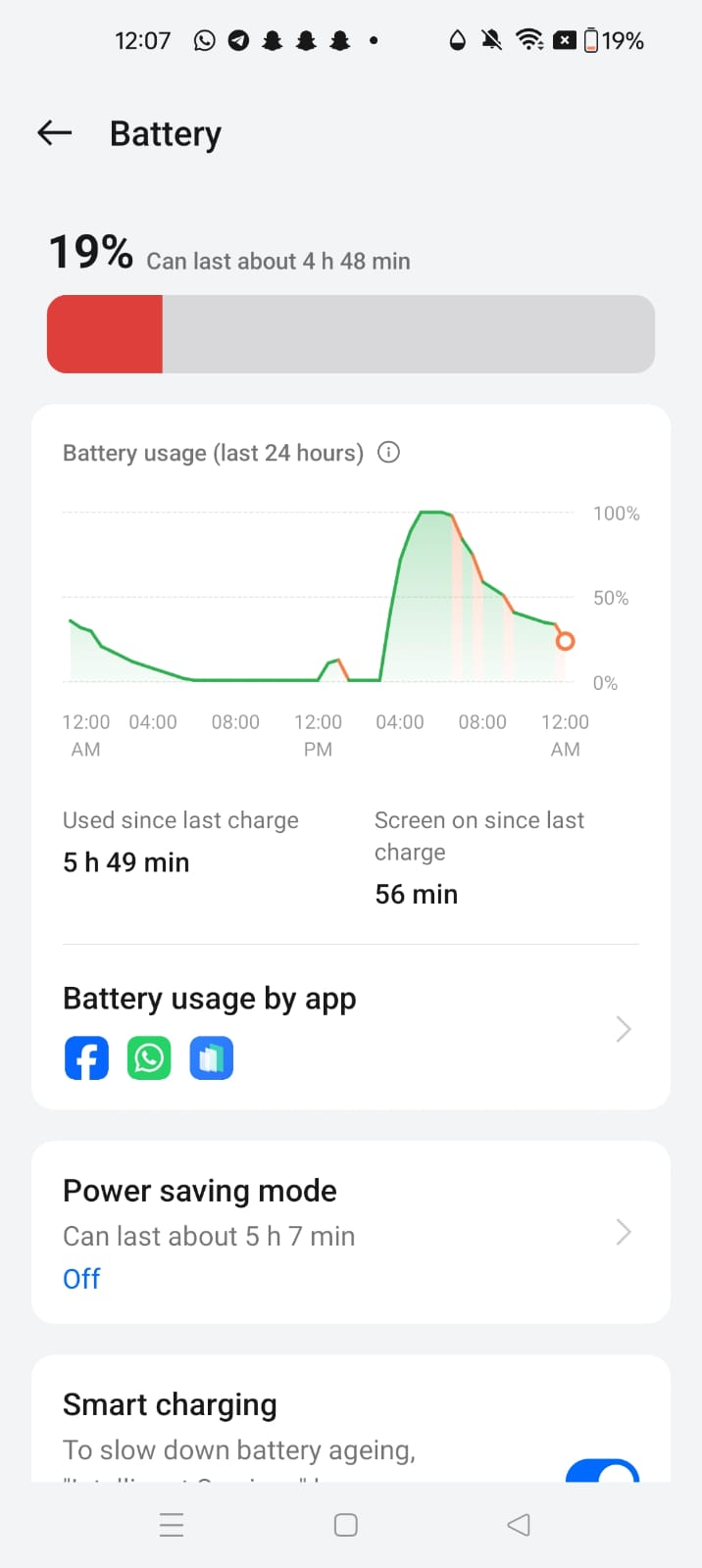
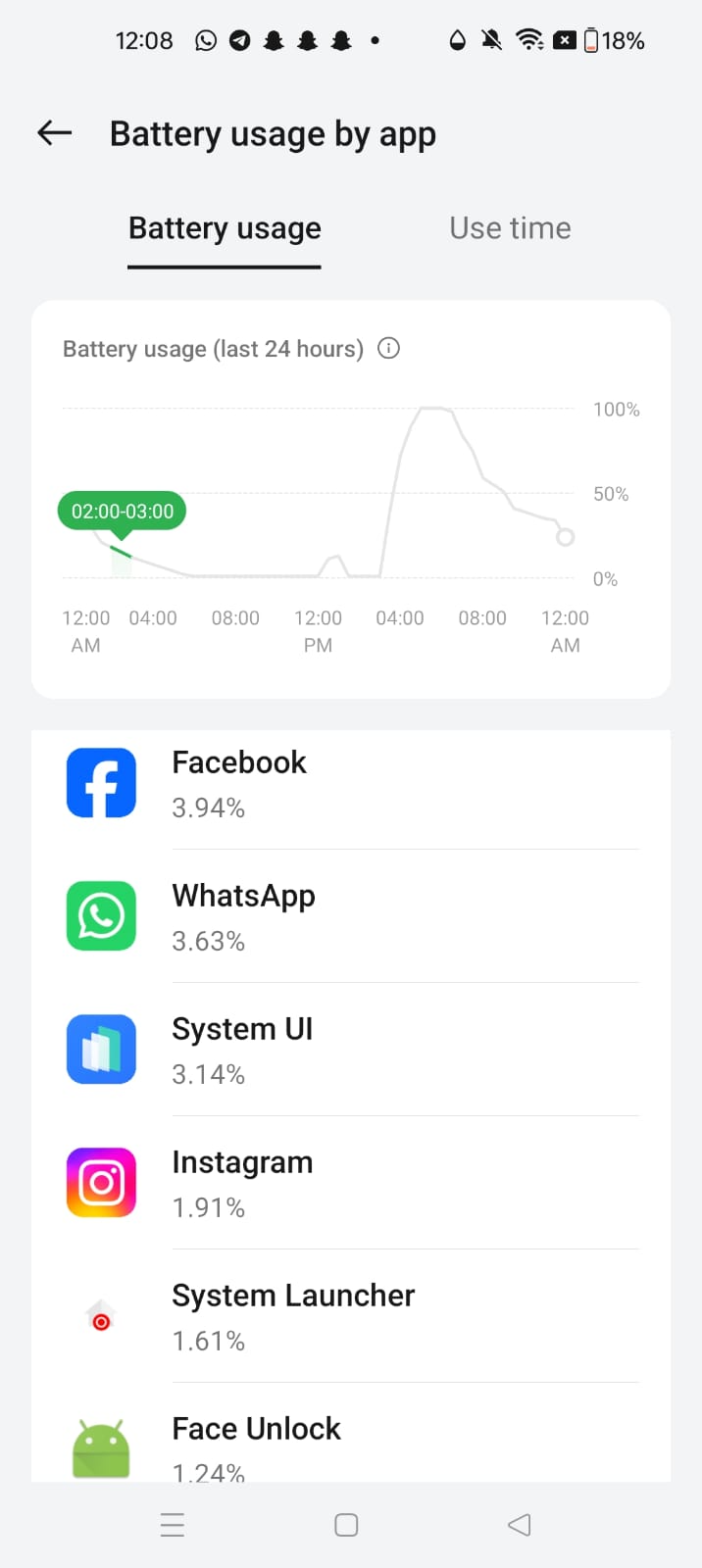
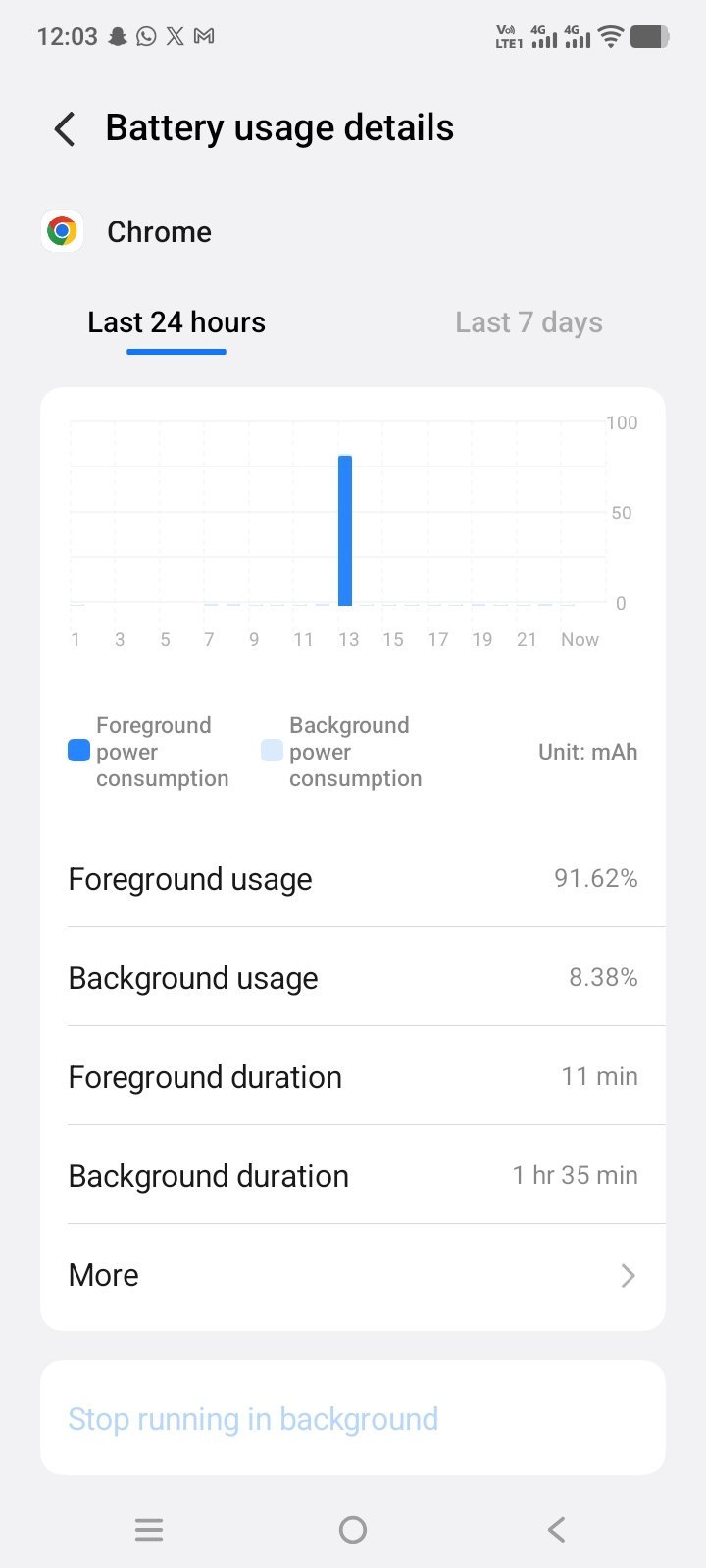
Before you book a replacement, try the quick wins. Lower your screen brightness or switch on adaptive brightness, turn off background refresh for apps you rarely use, and check which apps are eating the most battery in your Battery settings. Sometimes a single misbehaving app — often a social media or navigation app — is responsible for half your drain. Updating your phone’s software can help too, since updates frequently include battery improvements.
How to Make Your Battery Last Longer
You cannot stop battery aging, but you can absolutely slow it down. The single biggest favour you can do your battery is to avoid extremes: try to keep it between roughly 20 and 80 percent most of the time instead of constantly draining it to zero or leaving it plugged in at 100 percent for hours. Heat is the other great enemy — never leave your phone baking in a hot car or on a sunny windowsill, and take it out of a thick case while fast charging if it feels warm.
Overnight charging is fine on modern phones, thanks to optimized charging features. And skip the bargain-bin chargers: a certified charger from a reputable brand protects both your battery and your safety.
When a New Battery Beats a New Phone
It is tempting to treat a tired battery as an excuse for a shiny new phone, but a battery replacement is usually one of the best-value repairs you can buy. If your phone still runs the apps you need and feels fast enough, a fresh battery can easily add another year or two of happy use — for a fraction of the cost of an upgrade, and with far less waste. Check your battery health today: it is a one-minute test that could save you hundreds.
Official guides: Apple – iPhone battery and performance (https://support.apple.com/en-gb/101575); Google – Fix issues with your Pixel phone battery (https://support.google.com/pixelphone/answer/14101646); Samsung – How to check the battery status on your Samsung Galaxy phone (https://www.samsung.com/in/support/mobile-devices/how-to-check-the-battery-status-on-your-samsung-galaxy-phone/).