
It always happens at the worst moment. You remember someone’s birthday at 11:47 PM, thumb hovering over the keyboard, wondering whether a text sent at this hour looks thoughtful or slightly unhinged. Or you promise yourself you’ll remind your roommate about rent in the morning — and by morning, the thought has evaporated completely.
Here’s the good news: your phone can send texts for you, at exactly the right moment, while you’re fast asleep or blissfully distracted. Both iPhone and Android have built-in ways to schedule text messages in advance — no shady third-party apps required. Once you start using this, you’ll wonder how you ever lived without it.
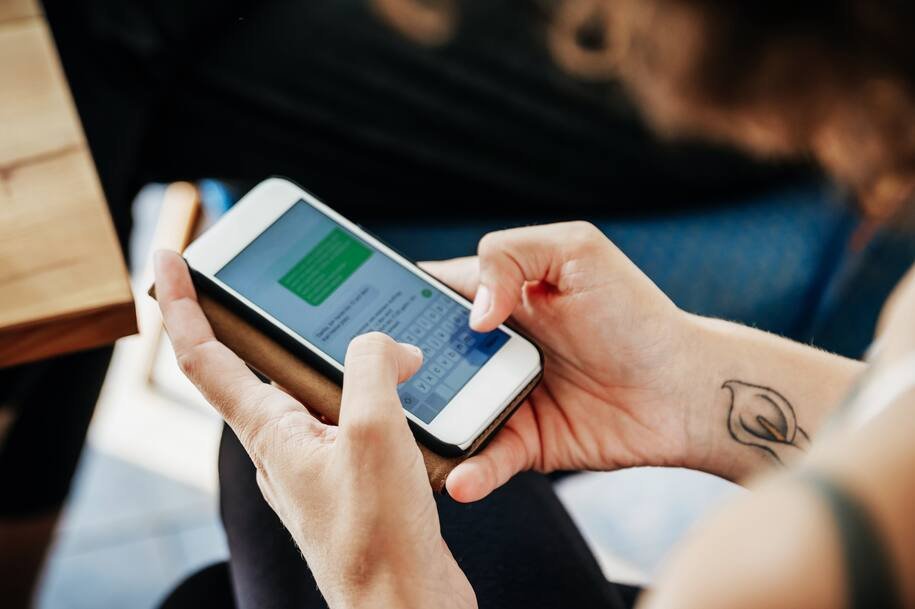
Why Bother Scheduling Texts?
Because your future self is unreliable, and your phone isn’t. Scheduled texts are perfect for:
- Midnight birthday wishes. Write the message at 9 PM, schedule it for 12:00 AM, and look like the most thoughtful person alive.
- Morning reminders. “Don’t forget your dentist appointment!” lands at 7:30 AM, right when it matters.
- Time-zone juggling. Your friend in London doesn’t need a 3 AM “happy birthday” buzzing on their nightstand.
- Work follow-ups. Draft the “just checking in” email-text on Friday evening, schedule it for Monday morning like a professional.
- Apologies and check-ins. Sometimes the kindest message is the one you write calmly and send later.
Think of it as a time machine for your thumbs. Now let’s set it up.
How to Schedule a Text on iPhone
iPhone owners get two routes, depending on which iOS version is running. The newer way is beautifully simple; the older way takes a couple more taps but works just as well.
Method 1: Send Later (iOS 18 and newer)
Apple finally added native text scheduling in iOS 18, and it’s exactly where you’d expect it:
- Open the Messages app and go to the conversation.
- Tap the + button next to the text field, then tap More.
- Choose Send Later.
- Pick your date and time using the picker.
- Type your message and tap the blue send arrow.
Your message appears in the chat with a dashed outline — that’s how you know it’s scheduled and waiting. Changed your mind? Tap the message to edit the time, delete it, or send it immediately. It’s wonderfully forgiving.
One note: Send Later works in iMessage conversations. If the chat is green-bubble SMS, the option may not appear — that’s Apple’s limitation, not yours.
Method 2: The Shortcuts App (iOS 17 and older)
No Send Later on your iPhone? The Shortcuts app has had your back for years:
- Open Shortcuts and tap the Automation tab at the bottom.
- Tap New Automation (or the + icon).
- Choose Time of Day and set when the text should go out.
- Select Run Immediately so it sends without asking you first, then tap Next.
- Choose the Send Message action.
- Tap the blue placeholders to pick your recipient and type your message.
- Tap Done.
When the time arrives, your iPhone sends the text automatically. Just remember to delete or disable the automation afterward if it was a one-time thing — otherwise it’ll cheerfully resend the same message on repeat.
How to Schedule a Text on Android
Android users have had this superpower for a while, and Google Messages makes it almost too easy.
In Google Messages (most Android phones)
- Open Google Messages and tap the conversation.
- Type your message as usual — but don’t tap send yet.
- Touch and hold the send arrow button.
- A scheduling menu pops up. Pick one of the suggested times or tap “Choose date and time” for full control.
- Tap Send (or Save).
The message now sits in your chat with a little clock icon on it. Tap that clock anytime before it sends to update the message, change the time, or delete it. This works for both RCS chats and regular SMS.
In Samsung Messages
Samsung’s own app has the same trick under a slightly different name:
- Open the conversation in Samsung Messages.
- Compose your message, then tap the + or the arrow/menu next to the text field.
- Choose “Schedule message”.
- Set the date and time, then tap Done and send.
Same deal: a clock badge marks the pending message, and you can edit or cancel it before it goes out.
A Few Things Worth Knowing
Scheduled texts feel like magic, but a little fine print keeps the magic working:
- Your phone needs to be on and connected when the moment arrives. The message is stored on your device, not in the cloud — a dead battery at midnight means a late birthday text.
- Double-check AM/PM. The single most common scheduling disaster is a heartfelt “good morning!” arriving at 7 PM. The time picker deserves a second glance.
- Plans change; messages don’t. Scheduling a text a week out is convenient, but if the plan it mentions changes, remember to cancel it. A “can’t wait for dinner Friday!” text after dinner got cancelled is just awkward.
- Review before big moments. Glance at your scheduled messages the morning of — on iPhone look for dashed bubbles, on Android look for clock icons.
- Group chats count too. Scheduling works in group conversations, which makes it brilliant for team reminders and family announcements.
Scheduled Texts Are a Quiet Superpower
Here’s the lovely thing about scheduling texts: nobody knows you did it. To the person receiving it, your perfectly timed message looks like presence of mind. Only you know it was actually presence of planning — typed on the couch, delivered with impeccable timing.
So go ahead: write tonight’s midnight birthday text, schedule tomorrow’s reminder, and let your phone handle the punctuality. Your future self says thanks.
Related Guides
- How to Block Spam Text Messages on iPhone and Android
- How to Set Up Focus Mode on iPhone and Android (And Finally Stop the Constant Pings)
- How to Set Up Emergency SOS on iPhone and Android
- How to Find a Lost Phone (iPhone and Android) — Even If It’s on Silent
- How to Recover Deleted WhatsApp Messages on Android and iPhone
Pingback: How to Set Up Focus Mode on iPhone and Android (And Finally Stop the Constant Pings) -