
Need to show someone how to change a setting, capture a brilliant play in a game, save a video call with family, or record a bug to send to tech support? A screenshot captures a moment — a screen recording captures the whole story.
The best part: every major device already has a screen recorder built in. No downloads, no sketchy apps, no watermarks. Here’s how to screen record on iPhone, Android, Windows, and Mac, plus where your recordings go and how to make them sound great.
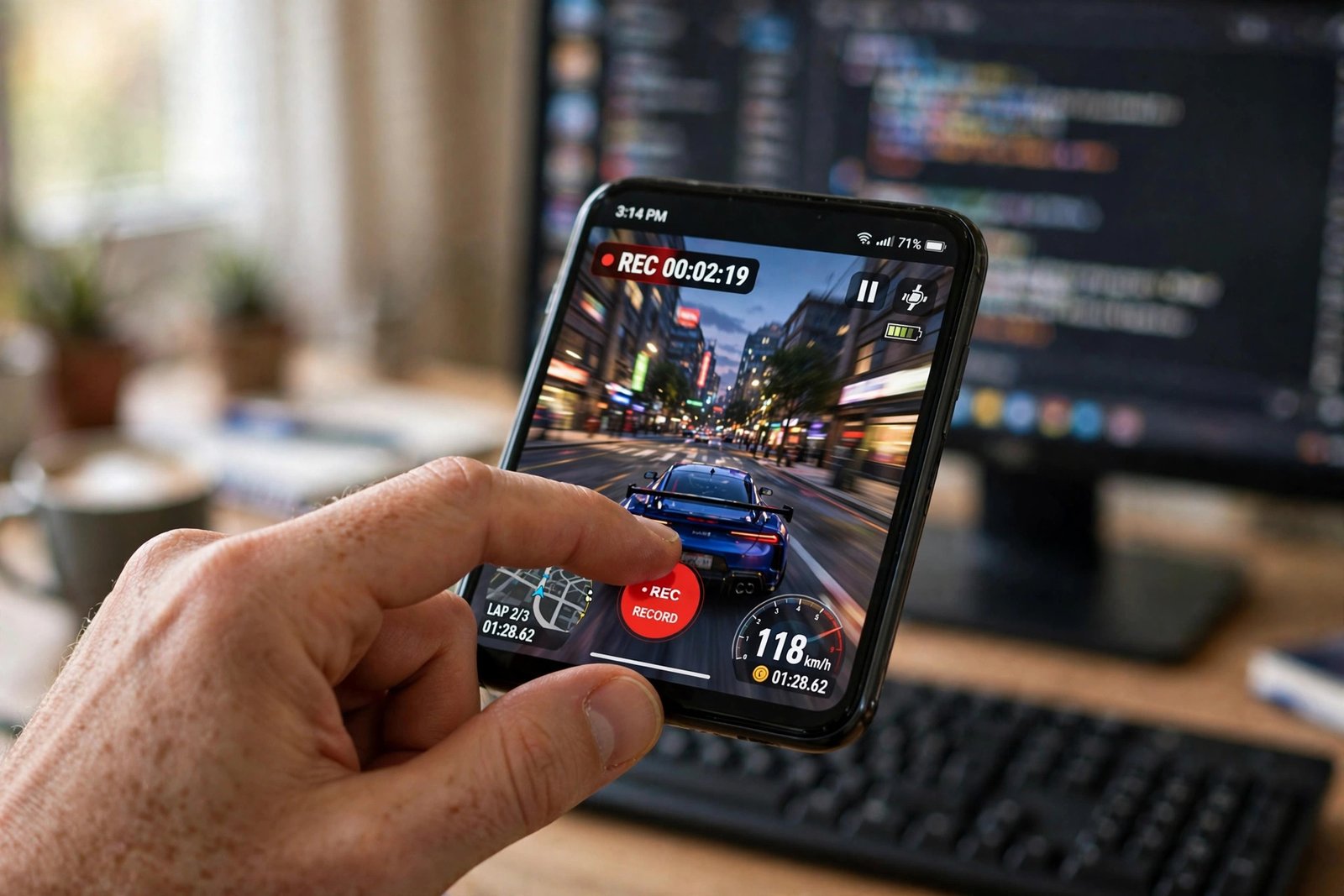
How to Screen Record on iPhone
Apple’s built-in recorder is excellent and hides in Control Center. If you don’t see it there, add it first:
- Go to Settings > Control Center.
- Find Screen Recording and tap the green + to add it.
- Open Control Center (swipe down from the top-right corner).
- Tap the record button (a circle inside a circle). A 3-second countdown starts, then recording begins — the clock in the status bar turns red.
- To stop, tap the red clock at the top and choose Stop.
Recording With Your Voice
By default, iPhone screen recordings capture system audio but not your microphone. To narrate over the recording — perfect for tutorials — long-press the record button in Control Center before starting, tap the Microphone icon to turn it on, then tap Start Recording. Your voice is now part of the video.
Recordings save automatically to the Photos app, where you can trim the start and end with the built-in editor before sharing.
How to Screen Record on Android
Most Android phones running Android 11 or newer have a built-in screen recorder in Quick Settings. Samsung, Pixel, and other brands add their own extras on top.
- Swipe down twice from the top of the screen to open the full Quick Settings panel.
- Tap Screen record (swipe sideways through the tiles or tap the edit pencil to add it if missing).
- Choose whether to record audio — device audio, microphone, or both — and whether to show touches on screen.
- Tap Start. A countdown runs, then recording begins.
- To stop, swipe down and tap the screen recorder notification, then Stop.
Your video saves to the Gallery or Google Photos app. The “show touches” option is genuinely useful — it draws a little dot wherever your finger taps, making tutorial recordings far easier to follow.
On older Android phones without a built-in recorder, the free and trustworthy option is the recorder inside the Google Play Games app for gameplay — but honestly, if your phone is that old, it’s probably time to check for a software update first.
How to Screen Record on Windows
Windows includes two recorders, and choosing the right one saves frustration.
Option A: Xbox Game Bar (Quick and Easy)
Despite the name, Game Bar records any app — not just games:
- Open the app or window you want to record.
- Press Windows key + G to open the Game Bar.
- Click the record button (or press Windows key + Alt + R to start instantly).
- A small recording bar appears. Click the square stop button when done.
Clips save to Videos > Captures. One limitation: Game Bar can’t record the desktop itself or File Explorer — only apps and games.
Option B: Snipping Tool (Records Anything)
For recording the desktop, menus, or multiple windows, use the Snipping Tool’s video mode:
- Open Snipping Tool from the Start menu.
- Switch from the camera icon to the video camera icon.
- Click New, drag to select the area to record, and press Start.
- Press Stop, then save the MP4 wherever you like.
This is the tool to reach for when Game Bar’s app-only limitation gets in the way.
How to Screen Record on Mac
macOS has the most polished built-in recorder of the bunch — the Screenshot toolbar:
- Press Command + Shift + 5 to open the toolbar.
- Choose Record Entire Screen or Record Selected Portion (drag to define the area).
- Click Options to pick where to save, set a timer delay, and choose a microphone for narration.
- Click Record. Click the stop button in the menu bar to finish.
By default, recordings land on the Desktop as MOV files. For quick trims, open the recording in QuickTime Player and use Edit > Trim — no extra software needed.
Mac users who record often should also know QuickTime Player itself: File > New Screen Recording gives the same capture with a simpler interface.
Tips for Better Screen Recordings
- Silence notifications first. Turn on Do Not Disturb on every device before recording — nothing ruins a tutorial like a message preview popping up mid-demo.
- Narrate as you go. A recording with voiceover is ten times more useful than a silent one. Enable the microphone option on whichever device you’re using.
- Record in landscape. If the video will be watched on a computer or TV, rotate your phone sideways first — portrait recordings look tiny on wide screens.
- Clean up before you start. Close unrelated tabs and apps. A tidy screen makes the recording easier to follow and looks far more professional.
- Check protected content rules. Streaming apps like Netflix block screen recording of their video (you’ll get a black screen) — that’s copy protection working as intended, not a bug.
Whether it’s a quick how-to for a friend or a full tutorial for the internet, your device already has everything you need. Press record and go.
Related Guides
- How to Take a Screenshot on Any Device (Windows, Mac, iPhone, Android)
- How to Scan Documents With Your Phone (iPhone and Android)
- How to Cast Your Phone to Your TV: The Complete Screen Mirroring Guide
- How to Recover Deleted Photos on iPhone and Android
- How to Set Up Focus Mode on iPhone and Android (And Finally Stop the Constant Pings)
Pingback: How to Set Up Focus Mode on iPhone and Android (And Finally Stop the Constant Pings) -
Pingback: How to Cast Your Phone to Your TV: The Complete Screen Mirroring Guide -
Pingback: How to Take a Screenshot on Any Device (Windows, Mac, iPhone, Android) -
Pingback: How to Scan Documents With Your Phone (iPhone and Android) -
Pingback: Bluetooth Not Working? 12 Fixes to Get You Paired Again -