
Guests arrive, phones come out, and within seconds someone asks the question every host hears: “What’s your WiFi password?” You read out the long password you use for everything — and just like that, a friend’s phone and your cousin’s suspiciously old laptop are sitting on the same network as your work computer, your photo backups, and your smart locks.
There is a much better way to handle this. Learning how to set up a guest WiFi network takes about ten minutes, and it gives your visitors fast internet on a separate, walled-off network that cannot touch your private devices. Think of it like a guest bedroom: comfortable, fully stocked, but with a locked door between it and the rest of the house.
What Exactly Is a Guest WiFi Network?
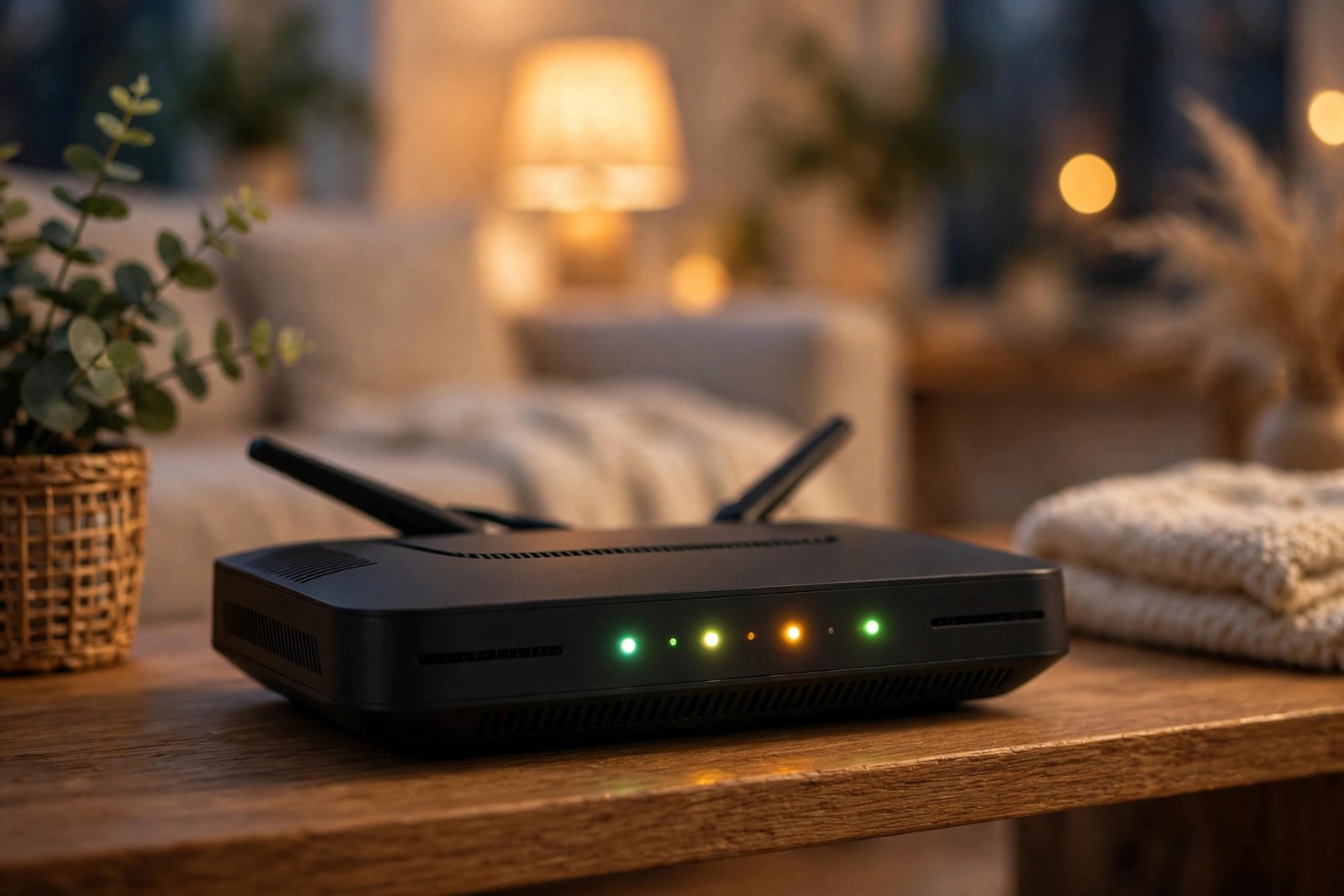
A guest network is a second WiFi network broadcast by your existing router. It has its own name and password, but it is isolated from your main network. Devices on the guest network can reach the internet just fine, but they cannot see or talk to your computers, phones, network drives, printers, or smart-home gadgets.
Most routers made in the last decade include this feature built in. You do not need new hardware, extra apps, or a networking degree — just access to your router’s settings page.
Why Bother? Four Good Reasons
1. Your Visitors’ Devices Might Be Compromised
This is not about distrusting your friends. Their phone could be carrying malware they know nothing about. Once a compromised device joins your main network, it can scan for shared folders, printers, and other devices to attack. A guest network puts a wall between their device and yours.
2. Your Smart Home Stays Private
Smart cameras, door locks, thermostats, and speakers often have weak security. If a guest’s infected laptop ends up on the same network, those devices are suddenly reachable. Many security experts recommend putting all smart-home gadgets on the guest network permanently — or better, on a dedicated IoT network if your router supports multiple guest networks.
3. Your Files Stay Yours
Network-attached storage, shared folders on your PC, and media servers are all visible to devices on the same network. Family photos, tax documents, work files — none of that should be browsable by a guest’s device, even by accident.
4. It Is Just Easier for Guests
A guest network can have a short, memorable password like “WelcomeHome2026” instead of your 24-character main password. You can even print a little card with the network name and password and leave it on the coffee table. No more spelling out passwords over the noise of a party.
Before You Start: What You Need
- A router with a guest-network feature (check your router’s manual or settings — most routers from the last 8-10 years have it).
- A computer or phone connected to your home network.
- Your router’s admin login (often printed on a sticker on the router itself).
Step-by-Step: Setting Up Your Guest Network
Step 1: Log In to Your Router
Open a web browser and type your router’s address — usually 192.168.1.1 or 192.168.0.1. (Check the sticker on the router or your provider’s app if neither works.) Enter the admin username and password. If you have never changed these, change them now — a router with the default “admin/admin” login is a security risk on its own.
Step 2: Find the Guest Network Settings
The exact location varies by brand, but look for one of these menu names:
- Guest Network (ASUS, Netgear, TP-Link)
- Wireless > Guest Zone (D-Link)
- Advanced > Guest WiFi (Linksys)
- Home Network > Guest (many ISP-provided routers)
If you use a mesh system like Google Nest Wifi, Eero, or Orbi, open the companion app instead — guest networks are usually one tap away under WiFi settings.
Step 3: Enable the Guest Network and Name It
Turn the guest network on and give it a friendly name. Most routers suggest something like “YourNetworkName_Guest” — feel free to rename it to anything recognizable, such as “SmithFamily-Guest”. Avoid including your full name or address in the network name.
Step 4: Set a Strong Password and Modern Security
Create a password that is easy to share but hard to guess — 12 or more characters mixing words and numbers works well. Set the security type to WPA2 at minimum; choose WPA3 if your router offers it. Never leave a guest network open (no password), because open networks let anyone nearby snoop on traffic.
Step 5: Turn On Client Isolation
This is the setting that makes a guest network actually secure. Client isolation (sometimes called “AP isolation” or “guest isolation”) prevents devices on the guest network from seeing each other. Without it, two guests’ devices could still poke at one another. Make sure this is enabled.
Step 6: Choose Which Band to Use
Many routers let you run the guest network on 2.4 GHz, 5 GHz, or both. The 5 GHz band is faster for nearby guests; 2.4 GHz reaches farther through walls. If your router allows it, enable both so guests get the best of each.
Step 7: Consider a Time Limit or Schedule
Some routers let you set the guest network to turn off automatically after a set time, or on a schedule. If guests only visit on weekends, there is no reason to broadcast the network all week. This is optional, but it is a nice touch.
Step 8: Save and Test It
Save the settings, then connect your own phone to the new guest network and make sure the internet works. Then try to access something on your main network — a shared folder or your printer’s web page — and confirm it is unreachable. If everything checks out, you are done.
Pro Tips for Living With a Guest Network
- Change the password occasionally. Once a year, or after a big gathering, update the guest password. Unlike your main network, changing it only means re-sharing one card.
Quick Recap
A guest WiFi network is one of the highest-value security upgrades you can make, and it costs nothing. Log in to your router, enable the guest network, give it its own name and strong password, turn on client isolation, and you have built a safe lane for visitors that never touches your private devices. The next time someone asks for your WiFi password, you will have a better answer ready.
Related Guides
- How to Check Who Is on Your WiFi (and Kick Them Off)
- How to Find Your WiFi Password on Any Device (Windows, Mac, iPhone, Android)
- How to Fix Slow WiFi: 12 Practical Ways to Speed Up Your Internet
- How to Set Up a VPN: A Beginner’s Guide to Browsing Safely
- How to Set Up Parental Controls on iPhone, Android, and Windows
Pingback: How to Set Up a VPN: A Beginner's Guide to Browsing Safely -
Pingback: How to Check Who Is on Your WiFi (and Kick Them Off) -
Pingback: How to Find Your WiFi Password on Any Device (Windows, Mac, iPhone, Android) -