
Open your photo gallery and scroll for a minute. Chances are you will spot the same sunset three times, the same group selfie in five slightly different expressions, and a burst of twenty photos of a dog doing absolutely nothing special. Duplicates creep in quietly — burst shots, repeated downloads, shared images saved twice — and before long they are eating gigabytes of precious storage.
The good news is that cleaning them up is far easier than it used to be. Both iPhone and Android now have built-in tools that find duplicates for you, and a few smart habits will stop them piling up again. Here is how to reclaim your storage without accidentally deleting a single photo you actually love.
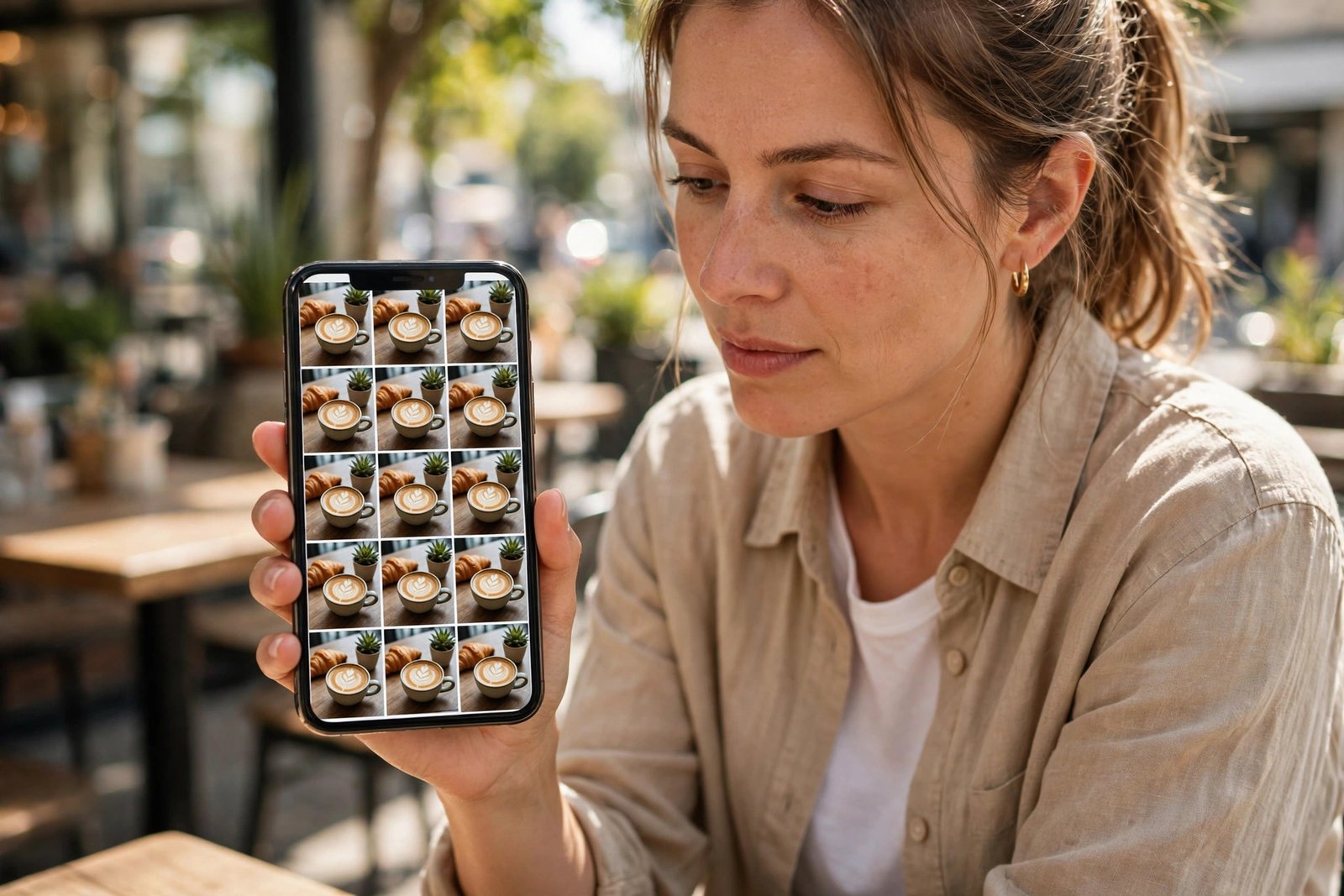
Why Duplicate Photos Pile Up So Fast
Duplicates are rarely your fault. Burst mode fires off dozens of shots in seconds. Messaging apps save every photo someone sends you, sometimes twice — once in the chat and once in your gallery. Editing an image often creates a second copy, and backing up and restoring a phone can re-import photos you already had.
Each duplicate seems tiny, but photos add up. A single high-resolution photo can be several megabytes, and hundreds of duplicates can quietly swallow multiple gigabytes. That is storage that could hold new memories, apps, or a system update that keeps refusing to install because your phone is “full.”
Before You Delete Anything: The Safety Rule
Duplicates are safe to remove — originals are not. So before any cleanup, make sure your photos are backed up somewhere you trust, such as iCloud, Google Photos, or a computer. That way, even a mistaken tap is recoverable.
Then follow one golden rule: review before you delete in bulk. Built-in duplicate tools are very good, but “similar” is not always “identical.” A tool might group two nearly identical portraits where one has eyes open and the other does not — and only you know which one matters. A quick glance beats a regretful restore.
How to Delete Duplicate Photos on iPhone
Apple built duplicate detection right into the Photos app, and it is wonderfully simple:
- Open the Photos app.
- Scroll down to Utilities and tap Duplicates.
- You will see pairs or groups of identical photos and videos, with the file size shown.
- Tap Merge on a group to keep the highest-quality version and delete the rest.
- To clear many at once, tap Select, choose several groups, then tap Merge.
Merging keeps the best copy — including edits, favorites, and metadata — and moves the extras to the Recently Deleted album, where they stay for 30 days just in case. Nothing is gone instantly, which is exactly how it should be.
Do not see a Duplicates album? It only appears when duplicates actually exist, and it can take a little while to appear after a big import. If your library is genuinely duplicate-free, congratulations — you are rarer than you think.
How to Delete Duplicate Photos on Android
Android does not have one single built-in duplicates album, but Google Photos and the Files app cover you nicely. In Google Photos:
- Open Google Photos and tap your profile picture.
- Look for storage or cleanup suggestions, including stacks of similar photos.
- Review the suggested groups and remove the copies you do not need.
For a deeper clean, open the Files by Google app (or your phone maker’s Files app) and check its cleanup suggestions, which often flag duplicate files and large images. Samsung owners can also use the Gallery app’s suggestions and the storage cleaner in Device Care.
If you want a dedicated duplicate finder, the Play Store offers several well-reviewed options. Pick one with strong ratings and a clear privacy policy, grant it photo access only for the cleanup, and remove that permission afterwards. Avoid apps that demand unrelated permissions or push aggressive subscriptions for a one-time tidy-up.
The Tricky Part: Similar Photos That Are Not Duplicates
True duplicates are exact copies. Similar photos are the harder category: ten frames of the same scene, each a fraction of a second apart. Automated tools may flag some of these, but choosing the keeper is a human job.
Here is a quick way to judge a burst: keep the sharpest frame, the one with the best expressions, and the one with the best composition — and let the rest go. If two photos are genuinely identical, keep one. If you hesitate for more than a few seconds over a photo, keep it; storage is cheaper than regret.
Stop Duplicates Coming Back
Cleaning once is satisfying; staying clean is the real win. A few small changes make a huge difference:
- Turn off auto-save in messaging apps. In WhatsApp, go to Settings, then Chats, and switch off “Save to Camera Roll” or “Media visibility.” You can still save individual photos you love, manually.
- Delete bursts on the spot. After a burst, pick your favorite frame right away and delete the rest while the moment is fresh.
- Skip the double download. If a photo is already in your cloud backup, do not download it again to your phone “just in case.”
- Clean up after events. A two-minute gallery tidy after a holiday, party, or photoshoot prevents a two-hour cleanup months later.
How Much Space Will You Actually Save?
It depends on your habits, but many people recover anywhere from a few hundred megabytes to several gigabytes. Heavy burst shooters and enthusiastic group-chat savers tend to save the most. Check your storage before and after — Settings, then Storage on either platform — and enjoy the satisfying sight of that free-space number climbing.
And if you are still short on space after clearing duplicates, the next culprits are usually old videos, downloaded media, and apps you forgot you installed. Duplicates are simply the easiest, safest place to start.
A Lighter Gallery, A Happier Phone
A tidy photo library is more than a storage trick. It makes your memories easier to find, your backups faster, and your phone noticeably happier. Spend fifteen minutes merging duplicates today, switch off auto-save in your messaging apps, and future you — scrolling through a gallery of keepers instead of clones — will be very grateful.
Pingback: How to Recover Deleted Photos on iPhone and Android -
Pingback: How to Free Up Storage on Android Without Deleting Your Photos -
Pingback: How to Clear Cache on Android and iPhone (And When You Should) -