
Take a good look at your laptop right now. Fingerprints on the screen, dust in the keyboard, a few crumbs that have taken up permanent residence between the keys — it happens to every laptop, and it happens fast. A dirty laptop is not just ugly: a grimy screen strains your eyes, a dusty keyboard can make keys stick, and blocked vents can even make the whole machine run hotter.
The catch is that laptops are more delicate than they look. The wrong cleaner, a soaking-wet cloth, or a blast of compressed air in the wrong place can damage coatings, push dirt deeper, or even kill a key. This guide walks through the safe way to do it — the tools to use, the mistakes to avoid, and a routine that keeps your laptop looking and feeling brand new.
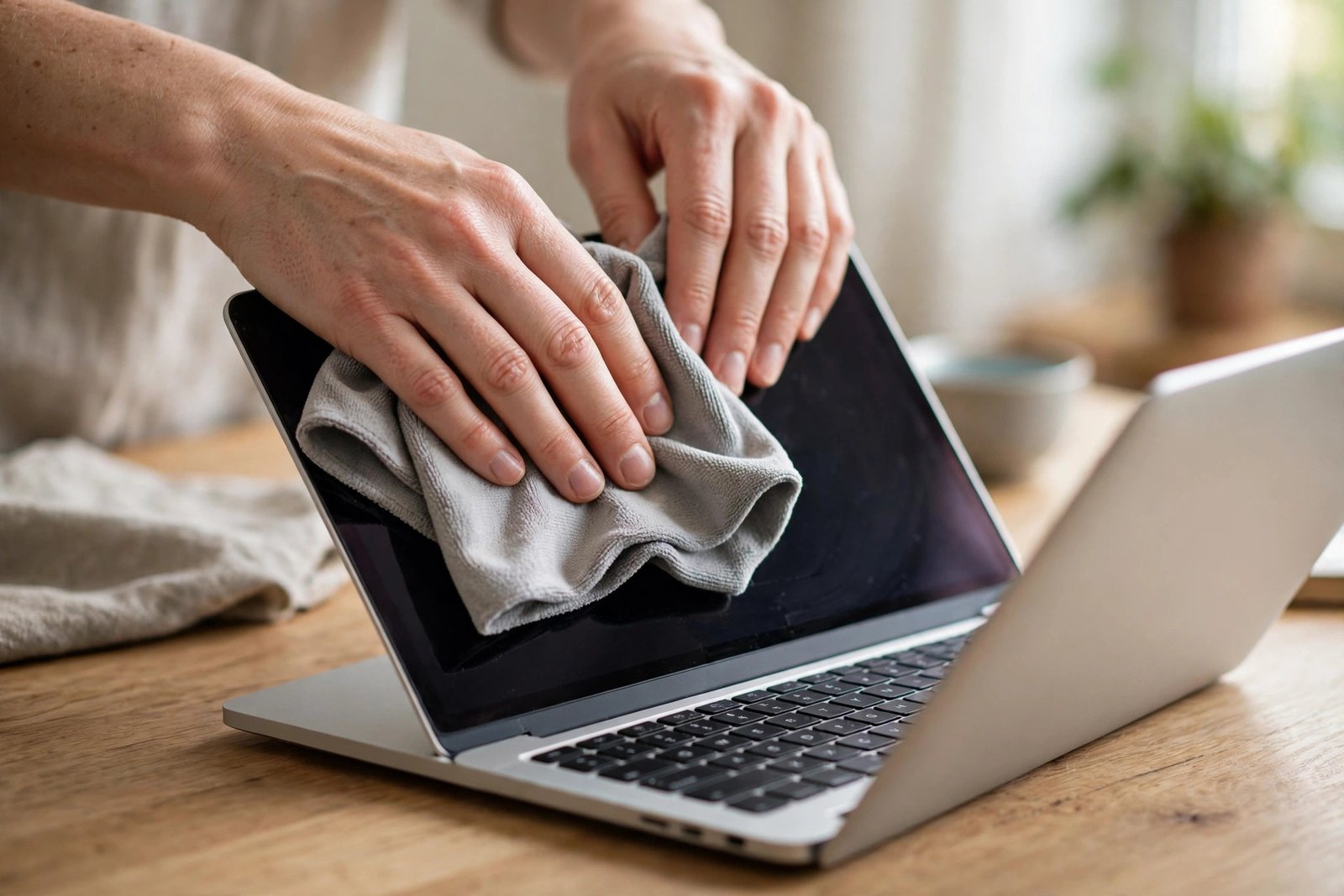
1. Before You Start: The Golden Rules
Five rules keep every cleaning session safe, whatever laptop you own:
- Power off and unplug. Shut the laptop down completely and disconnect the charger. A dark, powered-off screen also makes smudges much easier to see.
- Never spray liquid directly onto the laptop. Always dampen the cloth first, then wipe. Liquid sprayed on a screen or keyboard can seep into edges and connectors.
- Use a soft cloth only. Microfiber is ideal. Paper towels, tissues, and rough towels can scratch screens and leave lint behind.
- Less liquid is more. The cloth should be barely damp, never dripping. If you can squeeze water out of it, it is too wet.
- Check your manual first. Some manufacturers warn against certain cleaners on coated screens. A quick search for your model plus “cleaning” settles any doubt.
2. What You Need (and What to Avoid)
Safe tools
- A clean microfiber cloth (two is better — one damp, one dry)
- Distilled water, or a screen cleaner made specifically for electronics
- A soft brush or a can of compressed air for the keyboard
- Cotton swabs for tight corners and key edges
- A small amount of isopropyl alcohol (70%) for stubborn keyboard grime — on the keys only, never sloshed around
Never use these
- Window cleaner and ammonia-based sprays: These can strip the anti-glare coating off modern laptop screens.
- Bleach, acetone, or abrasive cleaners: Far too harsh for any laptop surface.
- Paper towels and tissues: Surprisingly abrasive, and they shed fibres everywhere.
- A vacuum cleaner on the keyboard: Static and strong suction can damage delicate key mechanisms.
3. Cleaning the Screen, Step by Step
Start with the screen, while your cloth is cleanest:
- Dry wipe first. Gently wipe the screen with a dry microfiber cloth in straight lines to lift loose dust. Dust is the enemy — wiping it around with a wet cloth can drag grit across the coating.
- Dampen, do not soak. Lightly dampen a second microfiber cloth with distilled water or screen cleaner. Wring it out well.
- Wipe gently. Use light, even pressure in one direction. Never press hard — laptop screens flex, and pressure can damage pixels.
- Dry it off. Follow immediately with the dry cloth to remove any moisture before it dries into streaks.
- Stubborn spots: For a stuck-on mark, hold the damp cloth on the spot for a few seconds to soften it, then wipe gently. Patience beats pressure every time.
4. Cleaning the Keyboard Without Breaking It
Keyboards collect the worst of it — crumbs, dust, skin oils, and the occasional coffee splash survivor. Work from loose dirt to stuck dirt:
- Shake it out — carefully. Hold the laptop upside down over a bin at a slight angle and tap the base gently. Most crumbs will fall right out.
- Blow out the dust. Use short bursts of compressed air, holding the can upright and at an angle, so dust blows out rather than deeper in. Keep the nozzle a few inches away.
- Brush between the keys. A soft brush sweeps out what air misses, especially around the edges of larger keys like the spacebar.
- Wipe the key tops. Dampen a microfiber cloth with a little water, wring it well, and wipe each row of keys. For grimy keys, a cotton swab lightly dampened with 70% isopropyl alcohol works wonders — just keep it away from the screen.
- Do not pry keys off. Unless your laptop is specifically designed for removable keycaps, pulling keys off risks snapping the tiny clips underneath. Cleaning around them is almost always enough.
5. Do Not Forget the Rest of the Laptop
While you are at it, give the whole machine a once-over:
- The lid and palm rest: Wipe with a barely damp microfiber cloth to remove fingerprints and oils. The palm rest collects skin oils that can discolour the finish over time.
- The trackpad: Wipe gently with a damp cloth and dry immediately. A clean trackpad tracks your finger far more accurately.
- The vents: Use compressed air in short bursts to clear dust from vents and fan grilles. Blocked vents are a leading cause of laptops running hot and loud.
- The ports: A dry soft brush clears dust from USB and charging ports. Never poke metal objects into a port.
6. How Often Should You Clean?
A little routine beats a big rescue mission:
- Weekly: A quick dry wipe of the screen and a brush over the keyboard — two minutes, huge difference.
- Monthly: A proper damp-cloth clean of screen, keys, and palm rest, plus compressed air in the vents.
- After travel or eating at the desk: Shake out crumbs and wipe the keys — crumbs left for months become cement.
7. Mistakes That Ruin Laptops
Most cleaning damage comes from enthusiasm, not neglect. Avoid these classics:
- Spraying cleaner directly onto the screen or keyboard
- Using a soaking-wet cloth that drips into the hinge or ports
- Scrubbing hard at a mark instead of softening it first
- Blowing compressed air with the can upside down, which sprays freezing liquid
- Cleaning while the laptop is on and plugged in, so a stray drop can short something
A clean laptop is a small pleasure that pays off every single day — a clearer screen, keys that feel crisp, fans that stay quiet, and a machine that looks like it is worth looking after. Ten minutes with a microfiber cloth once a month is all it takes, and your laptop will thank you with years of good service.
Related Guides
- How to Speed Up a Slow Windows 11 Laptop (10 Proven Fixes)
- How to Free Up Disk Space on Windows 10 and 11 (C: Drive Full?)
- How to Cast Your Phone to Your TV: The Complete Screen Mirroring Guide
- How to Take a Screenshot on Any Device (Windows, Mac, iPhone, Android)
- How to Screen Record on iPhone, Android, Windows, and Mac
Pingback: How to Free Up Disk Space on Windows 10 and 11 (C: Drive Full?) -
Pingback: How to Take a Screenshot on Any Device (Windows, Mac, iPhone, Android) -
Pingback: How to Speed Up a Slow Windows 11 Laptop (10 Proven Fixes) -