
“Just clear your cache.” It’s the “have you tried turning it off and on again” of phone advice — the thing everyone suggests when your phone starts acting weird. An app keeps crashing? Clear the cache. Phone running slow? Clear the cache. Mercury in retrograde? Clear the cache.
But here’s what nobody tells you: half the time, clearing your cache does absolutely nothing. And the other half, it actually helps a lot. The trick is knowing which situation you’re in. In this guide, I’ll explain what cache actually is, show you exactly how to clear cache on Android and iPhone, and — just as importantly — tell you when you shouldn’t bother.
What Is Cache, Really?
Let’s skip the technical jargon. Cache is just your phone saving copies of things so it doesn’t have to download or compute them again. That’s it.
When you open Instagram, your phone saves profile pictures and thumbnails so the app loads faster next time. When you visit a website, your browser saves images and page elements. When Spotify plays a song, it keeps a copy so replaying it is instant. This is cache doing its job — making everything faster and using less data.
Problems start when cached files get corrupted or outdated. Maybe an app updated but is still using old cached files, causing glitches. Maybe a website changed but your browser keeps showing the old version. That’s when clearing the cache earns its reputation as a fix — you’re essentially forcing the app to start fresh.
The key insight: cache is not junk. It’s useful stuff your phone saved on purpose. Clearing it isn’t “cleaning” your phone the way you’d take out the trash.
When Clearing Cache Actually Helps (And When It Doesn’t)
Let me save you some time. Here’s when clearing cache is worth doing:
- An app keeps crashing. This is the #1 legitimate reason. Corrupted cache files are a genuinely common cause of app misbehavior.
- An app is showing outdated content. Old posts, wrong images, stale information that won’t refresh — clearing cache forces a fresh load.
- A website looks broken in your browser but works fine on other devices. Your browser is probably clinging to old cached files.
- An app is taking up way too much storage. Some apps (looking at you, social media apps) hoard gigabytes of cache. Clearing it frees space without losing anything important.
And here’s when it’s a waste of time:
- Your phone is “slow” in general. Clearing cache won’t speed up an aging phone. It might even make things temporarily slower, because now everything has to be re-downloaded and rebuilt.
- As regular “maintenance.” Those “phone cleaner” apps that promise to boost performance by clearing cache? They’re mostly placebo. Your phone manages its own cache just fine.
- To free up a tiny bit of space. If you’re desperate for storage, cache-clearing gives you temporary relief at best — the cache just rebuilds itself.
Clearing cache every week as “maintenance” usually backfires: it just makes your apps reload everything from scratch.
How to Clear Cache on Android
Android makes this easy. You can clear cache for individual apps, which is exactly what you want — targeted fixes, not nuclear options.
Clear cache for a specific app
- Open Settings on your Android phone.
- Tap Apps (on Samsung phones: Apps, then tap the app).
- Find and tap the misbehaving app in the list. If you don’t see it, tap “See all apps.”
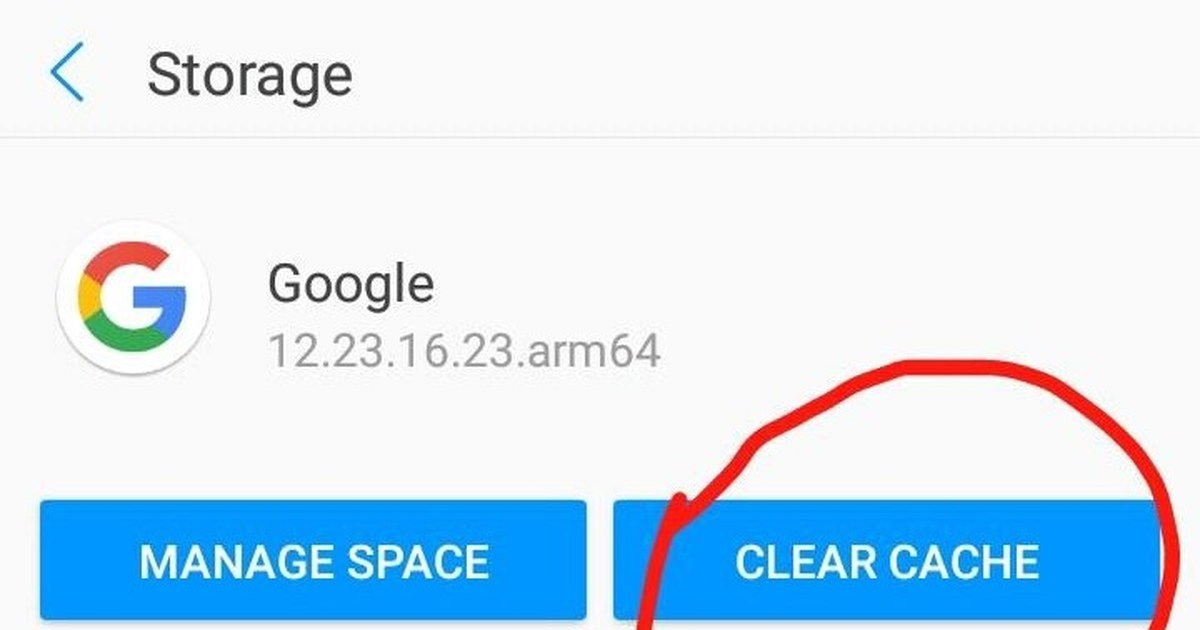
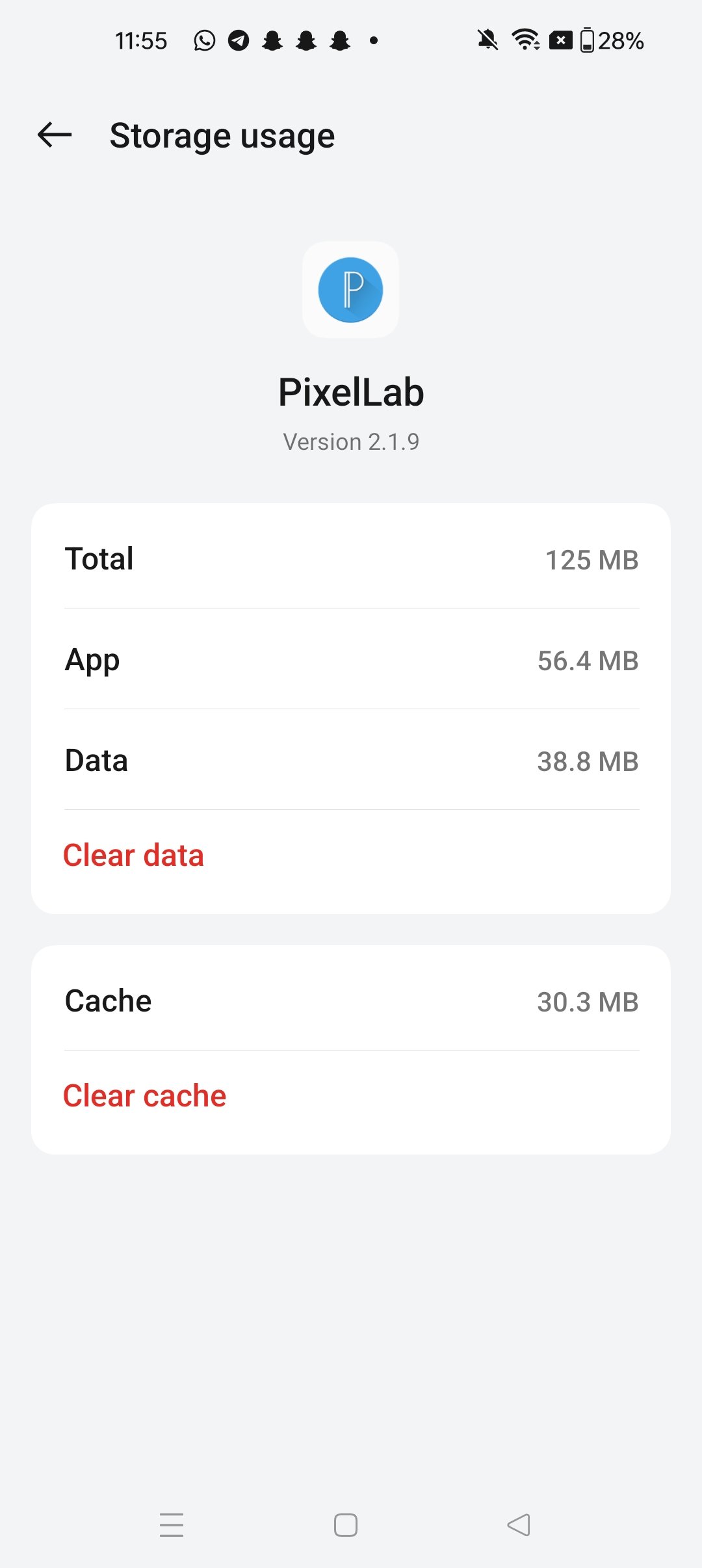
- Tap Storage & cache (or just Storage on some phones).
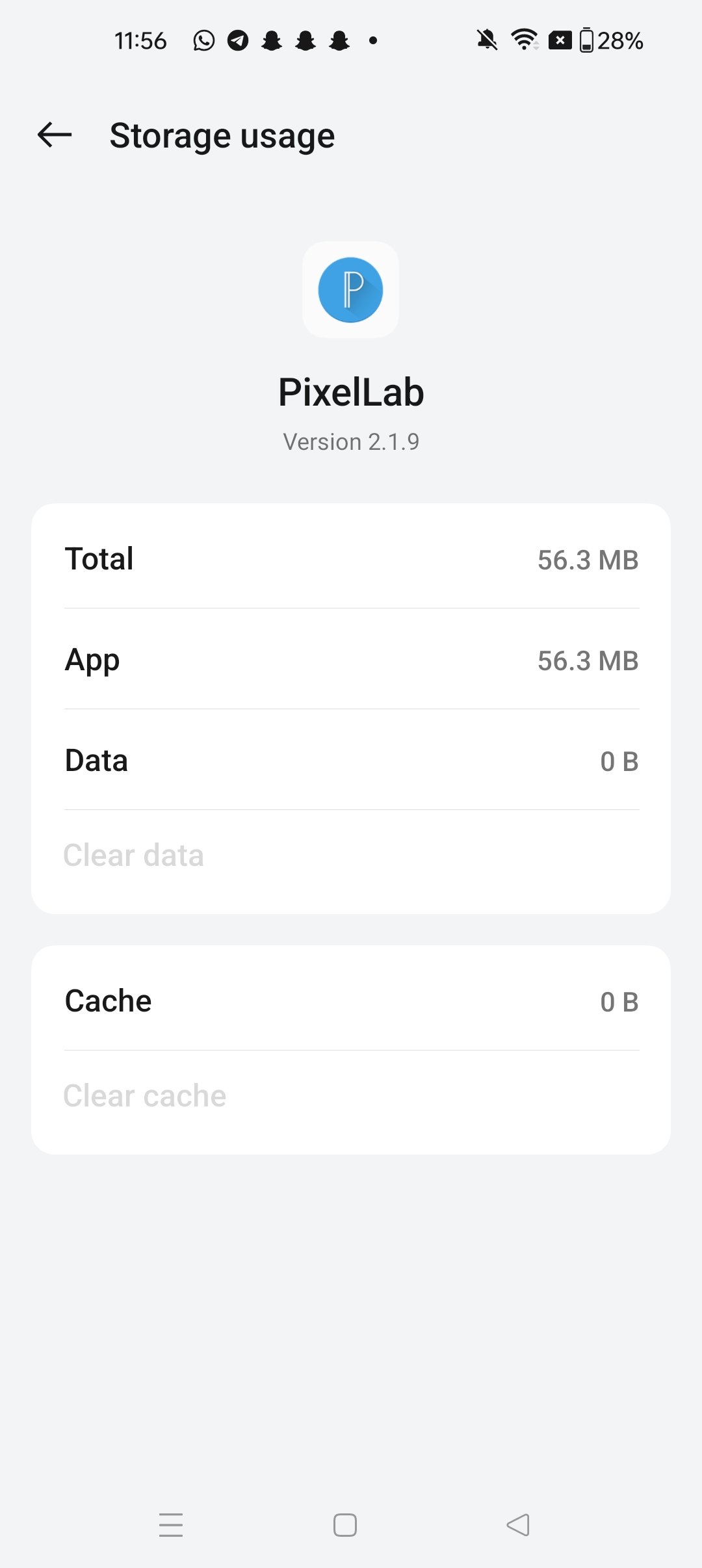
- Tap Clear cache. Done.
That’s it. Your app’s settings, logins, and data are untouched — only the temporary cached files get deleted. The app will rebuild its cache naturally as you use it.
Clear your browser cache (Chrome)
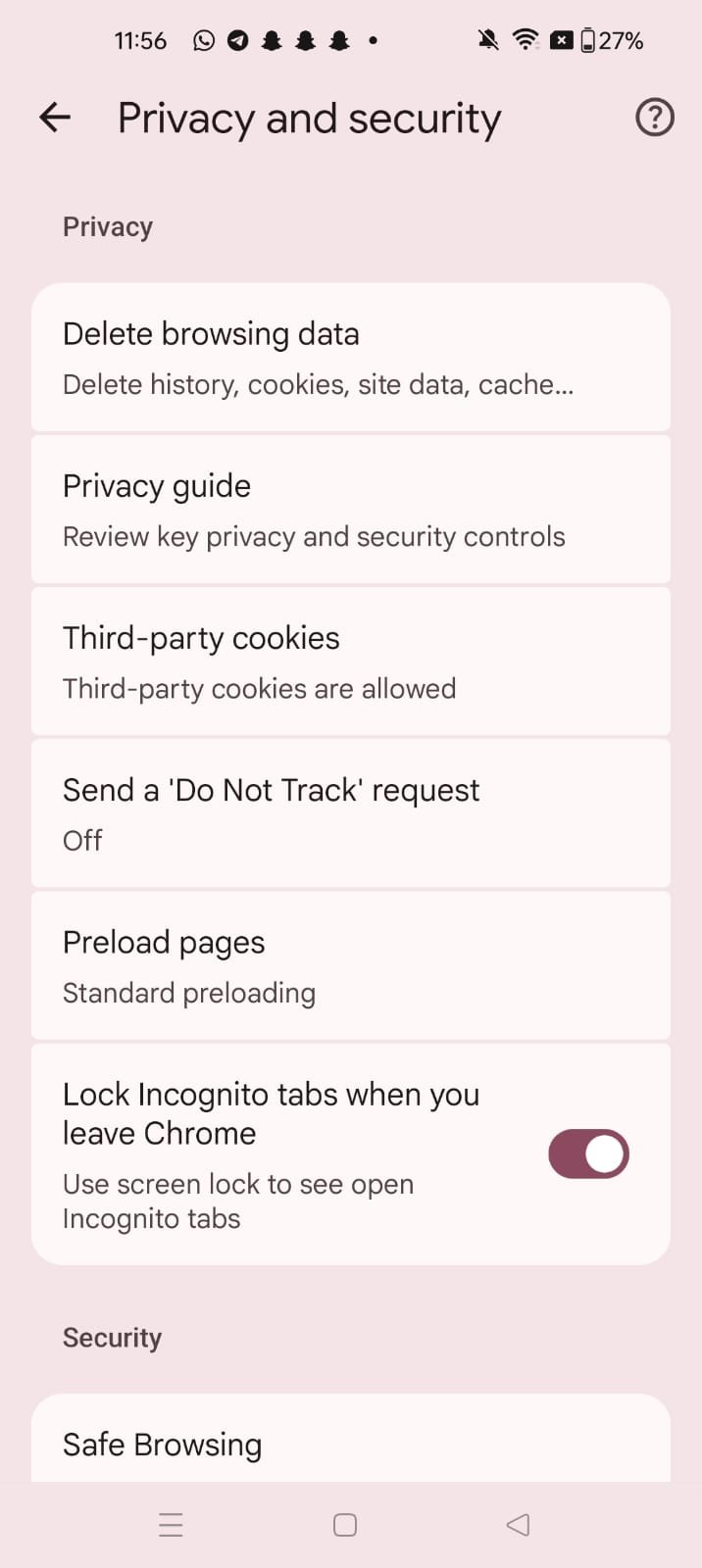
- Open Chrome and tap the three-dot menu in the top right.
- Tap History, then “Clear browsing data.”
- Check “Cached images and files.” Leave the other boxes unchecked unless you also want to clear history or cookies.
- Choose a time range (start with “Last hour” or “Last 24 hours” — no need to nuke everything).
- Tap “Clear data.”
A warning about “Clear storage” vs “Clear cache”
On that same Storage screen, you’ll see two buttons: Clear cache and Clear storage (sometimes called “Clear data”). Do not tap Clear storage unless you mean it. Clear cache only deletes temporary files. Clear storage wipes the app back to a fresh install — you’ll be logged out and lose all app data. Tapping the wrong one can cost you game progress and other local data, so double-check which button you press.
How to Clear Cache on iPhone
Here’s where iPhone users get frustrated: iOS doesn’t have a universal “clear cache” button. Apple handles cache management automatically behind the scenes, which is great until an app actually needs a manual cache clear. Then you’re stuck with workarounds. Here they are, from least to most drastic:
Option 1: Offload the app (keeps your data)
Offloading deletes the app itself but keeps your documents and data. When you reinstall, it’s like a fresh app with your stuff intact. This clears the app’s cache effectively.
- Go to Settings > General > iPhone Storage.
- Find the problematic app in the list (they’re sorted by size — the biggest offenders are at the top).
- Tap the app, then tap “Offload App.”
- Tap the app icon on your home screen to reinstall it.
Offloading is the simplest first fix on iPhone: it solves most app glitches and takes about a minute.
Option 2: Delete and reinstall (nuclear option)
If offloading doesn’t fix it, delete the app entirely and reinstall it from the App Store. Unlike offloading, this wipes the app’s data too — so make sure you’re logged into any accounts and your data is backed up or synced first. For most apps (social media, streaming, news), your data lives in the cloud anyway, so this is safe. For games or apps with local data, double-check first.
Option 3: Clear Safari’s cache
For browser issues specifically:
- Go to Settings > Apps > Safari (on older iOS versions: Settings > Safari).
- Tap “Clear History and Website Data.”
- Confirm. This clears Safari’s cache, cookies, and browsing history.
Note that this also logs you out of websites in Safari, so you’ll need to sign back in. Annoying, but effective when a site is misbehaving.
Apple’s own steps for this are on its support page: Delete your Safari history, cache, and cookies on iPhone (https://support.apple.com/en-gu/105082).
What about third-party “cleaner” apps on iPhone?
Don’t bother. Apple doesn’t allow apps to clear other apps’ caches on iOS, so any “phone cleaner” app in the App Store is essentially decorative. Save your money and your time.
The One Thing You Should NOT Do
Please, I’m begging you: don’t install random “RAM booster” or “cache cleaner” apps that promise to speed up your phone. On Android, they’re mostly ad-filled junk that does what your phone already does automatically. On iPhone, they literally cannot work due to Apple’s restrictions.
Your phone already manages cache well. It clears old cache automatically when storage gets tight. Manual cache clearing is a troubleshooting tool, not a maintenance routine. Use it when something’s broken, not on a schedule.
Final Thoughts
So, should you clear your cache? Yes — when a specific app is misbehaving. On Android, it’s a 30-second fix in Settings. On iPhone, offloading the app does the trick. Both are safe and both genuinely fix real problems.
But if someone tells you to clear your cache to “speed up” a slow phone or as weekly maintenance, you can safely ignore them. Your phone isn’t a closet that needs tidying. It’s more like a kitchen — the cache is your mise en place, prepped and ready. You only throw it out when something’s gone bad.
Now go fix that one crashing app. You know the one.
Related Guides
- How to Free Up iPhone Storage Without Deleting Your Photos
- How to Free Up Storage on Android Without Deleting Your Photos
- How to Fix Slow WiFi: 12 Practical Ways to Speed Up Your Internet
- How to Set Up Focus Mode on iPhone and Android (And Finally Stop the Constant Pings)
- How to Delete Duplicate Photos on iPhone and Android (Without Losing a Single Memory)
Pingback: How to Check Your Mobile Data Usage and Stop Apps Eating Your Data -
Pingback: How to Check Battery Health on iPhone and Android (And What the Numbers Actually Mean) -
Pingback: How to Set Up Focus Mode on iPhone and Android (And Finally Stop the Constant Pings) -