
Your WiFi was blazing last month, and now videos buffer at the worst moments. Before you blame your internet provider, consider a sneakier possibility: someone you don’t know might be riding your WiFi. Neighbors, the previous tenant’s friends, or that one guest whose phone auto-connects every time they walk past — all quietly sipping your bandwidth.
The good news: you can see every device on your network in about two minutes, figure out which ones shouldn’t be there, and lock the door behind them. Here’s how.
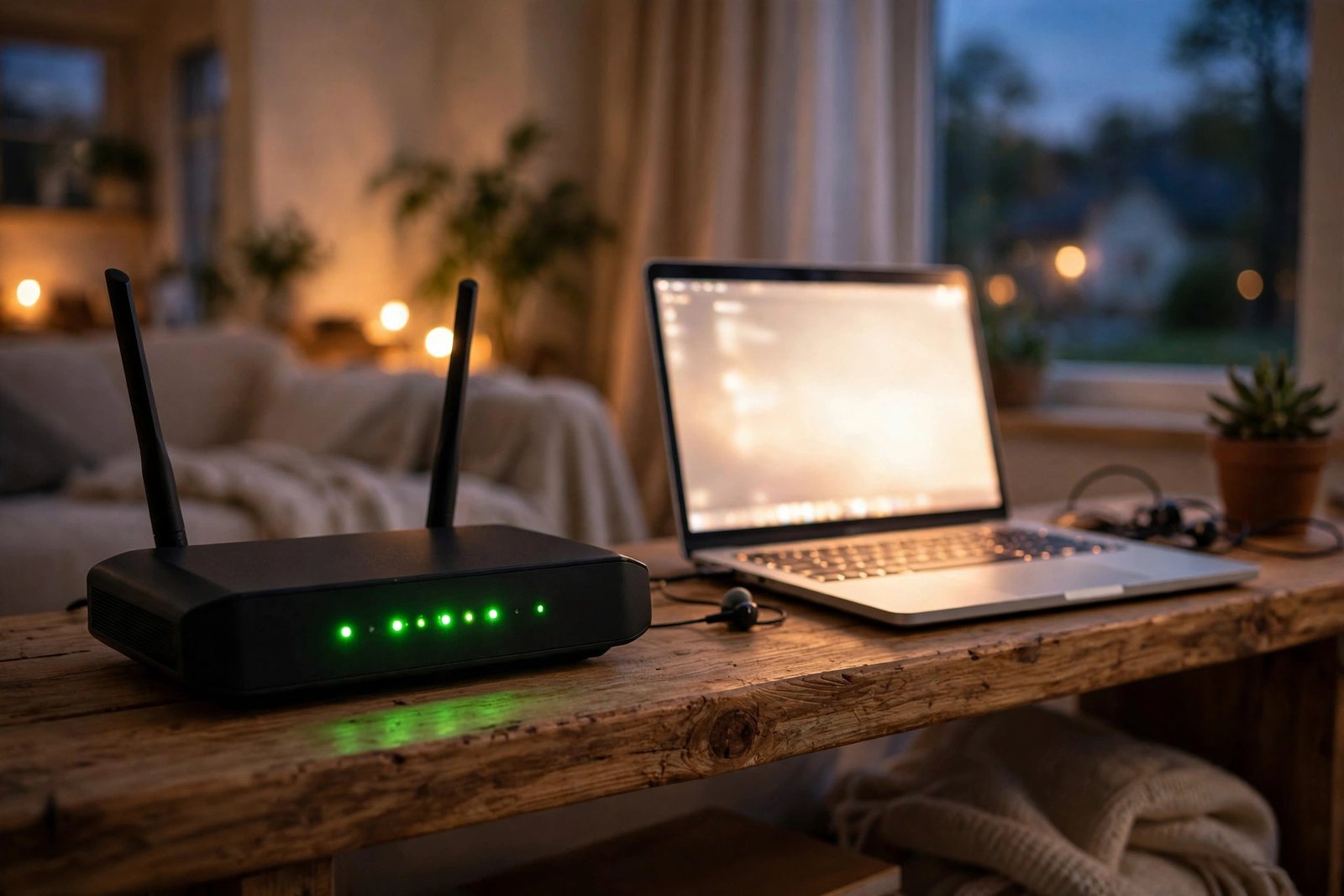
Method 1: Check Your Router’s Device List (Most Accurate)
Your router keeps a real-time roster of every connected device. It’s the single most reliable way to check who’s on your WiFi:
- Find your router’s login address — it’s usually printed on a sticker on the router itself, often 192.168.1.1 or 192.168.0.1.
- Open a browser on a device connected to your WiFi and type that address into the address bar.
- Log in with the router’s admin username and password. If you never changed them, check the sticker on the router (common defaults are admin/admin or admin/password).
- Look for a page called Connected Devices, Device List, Attached Devices, or Client List. Every router brand names it slightly differently, but it’s always there.
You’ll see a list of device names, and possibly their MAC addresses and IP addresses. Now comes the detective work: count the devices and compare against what you actually own. Two phones, a laptop, a smart TV, and the robot vacuum — but the list shows twelve entries? Something’s off.
Method 2: Use a Free WiFi Scanner App (Easiest)
If router logins make your eyes glaze over, a scanner app does the same job with a friendlier face. The most popular is Fing (free for iPhone and Android):
- Install Fing from the App Store or Google Play.
- Make sure your phone is connected to your home WiFi.
- Open the app and tap Scan. Within seconds, it lists every device on your network.
Fing is clever — it identifies device types and brands (“Samsung phone,” “Amazon Echo,” “Unknown device”), which makes spotting strangers much easier than staring at a router’s cryptic list. Tap any device to see when it first appeared, which helps you catch new freeloaders.
How to Spot Devices That Don’t Belong
Seeing the list is only half the battle — you have to read it like a detective:
- Name everything you recognize. Walk through the list and account for every phone, laptop, tablet, TV, smart speaker, doorbell, and light bulb in your house. Smart homes rack up devices fast — don’t panic at a long list until you’ve counted yours.
- “Unknown device” is not automatically an intruder. Cheap smart plugs, old printers, and some IoT gadgets show up as nameless entries. If you’re unsure, turn a suspect device off and rescan — if it disappears, mystery solved.
- Watch for patterns. A device that only appears late at night, or one whose brand you don’t own (you’re an iPhone household but there’s a Huawei on the list), deserves a closer look.
- Check the timing. If your slowdowns started the week the new neighbors moved in and a mystery device appeared the same week — well, coincidences happen, but routers keep logs.
How to Kick Them Off Your Network
Found a freeloader? Here’s the eviction notice:
- Change your WiFi password. This is the nuclear option and the most effective one. Log into your router, go to Wireless Settings, and set a new, strong password (12+ characters, mixed letters, numbers, and symbols). Every device gets disconnected instantly — including the freeloaders — and only people you share the new password with can get back on.
- Block the specific device. Many routers let you block individual devices by MAC address from that same Connected Devices page. This is surgical: the freeloader can’t reconnect, but your family’s devices are untouched. (A tech-savvy freeloader can get around MAC blocking by spoofing a new address, so treat this as a delaying tactic, not a fortress.)
- Turn off WPS. While you’re in the router settings, disable WPS (WiFi Protected Setup). It’s the push-button connect feature — convenient, but it has well-known security flaws that let people join without the password.
You’ll need to reconnect all your own devices with the new password afterward — a small price for a clean network. Keep the new password somewhere safe, like a password manager.
Lock Your Network Down So It Doesn’t Happen Again
Evicting a freeloader is satisfying, but prevention is better. Five minutes of hardening now saves you from repeating this:
- Change the router’s admin password too. The WiFi password keeps strangers off your network; the admin password keeps them out of your router’s settings. If you never changed the factory admin login, you are leaving the door wide open.
- Use WPA3 (or at least WPA2-AES) encryption. In your router’s wireless security settings, make sure you’re not on the ancient WEP standard — it’s crackable in minutes. WPA2-AES is the minimum; WPA3 is better if your router supports it.
- Update your router’s firmware. Manufacturers patch security holes regularly. Check the router’s admin panel for a firmware update button, or the manufacturer’s website for your model.
- Set up a guest network. Most modern routers can broadcast a second network for visitors. Give guests the guest password, keep your main password private — and turn the guest network off when nobody’s visiting.
- Rescan monthly. Make it a habit: open Fing once a month and glance at the device list. Thirty seconds of vigilance catches freeloaders early.
Final Thoughts
A slow WiFi connection isn’t always your provider’s fault — sometimes you’re unknowingly sharing your bandwidth with the whole neighborhood. Two minutes with your router’s device list or a free app like Fing shows you exactly who’s connected, and a fresh WiFi password evicts the freeloaders in one move.
Check your network tonight. If every device on the list belongs to you, great — at least you’ll know. And if one doesn’t? Well, now you know exactly what to do about it.
Related Guides
- How to Set Up a Guest WiFi Network (and Why You Should)
- How to Find Your WiFi Password on Any Device (Windows, Mac, iPhone, Android)
- How to Fix Slow WiFi: 12 Practical Ways to Speed Up Your Internet
- How to Set Up a VPN: A Beginner’s Guide to Browsing Safely
- Bluetooth Not Working? 12 Fixes to Get You Paired Again
Pingback: How to Set Up a VPN: A Beginner's Guide to Browsing Safely -
Pingback: Bluetooth Not Working? 12 Fixes to Get You Paired Again -
Pingback: How to Find Your WiFi Password on Any Device (Windows, Mac, iPhone, Android) -
Pingback: How to Set Up a Guest WiFi Network (and Why You Should) -
Pingback: How to Fix Slow WiFi: 12 Practical Ways to Speed Up Your Internet -
Pingback: How to Check Your Mobile Data Usage and Stop Apps Eating Your Data -