
In This Guide
- Step 1: Find Out What’s Eating Your Space
- Step 2: Offload Apps You Rarely Use
- Step 3: Tame the Messages Monster
- Step 4: Let iCloud Photos Shrink Your Library
- Step 5: Flush the Hidden Cache Hogs
- Step 6: Clear Out Finished Downloads
- Step 7: Shrink Your Chat App Media
- Step 8: The Last-Resort Power Moves
- Quick Answers to Common Questions
- Wrap-Up
Nothing kills the vibe like that dreaded pop-up: “iPhone Storage Full.” No new photos, no app updates — and your photos probably aren’t even the problem. iPhones fill up on invisible clutter: abandoned apps, old message attachments, bloated caches, and finished downloads.
This guide shows how to free up iPhone storage without deleting a single precious photo: offload apps, trim message baggage, clear hidden caches, and let iCloud do the heavy lifting. Twenty minutes of spring cleaning, several gigabytes back.
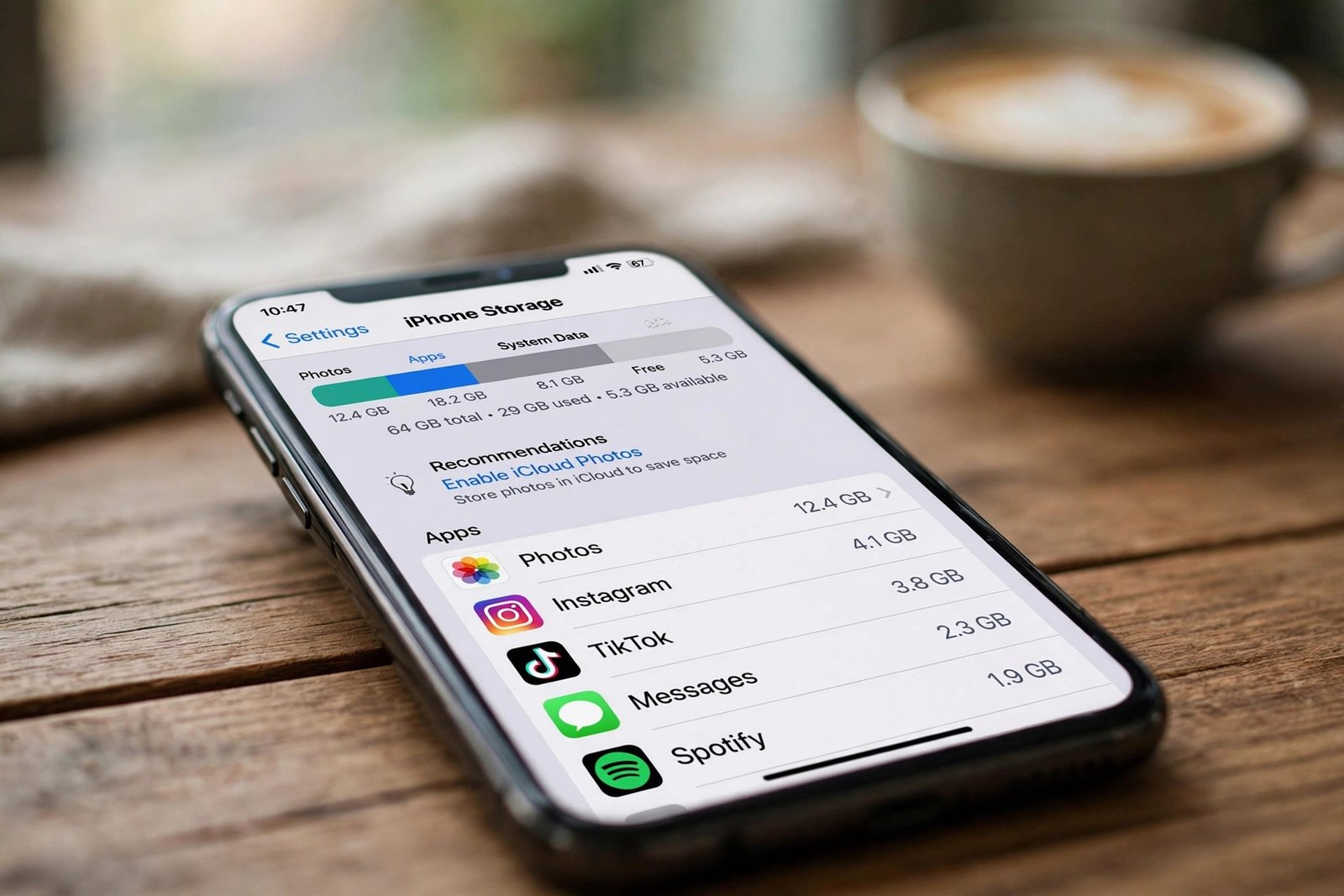
Step 1: Find Out What’s Eating Your Space
Before touching anything, play detective — your iPhone keeps a detailed map of its own clutter.
- Open Settings > General > iPhone Storage and wait while the colored bar fills in.
- Study the breakdown — photos, apps, messages, system data — then scroll to the app list below it.
That list is gold: every app sorted by size with a “Last Used” date. One or two shockingly large offenders usually explain most of the problem. Keep this screen handy — it’s your hit list.
Step 2: Offload Apps You Rarely Use
Offloading is Apple’s most underrated trick: it removes the app but keeps all its data — reinstall later and everything is exactly where you left it. Tap the cloud-marked icon anytime to bring it back.
- In iPhone Storage, tap “Offload Unused Apps” > Enable to automatically shelve apps you haven’t opened in a while.
- For a targeted strike, tap any app and choose Offload App — perfect for “I’ll use it someday” apps hogging half a gigabyte.
Skip this for apps you need offline — navigation, boarding passes before a flight.
Step 3: Tame the Messages Monster
Your text conversations are secret hoarders: every meme, video, GIF, and voice note ever sent you lives inside Messages — sometimes several gigabytes’ worth. Time for an intervention.
- In iPhone Storage, tap Messages — attachments appear neatly grouped into Top Conversations, Photos, Videos, and GIFs.
- Tap Edit and delete the chunky files you no longer need in bulk — conversation text stays intact; only attachments go.
Then cap the growth: go to Settings > Messages > Keep Messages and switch from Forever to 1 Year (or 30 days if you’re brave). Old threads quietly expire from now on.
Also enable iCloud for Messages in Settings > [your name] > iCloud > Messages: your full history syncs to the cloud while your phone keeps only lightweight versions.
Step 4: Let iCloud Photos Shrink Your Library
Photos can be a big chunk of storage — but deleting them is never the answer. Instead, let Apple store the heavyweight originals in iCloud while your phone keeps slim, device-sized copies that look identical on screen.
- Go to Settings > [your name] > iCloud > Photos.
- Turn on Sync this iPhone, then select Optimize iPhone Storage.
That’s it — the library can shrink to a fraction of its size, with full originals downloading automatically when you open or share a photo. One caution: it works best with a paid iCloud plan, since the free 5 GB fills up fast. If iCloud is full, photos simply stay on the phone — nothing gets deleted.
Step 5: Flush the Hidden Cache Hogs
Some of the biggest storage thieves aren’t your content at all — they’re caches inside apps. Social media apps are the worst: a “500 MB” app can quietly balloon to 3 GB of stored data.
Clear Safari’s cache in Settings > Apps > Safari > Clear History and Website Data — bookmarks and passwords stay put.
For Safari’s part of this, Apple’s steps are here: Delete your Safari history, cache, and cookies on iPhone
Reset the greediest social apps: iOS has no “clear cache” button for third-party apps, but delete-and-reinstall works perfectly. In iPhone Storage, tap the app, choose Delete App, then reinstall it from the App Store. Log back in to find your account exactly as you left it — minus gigabytes of cached junk. Oddly satisfying, like power-washing a driveway.
Step 6: Clear Out Finished Downloads
Finished playlists, binged series, and completed audiobooks are classic squatters — they’ve done their job and now sit on your storage rent-free.
- Music: in Library > Downloaded, swipe left on finished albums to remove the downloads.
- Podcasts: remove finished episodes — and turn on Remove Played Episodes in Settings > Podcasts so it never piles up again.
- Streaming apps: open each app’s Downloads section and delete anything you’ve already watched.
Step 7: Shrink Your Chat App Media
WhatsApp and Telegram can each stash gigabytes of photos and videos — especially in big group chats — and many phones auto-save every incoming image to the camera roll, duplicating it.
- Stop the auto-save: in WhatsApp go to Settings > Chats and turn off Save to Camera Roll. In Telegram, open Settings > Data and Storage and tighten Auto-Download Media.
- Clear the cache: WhatsApp’s Settings > Storage and Data > Manage Storage ranks chats by size — tap a chat and delete just the large videos, keeping the text. In Telegram, Settings > Data and Storage > Storage Usage offers a one-tap Clear Cache plus an auto-remove timer.
Step 8: The Last-Resort Power Moves
If the storage bar is still glowing red, two heavier options remain — both safe when done right.
- Back up and update iOS: outdated iOS versions sometimes trap phantom “System Data.” Back up first, then install the latest iOS in Settings > General > Software Update — updates often tidy up system storage automatically.
- The fresh start: as a true last resort, back up fully, then erase and restore in Settings > General > Transfer or Reset iPhone. Don’t skip the backup — this erases everything first.
Quick Answers to Common Questions
Will offloading an app delete my data? No — that’s the beauty of it. Only the app itself is removed; your documents, settings, and logins stay put and return when you reinstall.
Does “Optimize iPhone Storage” reduce photo quality? Not where it matters. On-screen versions look identical, and the full-resolution originals live in iCloud, ready whenever you zoom, edit, or print.
Will deleting WhatsApp media delete my chats?
No. In WhatsApp’s Manage Storage you can delete just the large videos and photos from a chat while keeping the text. The conversation stays intact — only the heavy attachments go.
Does iCloud free up space automatically?
Only if you turn on Optimize iPhone Storage for Photos and iCloud for Messages. With those on, your phone keeps lightweight versions while full originals live in iCloud. Without them, iCloud just backs up — it doesn’t shrink what’s on the phone.
What is “System Data” and can I delete it?
System Data is caches, logs, and temporary files iOS manages itself. You can’t delete it directly, but updating iOS, restarting the phone, and clearing Safari data usually shrink it. If it stays huge after that, a backed-up erase-and-restore is the last resort.
Is it safe to delete the Recently Deleted album?
Yes, if you’re sure you don’t need those photos back. Items there are already deleted from your library and only kept for recovery for a limited time — emptying it is one of the fastest ways to reclaim space.
How much free space should I keep on my iPhone?
Try to keep at least a few gigabytes free. When storage gets nearly full, iOS can’t download updates, apps can’t update, and the camera may refuse to take photos — the “Storage Full” pop-up is your warning to run through these steps.
Offload App vs Delete App
| Offload App | Delete App | |
|---|---|---|
| What is removed | The app itself only | The app and all its data |
| What stays | Documents, settings, logins | Nothing — everything is gone |
| Reinstall later | Everything returns exactly as you left it | You start from scratch |
| Best for | “I’ll use it someday” apps hogging space | Apps you truly never want again |
Wrap-Up
Most iPhones aren’t full because of photos — they’re full because of forgotten apps, ancient message attachments, bloated caches, and overstayed downloads. Work through the steps in order, checking the storage bar as you go, and you’ll likely free up gigabytes without sacrificing a single memory. Repeat every few months, keep automatic offloading on, and that “Storage Full” pop-up will become a distant memory.
Related Guides
- How to Free Up Storage on Android Without Deleting Your Photos
- How to Free Up iCloud Storage Without Paying Apple
- How to Free Up Google Drive Storage Without Upgrading Your Plan
- How to Clear Cache on Android and iPhone (And When You Should)
- iPhone Battery Draining Fast? 12 Settings to Change Right Now
Pingback: How to Clear Cache on Android and iPhone (And When You Should) -
Pingback: iPhone Battery Draining Fast? 12 Settings to Change Right Now -
Pingback: How to Check Your Mobile Data Usage and Stop Apps Eating Your Data -
Pingback: How to Factory Reset Your iPhone or Android (Safely — Without Losing a Thing) -
Pingback: How to Free Up Google Drive Storage Without Upgrading Your Plan -
Pingback: How to Transfer Photos From iPhone to a Windows PC (3 Easy Ways) -
Pingback: How to Free Up Storage on Android Without Deleting Your Photos -
Pingback: How to Check Battery Health on iPhone and Android (And What the Numbers Actually Mean) -
Pingback: How to Set Up Focus Mode on iPhone and Android (And Finally Stop the Constant Pings) -