
In This Guide
- What Focus Mode Actually Does
- How to Set Up Focus Mode on iPhone
- How to Set Up Focus Mode on Android
- The Golden Rule: Allow the Important, Silence the Rest
- Automate It So You Never Have to Think About It
- Common Focus Mode Mistakes to Avoid
- Your Attention Is Worth Protecting
Your phone buzzes. You glance down “just for a second.” Twenty minutes later you have watched three videos, replied to a group chat, and completely forgotten what you were doing. Sound familiar? It is not a lack of willpower — it is a phone designed to interrupt you, all day, every day.
Focus mode is the antidote. Built into both iPhone and Android, it lets you decide exactly who and what can reach you, and when. Set it up once, and your phone stops shouting for attention during work, sleep, study, or family time — while still letting the truly important stuff through. Here is how to make it work for you.

What Focus Mode Actually Does
Think of Focus mode as a polite bouncer for your phone. When it is on, notifications from apps and people you have not approved are silenced — they are not deleted, just held quietly until you are ready. Your phone still works perfectly; it simply stops interrupting you.
The beauty is in the control. You can create different modes for different parts of your life: a Work mode that only allows colleagues and work apps, a Sleep mode that silences everything except alarms and family, or a Personal mode that keeps work messages out of your evening. Each mode can have its own rules, its own schedule, and even its own home screen.
How to Set Up Focus Mode on iPhone
Apple’s Focus lives in Settings, and the setup takes only a few minutes:
- Open Settings, then tap Focus.
- Choose an existing mode — Do Not Disturb, Work, Sleep, or Personal — or tap the + to create a custom one.
- Under Allowed Notifications, tap People and add the contacts who can always reach you, such as family or your boss.
- Tap Apps and choose which apps may send notifications — perhaps your calendar and messages, but not social media.
- Tap Add Schedule to automate it: for example, Work mode from 9 a.m. to 5 p.m. on weekdays.
Two iPhone extras are worth switching on. Time Sensitive notifications lets genuinely urgent alerts — a delivery driver at your door, a security code — break through even when Focus is on. And Focus status lets your messages app tell contacts you are busy, so they know why you have not replied instantly.
How to Set Up Focus Mode on Android
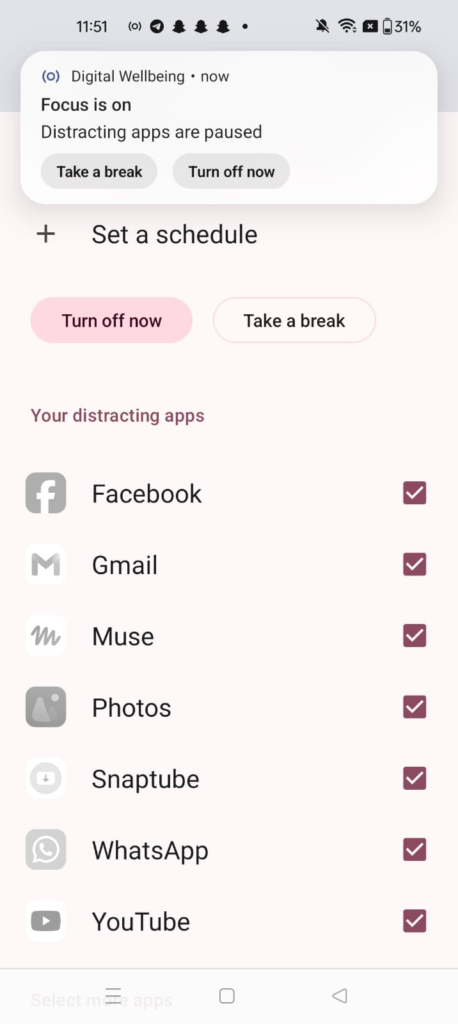
Android’s version is called Focus mode (inside Digital Wellbeing) on many phones, while Samsung and others also offer Modes and Routines. The Digital Wellbeing route works like this:
- Open Settings, then Digital Wellbeing and parental controls.
- Tap Focus mode.
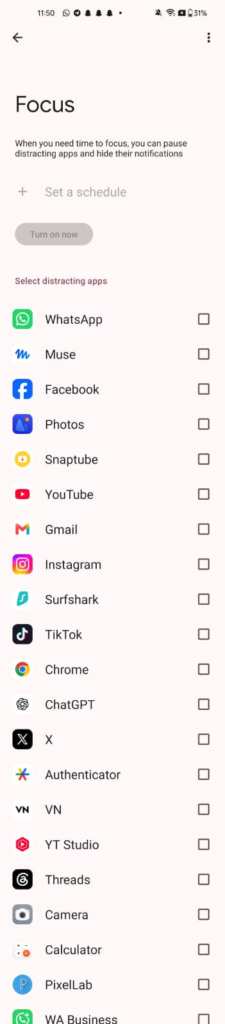
- Select the distracting apps you want to pause — social media, games, video apps, whatever pulls you in.
- Tap Turn on now, or set a schedule so it starts automatically at the same time each day.
While Focus mode is active, paused apps are greyed out and their notifications are silenced. Need a quick break? You can take a timed break of 5, 15, or 30 minutes, after which the apps pause themselves again — no willpower required.
For finer control, also explore Do Not Disturb in Settings, under Sound or Notifications. There you can choose which contacts and apps can break through, allow repeat callers (someone calling twice in quick succession is usually urgent), and schedule quiet hours overnight.
The Golden Rule: Allow the Important, Silence the Rest
The number one reason people abandon Focus mode is setting it too strictly and then missing something important — or too loosely, so nothing changes. The sweet spot is simple: allow people, silence apps.
Start by allowing a short list of people: your partner, close family, and anyone whose call you would never want to miss. Then allow only the apps tied to real responsibilities: phone calls, messages, and your calendar. Everything else — social feeds, shopping, games, news alerts — can wait. It will all still be there when Focus turns off, and most of it will feel far less urgent by then.
Automate It So You Never Have to Think About It
A Focus mode you have to remember to switch on is a Focus mode you will forget. Automation is what turns it from a feature into a habit. Schedule Work mode for office hours, Sleep mode for bedtime, and a wind-down mode for the hour before bed.
You can also tie modes to places and events. iPhones can activate a mode when you arrive at a location, like the office or gym, and Android routines can trigger quiet hours when you connect to a particular Wi-Fi network or at a set time. Set it once, and your phone starts behaving itself without you lifting a finger.
Common Focus Mode Mistakes to Avoid
A few traps catch almost everyone. First, do not silence your alarm — alarms still sound in Focus and Do Not Disturb modes, so your morning is safe. Second, remember that silenced notifications are not lost; they wait in your notification center, so check in when Focus ends rather than worrying you missed something.
Third, tell the people around you. If colleagues or family know you are in Focus mode until 5 p.m., they will not panic at a delayed reply — and they may even be inspired to set up their own. And finally, start small: one mode, one schedule, a handful of allowed contacts. You can always make it stricter later.
Your Attention Is Worth Protecting
Every ping is a tiny theft of attention, and attention is the one thing you cannot buy back. Focus mode does not ask you to use your phone less out of guilt — it simply hands you the remote control. Set up one mode today, automate it for tomorrow, and notice how much calmer, deeper, and more satisfying your work and evenings feel when your phone finally learns to wait its turn.
Official guides: Apple – Set up a Focus on iPhone (https://support.apple.com/en-ca/guide/iphone/iphd6288a67f/ios) and Turn on or schedule a Focus on iPhone (https://support.apple.com/guide/iphone/turn-a-focus-on-or-off-iph5c3f5b77b/ios); Google – Manage time on Pixel with Digital Wellbeing (https://support.google.com/pixelphone/answer/9137850) (Focus mode: Settings > Digital Wellbeing > Focus mode).
Frequently Asked Questions
Does Focus mode block my alarms?
No. Alarms still sound in Focus and Do Not Disturb modes, so your morning alarm is safe even with everything else silenced.
Will I miss important calls in Focus mode?
Not if you set it up right. Add the people who must always reach you under Allowed Notifications, and on both iPhone and Android you can allow repeat callers through, since a second call in quick succession is usually urgent.
Does Focus mode work the same on every Android phone?
Mostly, but names differ. Many Android phones have Focus mode inside Digital Wellbeing, while Samsung and others also offer Modes and Routines. The idea is the same — pick distracting apps, pause them on a schedule — but the exact menu names vary by brand.
Can I schedule Focus mode to turn on automatically?
Yes, and you should. Set Work mode for office hours and Sleep mode for bedtime so you never have to remember to switch it on. You can also tie modes to a location or a WiFi network on many phones.
Do silenced notifications disappear forever?
No. Silenced notifications are not deleted — they wait quietly in your notification center until Focus ends, so you can catch up on your own terms.
iPhone Focus vs Android Focus mode
| iPhone Focus | Android Focus mode | |
|---|---|---|
| Where to find it | Settings > Focus | Settings > Digital Wellbeing > Focus mode (or Modes and Routines on Samsung) |
| Modes | Do Not Disturb, Work, Sleep, Personal, plus custom modes | Pauses chosen apps; Do Not Disturb handles allowed contacts separately |
| Allowed people | Allowed Notifications > People | Do Not Disturb settings for contacts and repeat callers |
| Breaks | No built-in timed break | Timed breaks of 5, 15, or 30 minutes, then apps pause again |
| Automation | Schedules and location triggers | Schedules and routines (e.g. on a WiFi network) |
Related Guides
- How to Schedule Text Messages on iPhone and Android (Never Miss a Birthday Text Again)
- How to Set Up Emergency SOS on iPhone and Android
- How to Free Up iPhone Storage Without Deleting Your Photos
- How to Clear Cache on Android and iPhone (And When You Should)
- How to Screen Record on iPhone, Android, Windows, and Mac
Pingback: How to Find a Lost Phone (iPhone and Android) — Even If It's on Silent -
Pingback: How to Schedule Text Messages on iPhone and Android (Never Miss a Birthday Text Again) -
Pingback: How to Clear Cache on Android and iPhone (And When You Should) -